Keyframes
Decide where the story is going.
A keyframe is a picture of an important moment. Instead of only saying “the scene changes,” show the beginning, the turning point and the ending. Kling 4.0 lists support for up to 10 keyframe images.
Useful for: a product reveal, a character entrance or a planned sequence.
Keep each step visually compatible. The model still has to invent the movement between your images.

Omni references
Show what you want to keep.
A reference is guidance, not necessarily the opening frame. Images can describe a character or setting; video can communicate motion or pacing. The official model supports a combined reference budget of up to 15 assets.
Useful for: keeping a character, product or visual style recognizable.
The individual limits overlap: up to 10 images, 5 videos with 30 seconds combined, and 7 subjects. They are not 22 separate slots.

Motion & camera
Make the viewer look in the right place.
A tracking shot follows a moving subject. A push-in moves closer. An orbit travels around the subject. Kling 4.0’s release focuses on more stable movement and better understanding of shot changes.
Useful for: action scenes, a product close-up or an emotional reveal.
Give the scene one clear action and a compatible camera path before adding complexity.

Native audio
Describe the sound of the scene.
The official model includes two-channel stereo and improved synchronization between speech and lip movement. Describe the speaker, spoken line and background sound separately so their roles are clear.
Useful for: dialogue, character scenes and atmospheric storytelling.
Review every spoken word and the timing. Language support is not a guarantee of perfect pronunciation or lip sync.

Longer scenes
Give an action room to unfold.
Kling 4.0 lists 3–30 second clips in a single generation. More time can fit an entrance, a reaction and an ending in the same scene instead of forcing everything into a few seconds.
Useful for: a complete short moment or a continuous camera move.
Start with fewer beats. A longer duration also gives details more time to drift.

Lifelike detail
Make small moments more convincing.
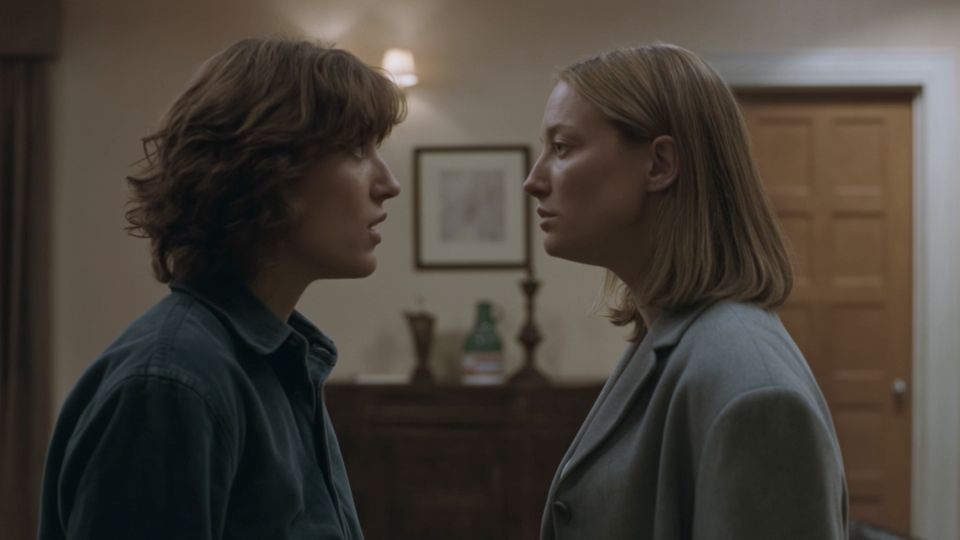
Faces, fabric, light and subtle gestures are central to the official demonstrations. A glance or a pause can carry a scene without a large amount of action.
Useful for: portraits, short drama and natural-looking lifestyle scenes.
Inspect hands, faces, background geometry, logos and text frame by frame before publishing.

Video editing
Change a detail without rewriting the whole scene.
The official model describes targeted edits to expressions, movement, camera direction, backgrounds and style. A focused request gives the edit a clear boundary.
Useful for: trying a new background or refining one action in an existing clip.
The official editing workflow accepts up to 5 clips, including one primary clip, with a combined limit of 30 seconds. It is not connected in this preview.

Language & style
Let the scene speak to its audience.
The release describes support for multiple languages, accents and visual styles, from natural-looking footage to animation. State the intended language, speaker and style clearly.
Useful for: localized dialogue, a character voice or a distinctive visual treatment.
Review pronunciation, lip sync, visible text and brand details. Multilingual support does not make every output publication-ready.