
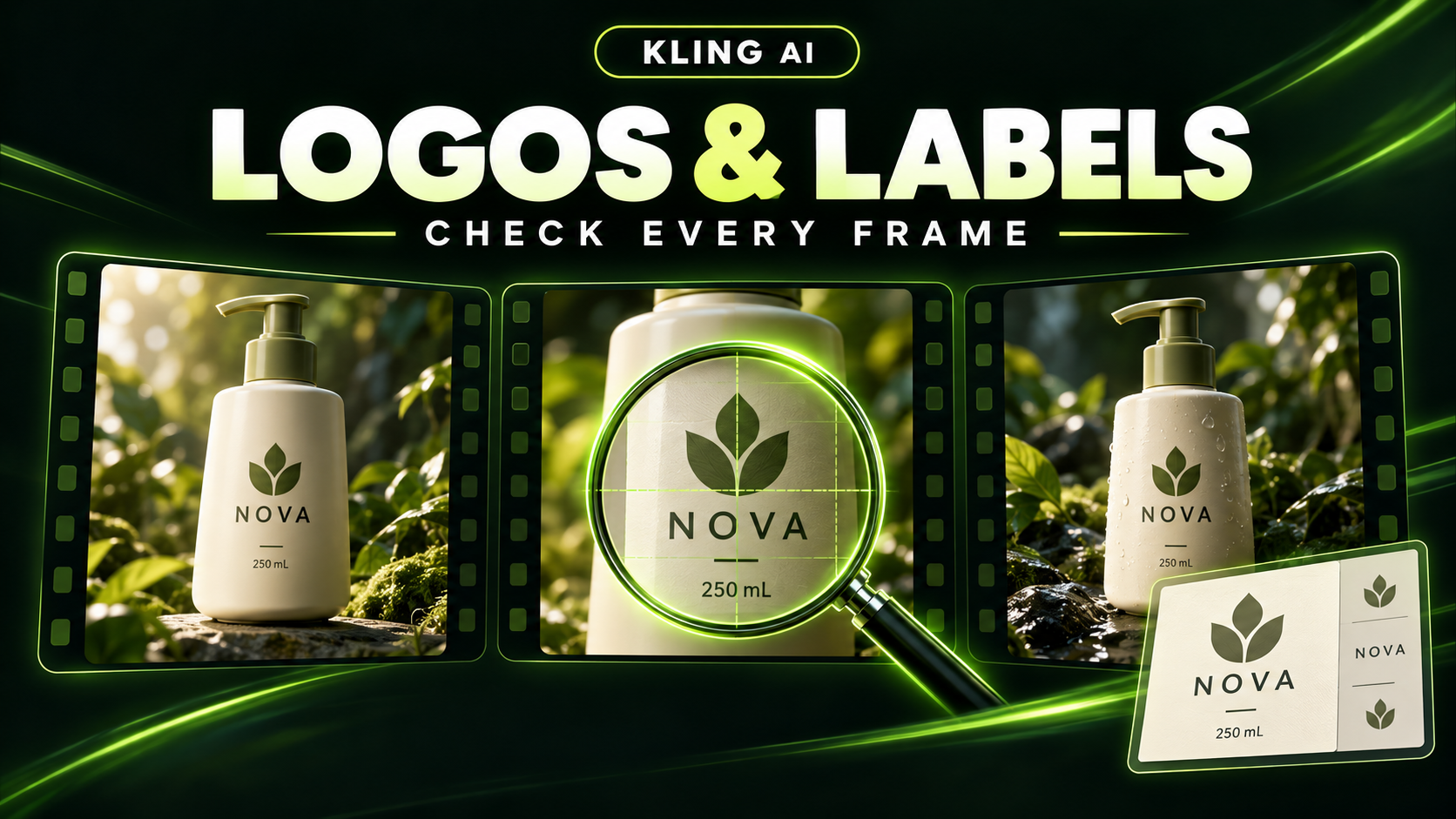
Kling AI can be used to animate product imagery, but you should not assume that every logo, label and printed number will stay exact. Approve the finished shot against the real product, including the frames between the opening and ending. If exact packaging copy is essential and the generated result changes it, use an approved real asset in a composite or shoot the real product.
The useful question for a Kling AI product video is therefore: which visible details must be exact, and which production route can deliver them? A cinematic background can be successful while a single incorrect letter makes the product shot unusable.
What does Kling say about text preservation?
Kling's official VIDEO 3.0 guide describes identifying and preserving text from uploaded images, including signs and logos. That is a model-specific vendor claim, not a measured accuracy rate or a promise that your particular label will survive every camera move. This guide provides a review workflow; it does not report a controlled generation test.
Model names also matter. As of October 9, 2026, the public Kling4.tv homepage FAQ says Kling 4.0 is not in its current generation catalog, while its overview advertises 3–30-second output. Use the model and controls actually offered in your selected workspace.
The published full-model 4.0 specification lists 3–30-second clips and multi-keyframe controls. The current official rollout language still describes an October launch; Flash has limited early access and a different specification: 3–20 seconds at 720p, without paired first/last-frame or multi-keyframe controls. A “Lite” label on a third-party interface does not establish that it is Flash. None of those specification differences proves logo fidelity, and the VIDEO 3.0 text claim should not be reassigned to 4.0.
Separate product consistency from exact text
A product can be recognizable without being an accurate depiction of the SKU you sell. Likewise, a label can look readable while containing the wrong letters, quantity or unit. Treat those as different approval checks.
The following table is editorial inspection guidance, not a measured failure-rate ranking. It identifies what to look for and how to route the shot if a required detail fails.
| Product Detail | Generation Risk | Recommended Approach |
|---|---|---|
| Product shape | Silhouette, proportions, part count or closures change during motion | Compare every visible angle with approved product views. Use real footage when the shot must reveal exact construction. |
| Brand color | The product becomes a different colorway, rather than simply responding to lighting | Check against the approved color reference under the intended grade. Reject a changed variant. |
| Large logo | Wrong spelling, altered mark shape, shifted placement or changing proportions | Inspect through the entire usable shot. Consider a complete, tracked replacement of the visible mark if the surface remains suitable. |
| Small logo | Detail disappears, flickers or becomes invented lettering | Use an approved real asset or packshot when the small mark must be identifiable. |
| Fine label print | Letters, punctuation, quantities or units change despite plausible-looking typography | Use exact-source label replacement or real product imagery for copy-critical frames. |
| Ingredient or legal text | Factual wording changes or is invented | Preserve approved source text and obtain the designated brand review. Do not treat generated wording as an acceptable substitute. |
For Kling logo consistency, passing the large front logo is only one check. The side-panel copy, cap shape and product color can still fail independently.
Choose between generation, compositing and real footage
Choose the shot around the information it needs to show. A front-facing hero image asks less of the visible packaging than an orbit revealing several sides, but that is a planning distinction, not an accuracy guarantee.
| Intended shot | Practical production route | Approval condition |
|---|---|---|
| Front-facing hero with a small push-in | Candidate for image-to-video generation from an approved asset | Required marks, silhouette and color stay correct throughout the chosen interval. |
| Orbit or rotation revealing another side | Supply genuine views if the selected mode supports them; use real footage when unseen details must be exact | Each revealed surface matches the actual product, rather than a plausible invented side. |
| Hands opening, pouring or operating the product | Prefer real footage when construction, operation or the demonstrated result must be truthful | Parts and interaction match what the real item does. A clean logo alone is insufficient. |
| End card with exact packaging copy and a headline | Build from an approved packshot and editor-added text; motion can remain in the background | Product copy and campaign text come from approved assets. |
Generation plus compositing is useful when the generated environment works but the product needs to remain a real asset. A simple front-facing composition may allow a packshot to be placed into that scene. A full rotation, changing reflections or a hand passing in front of the product creates a more demanding editing task. Decide whether that task is feasible before choosing the shot.
Start with an approved product asset
Before opening the image-to-video workspace, confirm that the source depicts the correct SKU, colorway and current packaging revision. Enlarging an image cannot supply text that was missing or unreadable in the original. Obtain a better source when a required logo or line of copy cannot be checked.
Write a short approval brief naming the fixed details: the exact wordmark, its position, product outline, relevant color and any quantity or unit that will be visible. Specify the intended camera movement separately. If your selected model exposes reference controls, use genuine product views rather than expecting it to infer an unseen panel accurately.
A preservation instruction can communicate the requirement, but it is not a lock on the output. Keep an approved packshot and the original logo or label artwork available for comparison and finishing. Do not rely on a prompt to recreate tiny factual text that you could instead supply as a real asset.
Review the whole usable shot, not just its best frame
First review the product geometry: outline, corners, cap, handle, seams and visible parts. Then review typography separately: exact letters, punctuation, spacing, numerals and units. This two-pass check helps prevent attractive motion from distracting you from incorrect packaging.
Compare frames against the approved source wherever the label is exposed. Inspect the opening, changes of angle, moments after occlusion and the end, then step through the intervening frames for brief changes or flicker. A label disappearing naturally behind a hand is different from returning with a changed wordmark.
Check both the final-resolution export and the intended delivery crop. Close inspection tests exactness; normal-speed playback tests whether a defect flashes into view. Cropping can also remove required packaging information even when the underlying frame is correct.
If the label changes during motion, record the symptom rather than assuming a cause. Did one letter change, did the whole printed region drift, or did the bottle itself deform? Public product-video questions describe both lettering and shape problems, but those individual reports do not establish a universal cause or current-model failure rate.
Can a real-logo overlay fix the problem?
An overlay can solve some finishing tasks, but placing a clean logo above a bad label is not automatically a repair. The incorrect mark must no longer be visible, and the replacement must belong to the product surface through motion.
| Problem | Suitable finishing approach | Important limit |
|---|---|---|
| Separate headline or price caption | Add approved text in the editor | This fixes campaign copy, not printing on the product. |
| Incorrect printing on otherwise usable packaging | Replace the complete affected region; track its movement and perspective where needed | Hands, shadows, reflections and curved surfaces may require masking or more complex compositing. |
| Changing product silhouette, parts or proportions | Replace the product depiction or use another shot or real footage | A logo overlay cannot repair incorrect geometry. |
Do not leave fragments of generated lettering beneath the replacement. After compositing, repeat the same frame and crop checks. The result still needs approval; “edited” does not mean “verified.”
Retest a specific defect, then choose the next route
A useful retest changes one relevant variable. If a required label becomes incorrect when the camera turns, test a shot with less angle change while keeping the approved source. If the starting text is already unclear, replace the source asset before changing the prompt. These are diagnostic choices, not proven universal fixes.
Define the acceptance condition before generating again. For example, an untested review-log entry could read: “Required: front wordmark and 250 mL quantity remain exact. Defect: quantity changes at 00:02.8. Next action: test a front-facing camera move; if the required interval still fails, use an approved packshot composite.” Record the actual model and settings alongside it.
A shorter verified interval may be usable if it still fulfills the creative brief. Do not trim away a failure and then imply that the entire clip passed. Moe Lueker's sponsored creator workflow describes selecting usable portions and finishing a commercial in an editor. That supports an editing workflow, not a benchmark showing that a real product's label remains correct across a complete generated clip.
If repeated attempts do not satisfy the same approval condition, reconsider the production route. The goal is a correct deliverable, not an unlimited series of prompt variations.
Frequently asked questions
How do I stop Kling from changing my logo?
Start with the correct approved asset, state the exact mark and placement that must remain unchanged, and choose motion that suits the available product views. Review the result frame by frame. No preservation prompt in this guide is a verified guarantee; if required lettering still changes, replace it with a real asset or use real footage.
Does a correct first frame guarantee an accurate product video?
No. The first frame proves only that the product is correct at that moment. Check the visible logo, packaging and shape throughout the interval you intend to use, especially after angle changes or occlusion.
Does 4K make product-label text accurate?
No. Resolution describes pixel dimensions, not whether the lettering is correct. A sharp frame can contain a clearly rendered misspelling. Verify the text against approved artwork regardless of the export resolution available in your selected mode.
Plan the deliverable before the next generation
For your next product video on Kling4.tv, decide which details must be exact and whether the shot needs generation, a real-asset composite or real footage. Keep only the interval that passes those checks.
For related planning, read the Kling prompt guide for motion instructions and the Kling pricing guide for budgeting around attempts and usable outputs.