Discover Kling 4.0: realistic motion, synchronized sound, up to 10 keyframes and longer stories. Explore video examples and turn your ideas or images into your next creative project.
Kling 4.0 · Text to video & image to video, in one creative workspace.
Kling 4.0 · Video exampleMulti-keyframe control
What is Kling 4.0?
Kling 4.0 is a video generation model from Kling AI. You can describe a scene with text or use images and video references to guide the result. Its new controls focus on a common creative problem: getting the subject, movement and story to agree.
3–30ssingle-generation video
10keyframe images, up to
15combined reference assets, up to
4Klisted maximum resolution
KLING4 · KLING 4.0
What can you create with Kling 4.0?
Explore 60 video examples, from realistic performances to controlled references, longer stories and distinctive visual styles.
01 / 05
Lifelike motion, sound and detail
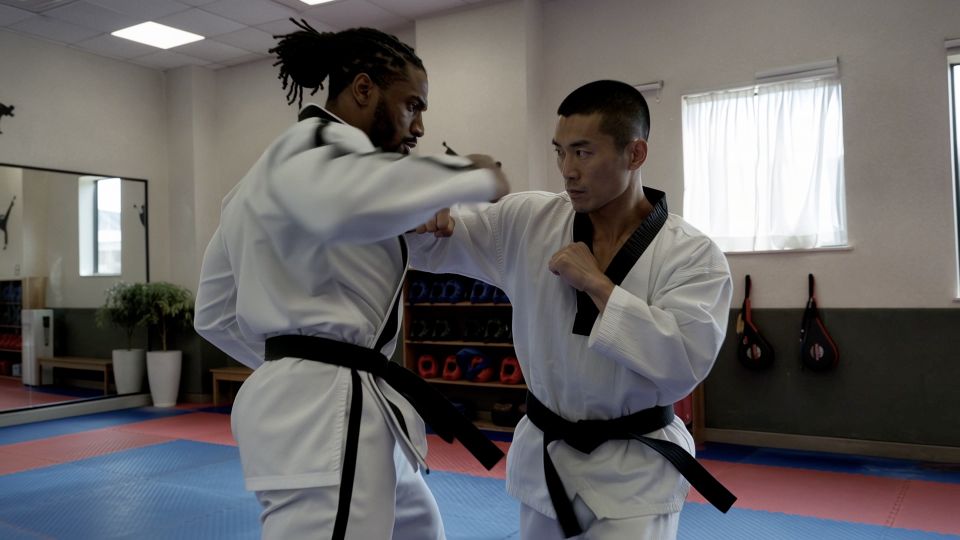
Bring fast action, synchronized dialogue and subtle expressions together for scenes that feel natural.
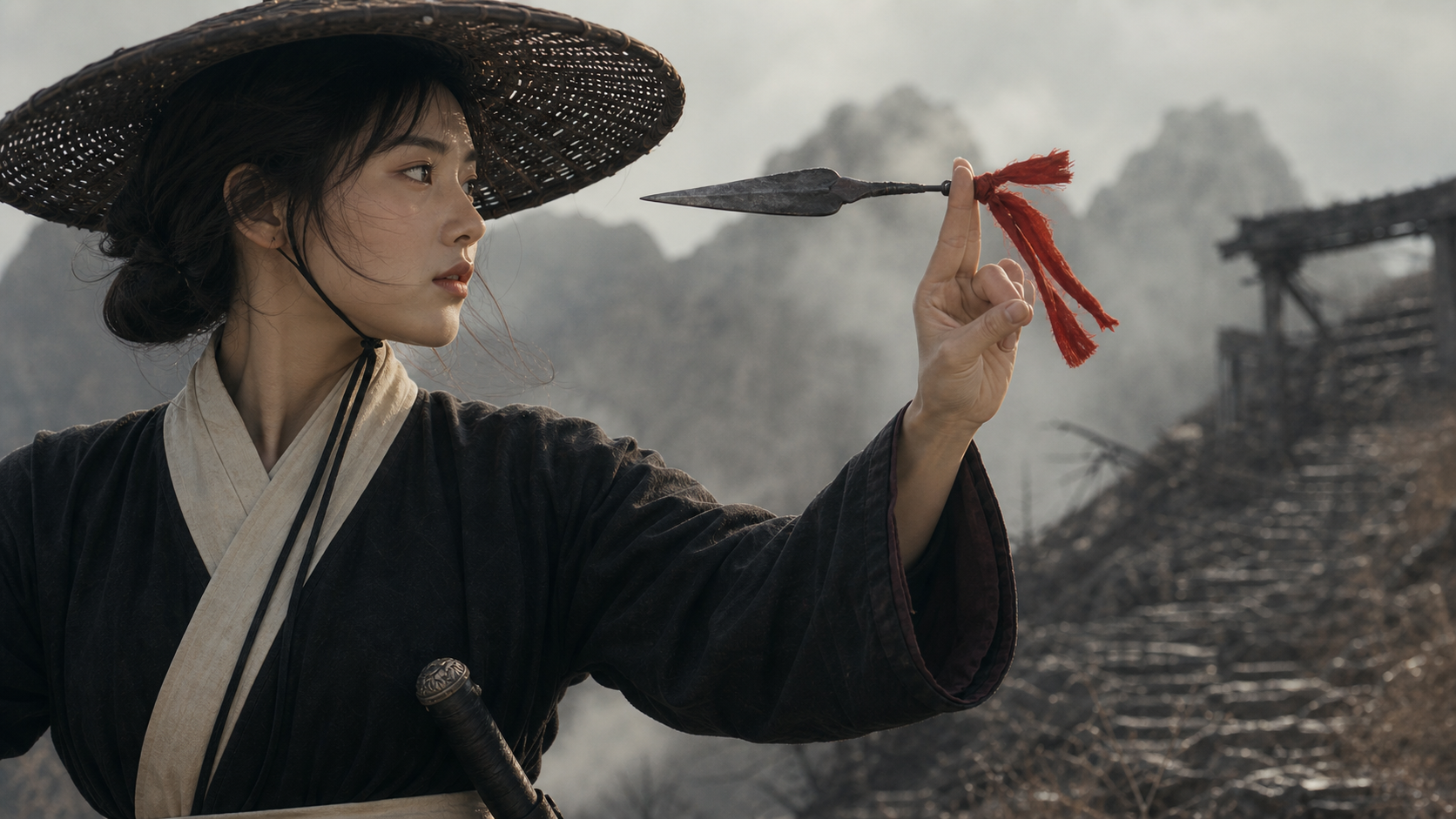
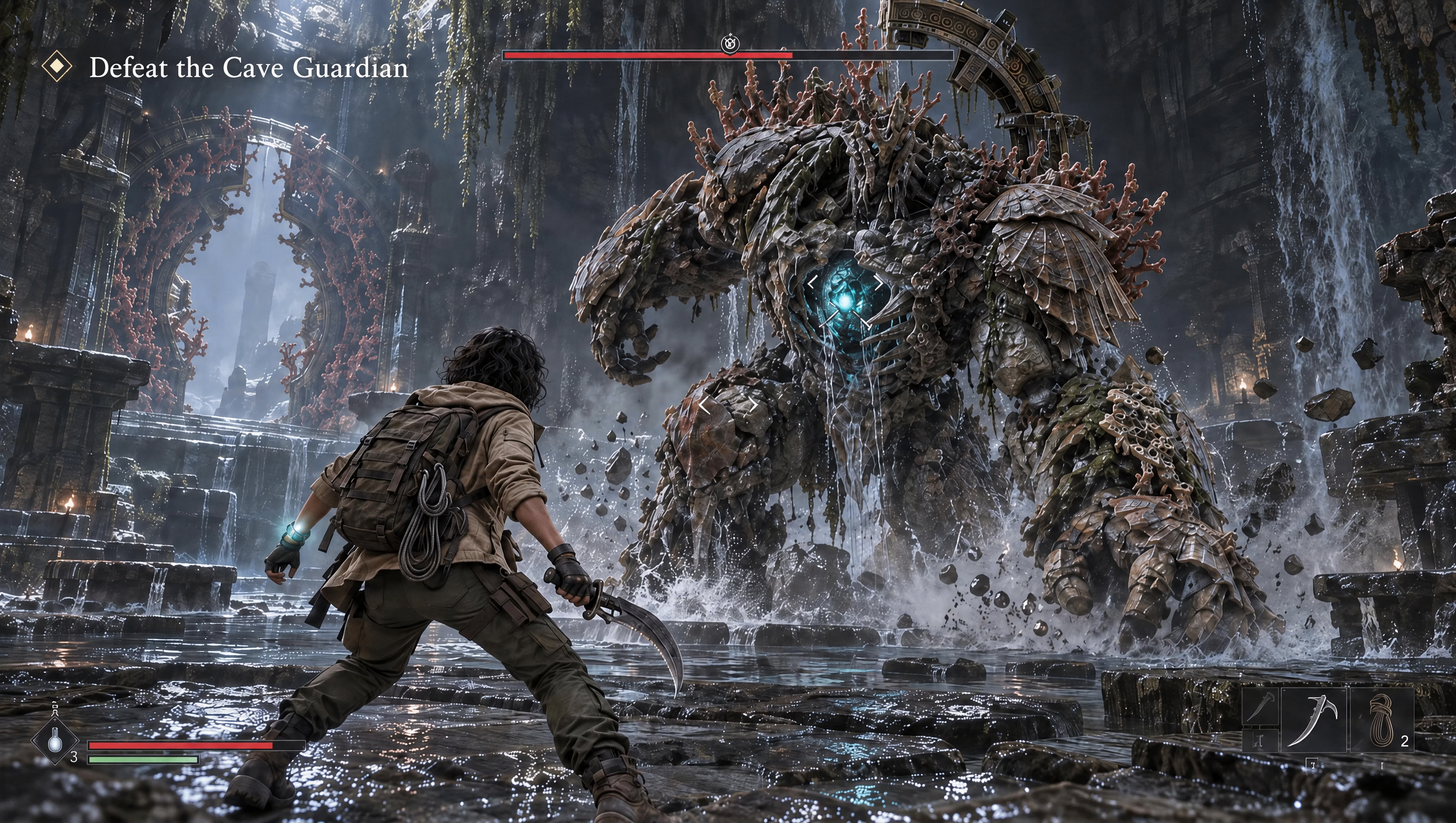
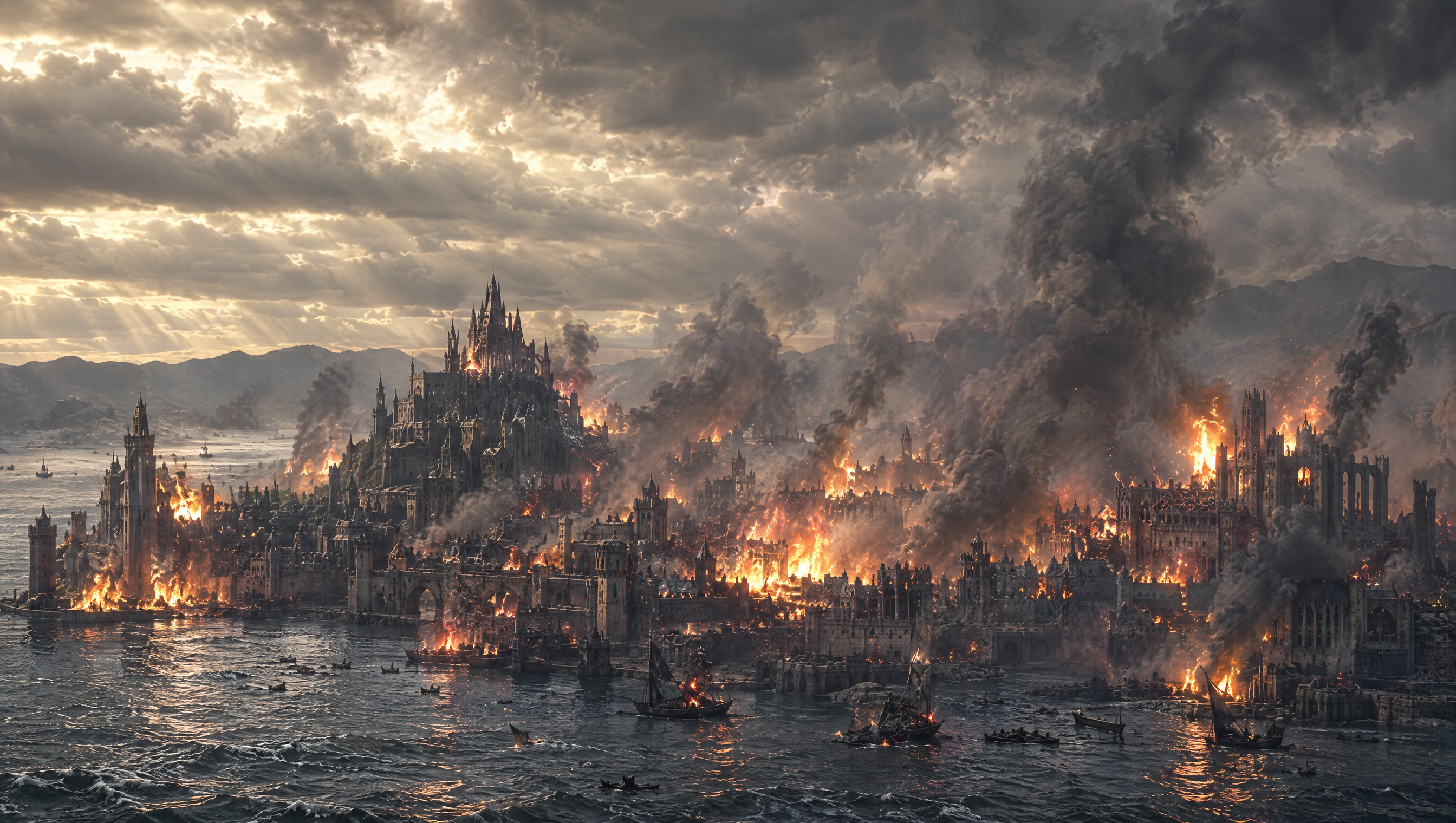
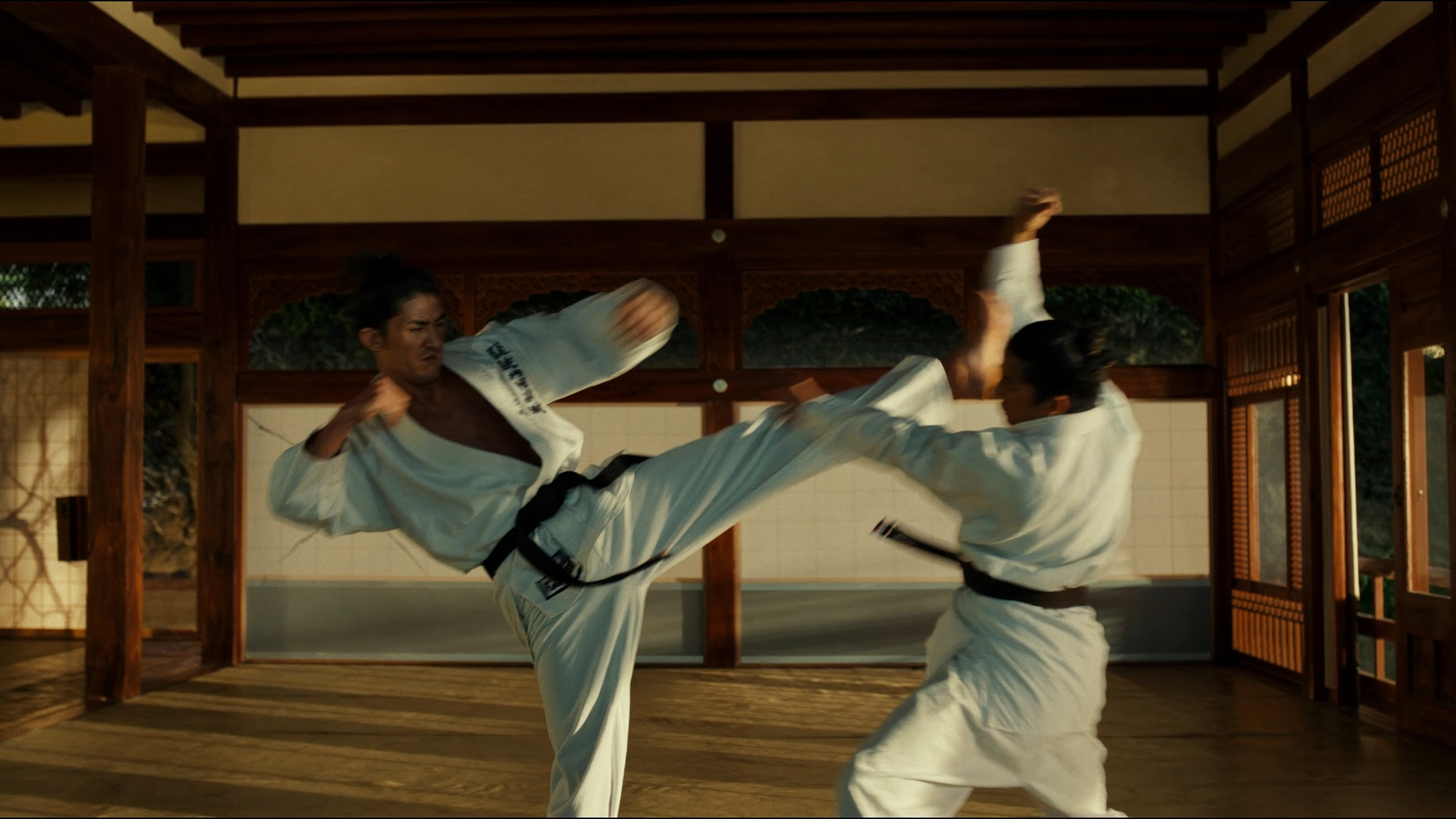
Keep fast movement, continuous action, tracking shots and orbit shots smooth, even in large and complex scenes.
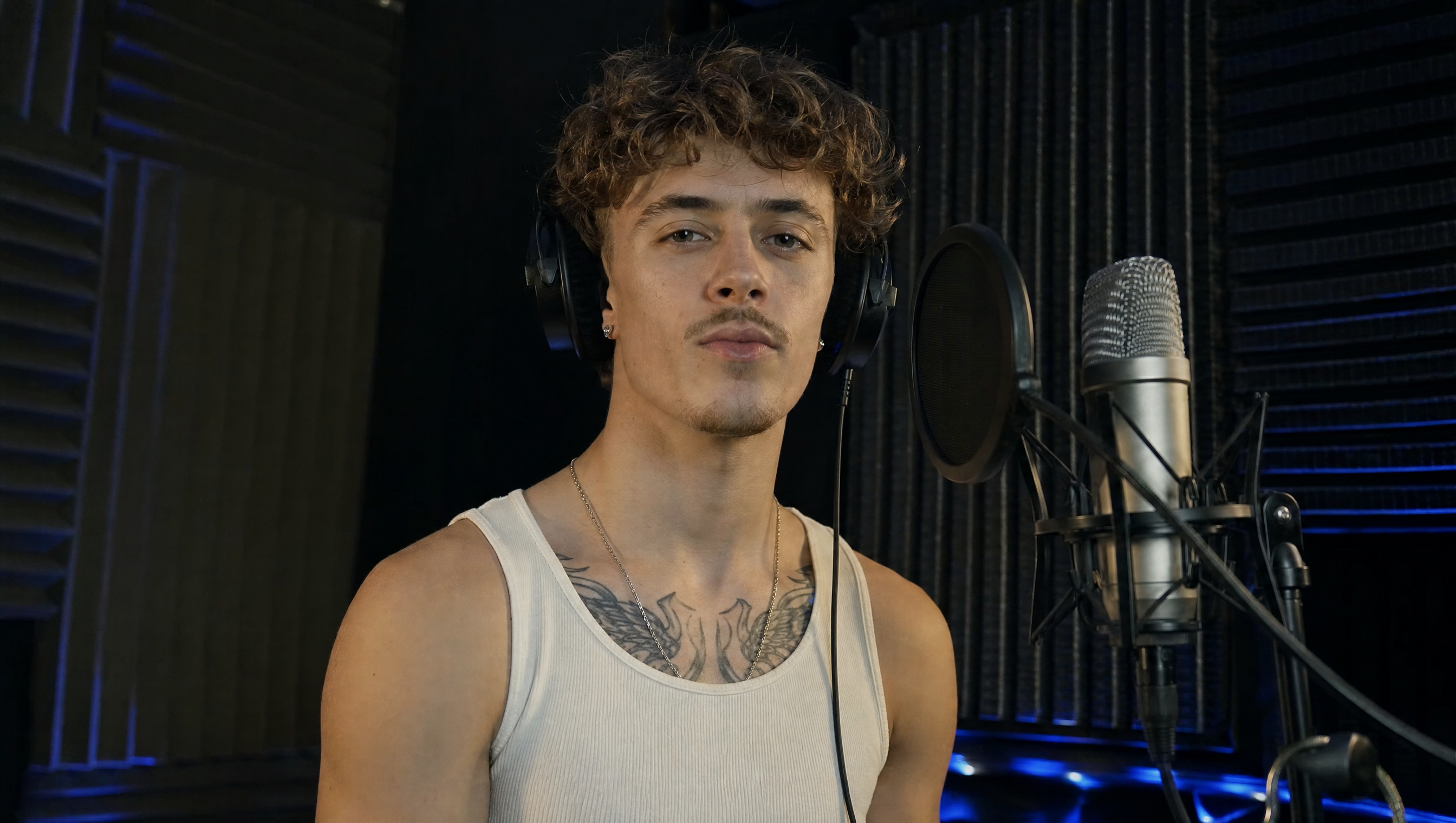
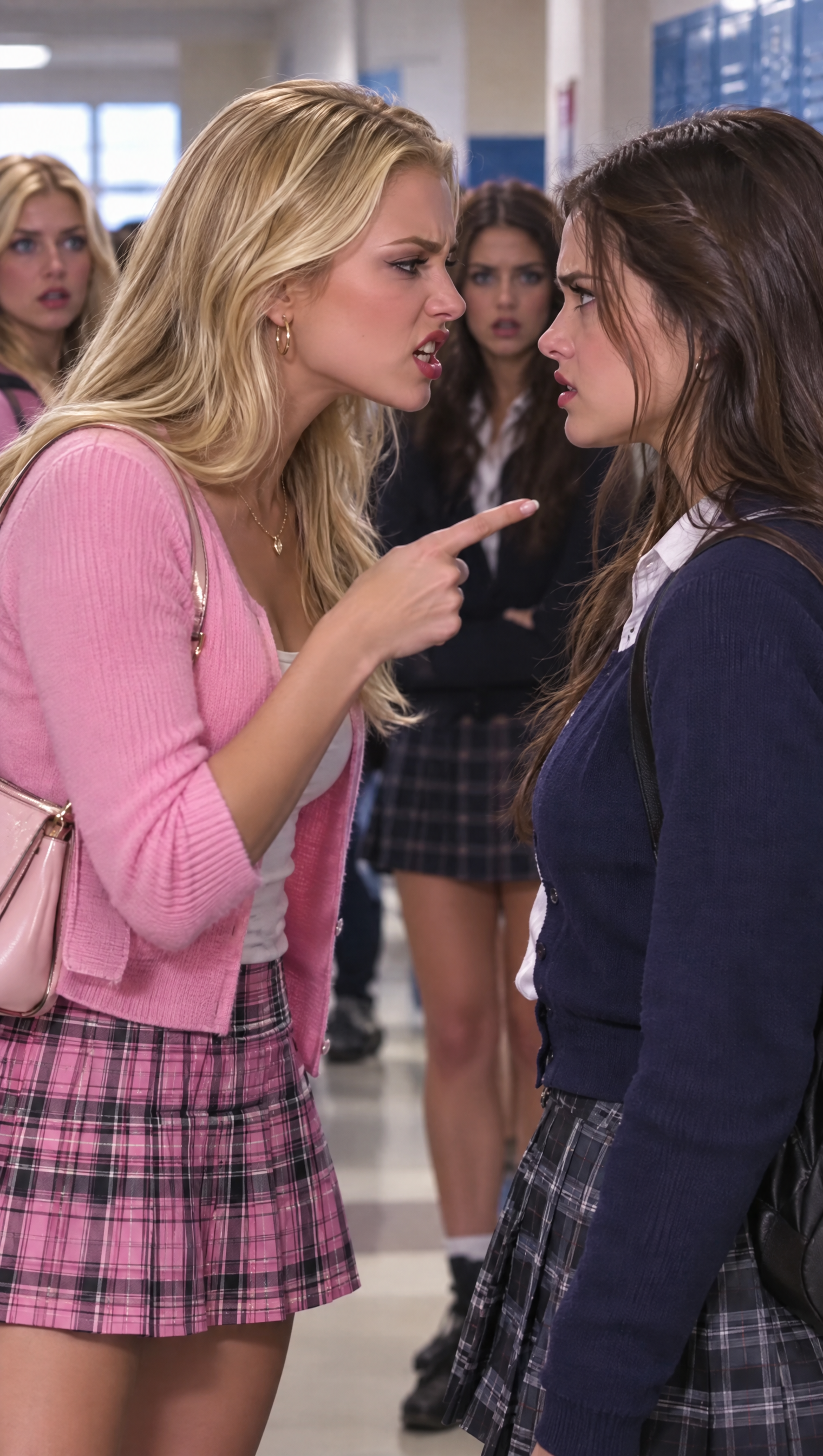
Generate picture and sound together, with two-channel stereo and precise lip-sync for dialogue, singing and expressive performances.
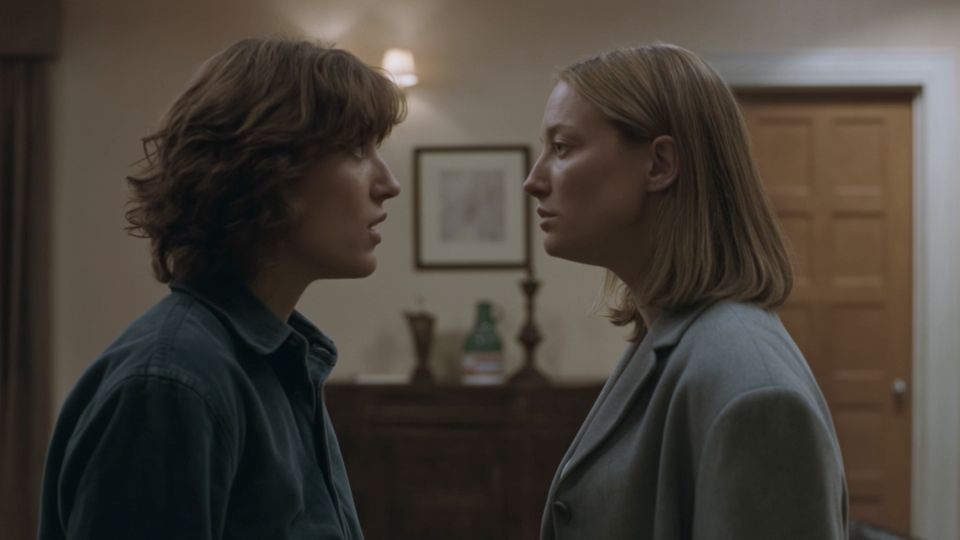
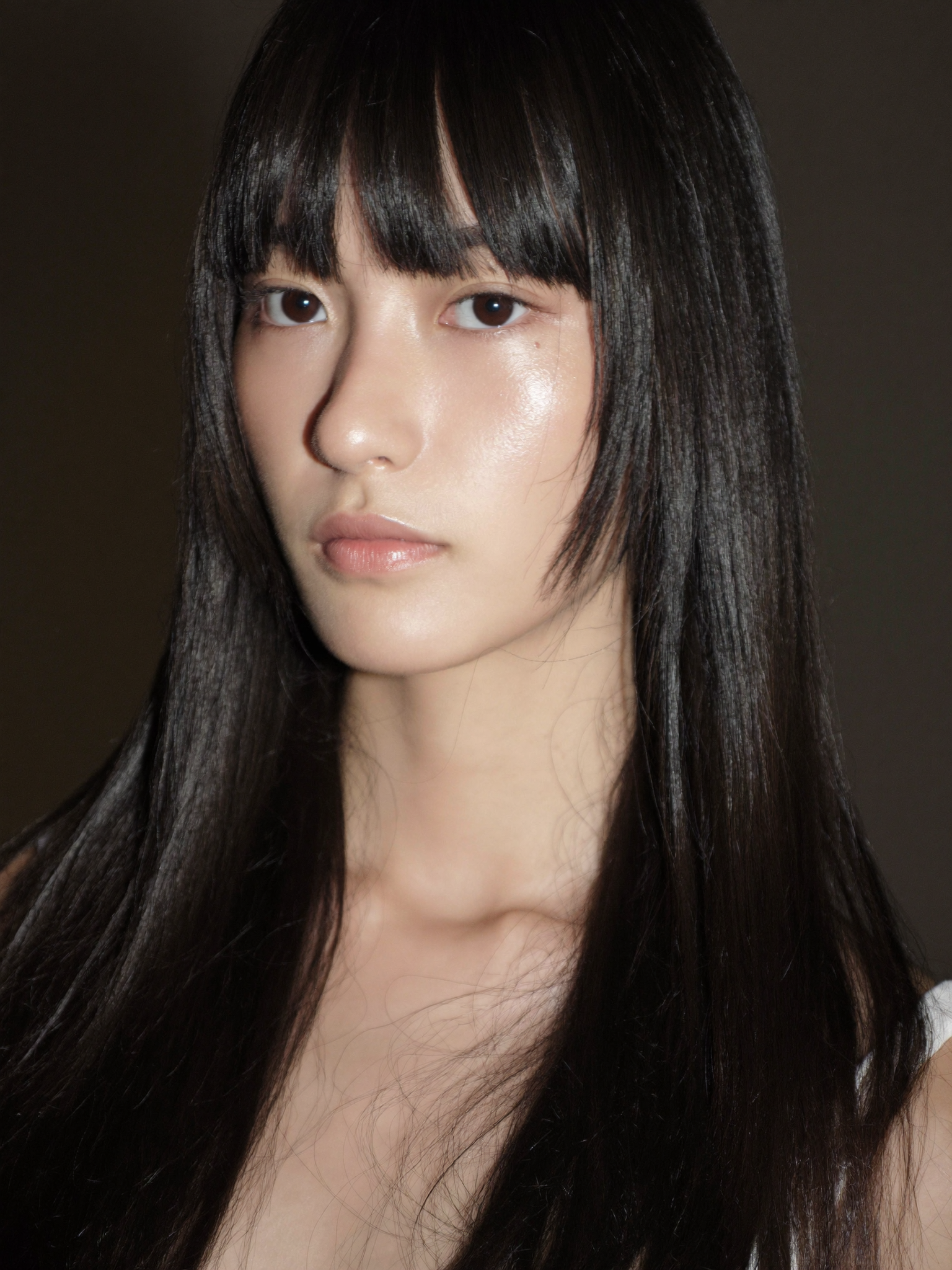
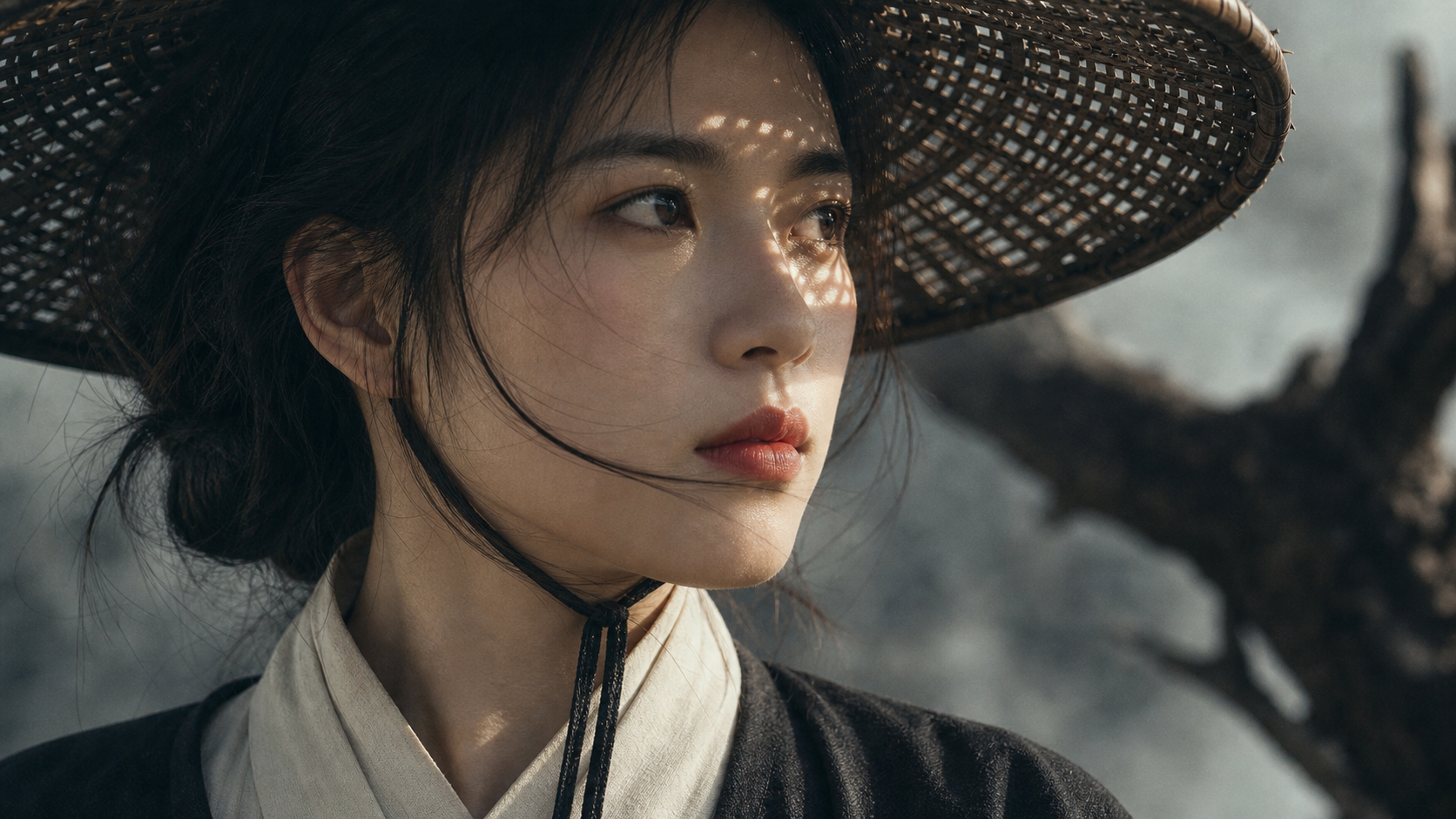
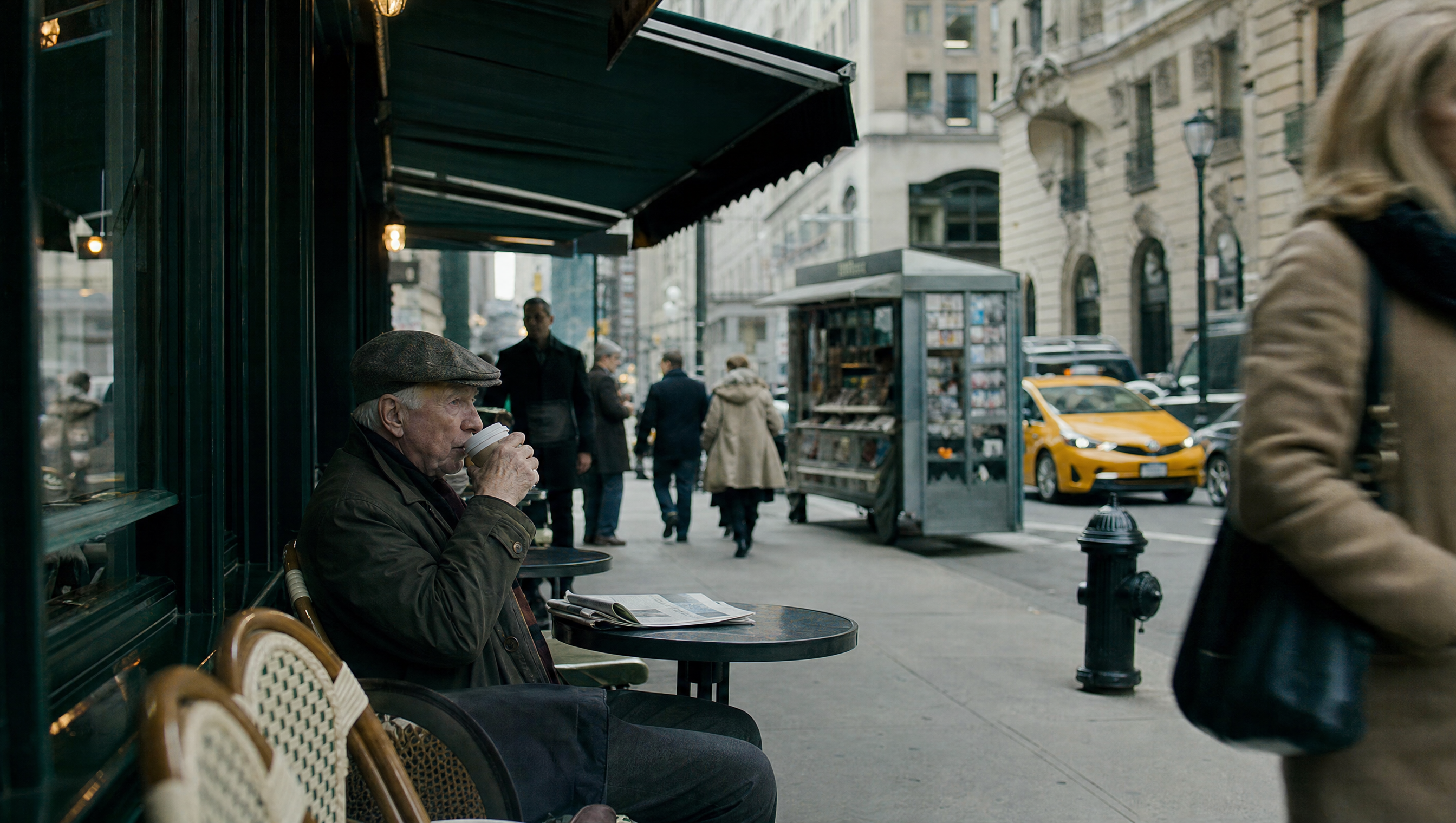
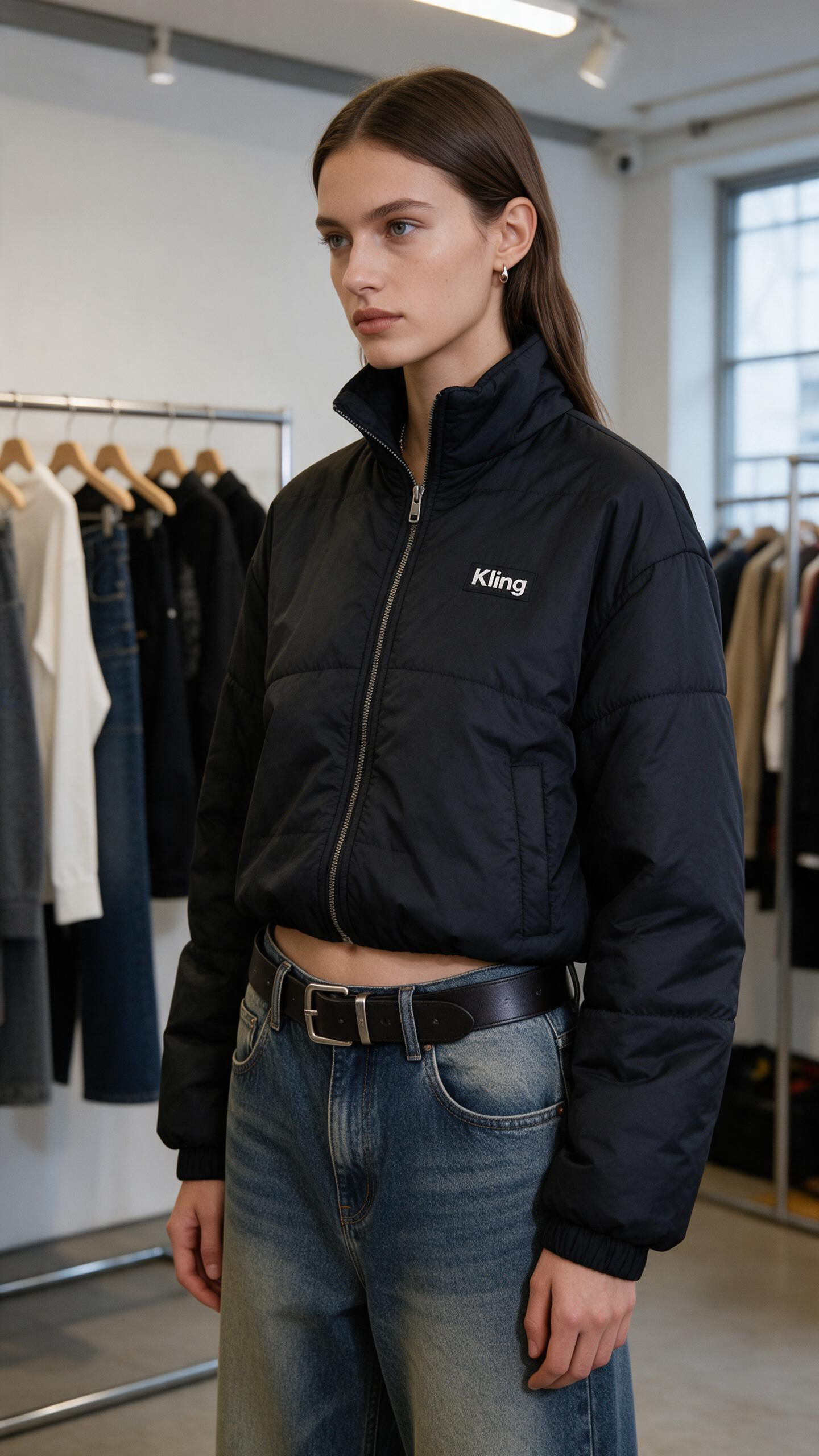
Capture small changes in expression, natural lighting and lifelike textures for portraits and emotional storytelling.
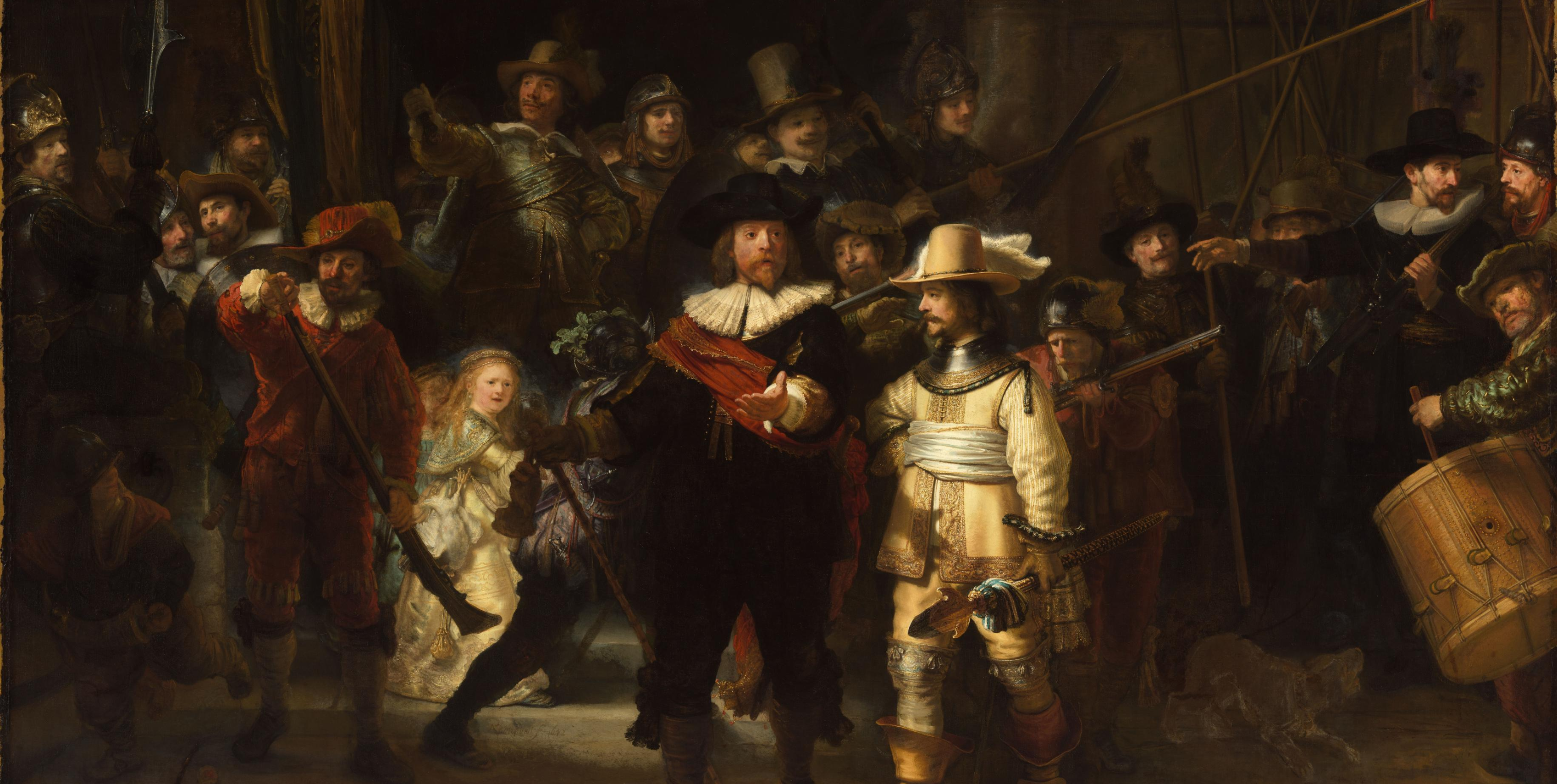
Choose 720p, 1080p or 4K and up to 21:9 framing for detailed scenes and wide compositions. 10-bit HDR at 1080p and 4K is coming soon.
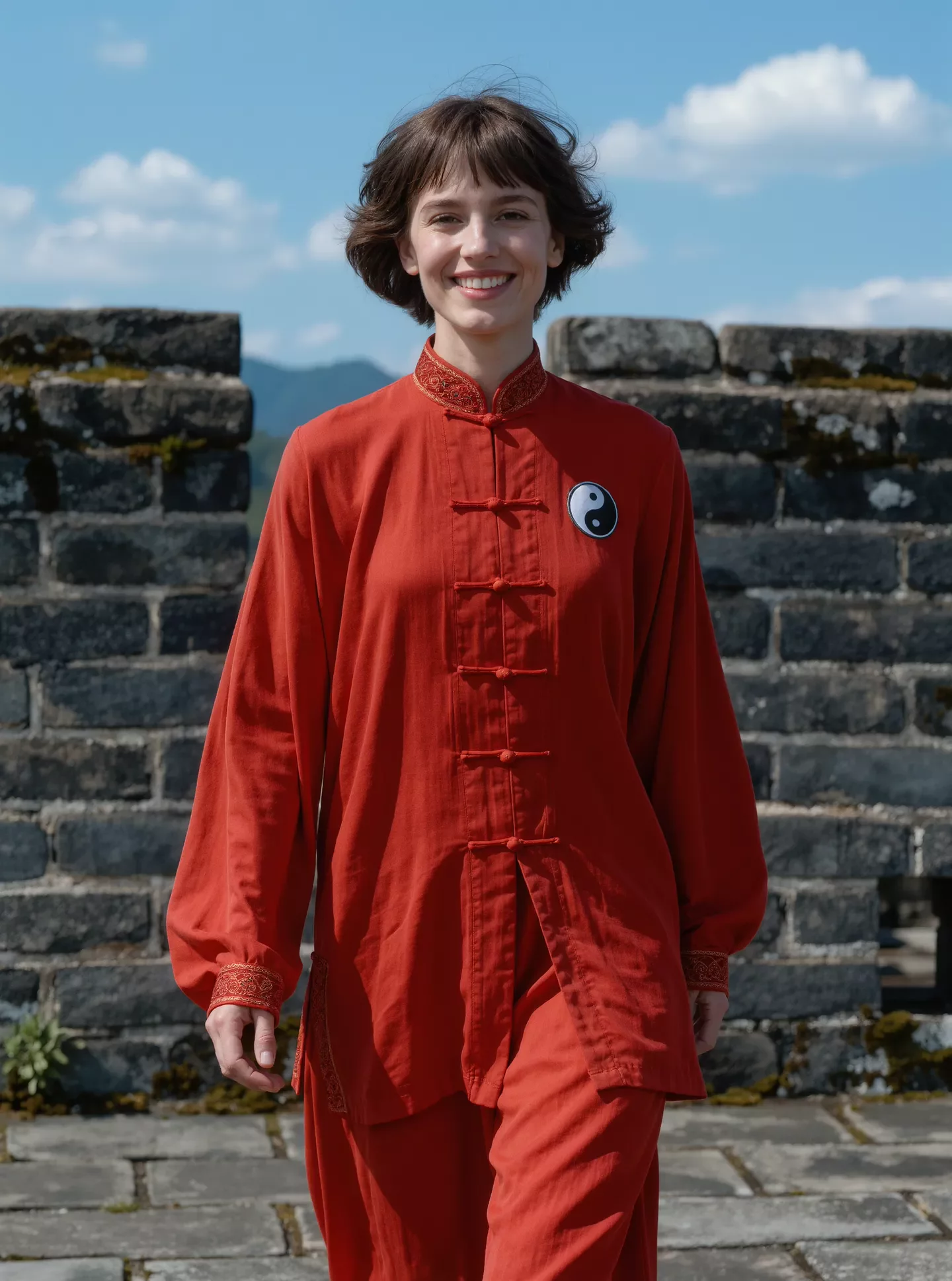
A vlogger-style video in which the woman cheerfully introduces herself to the audience. Maintain a natural, authentic look and realistic image quality.
Generated result · Kling 4.0
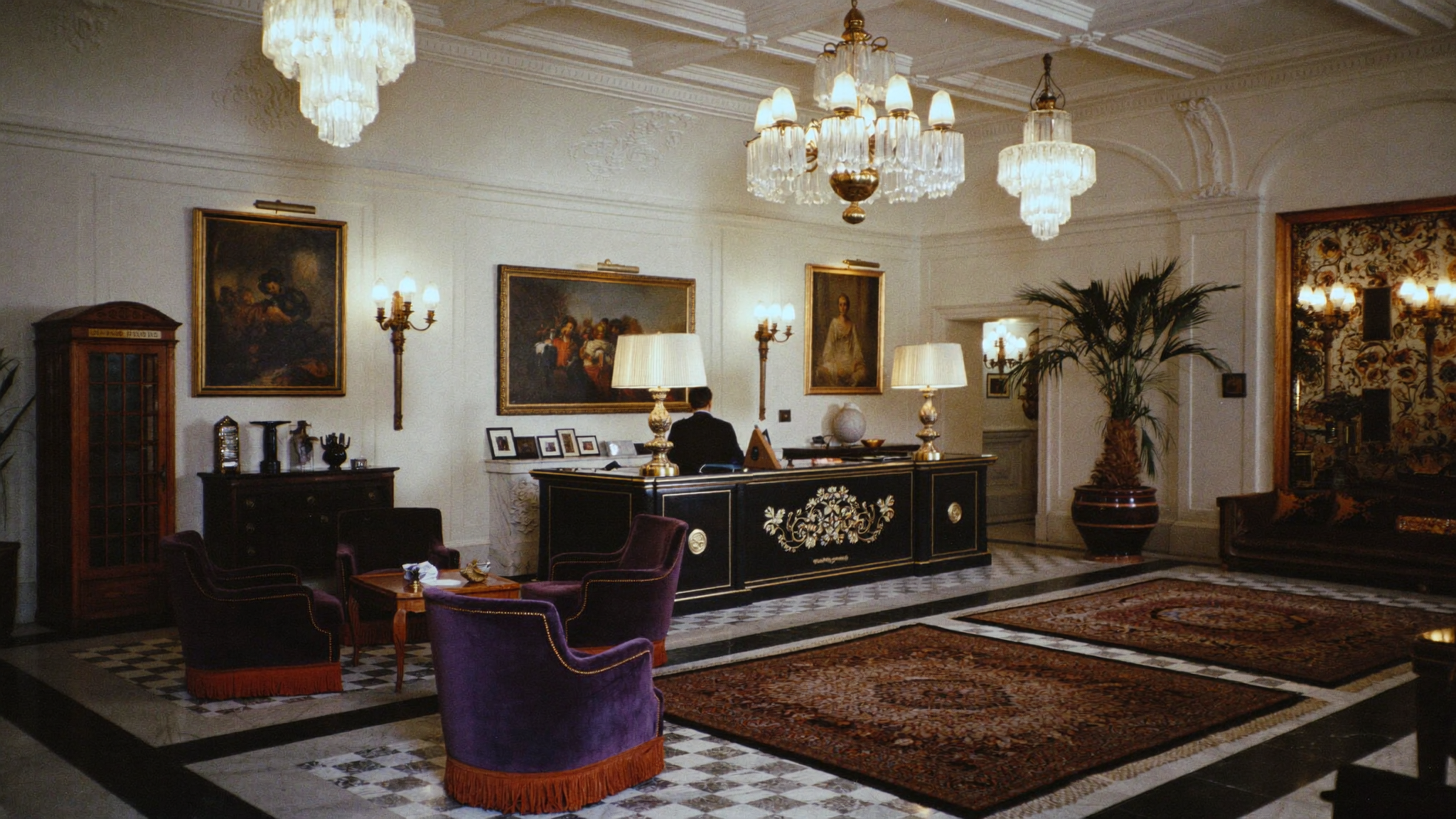
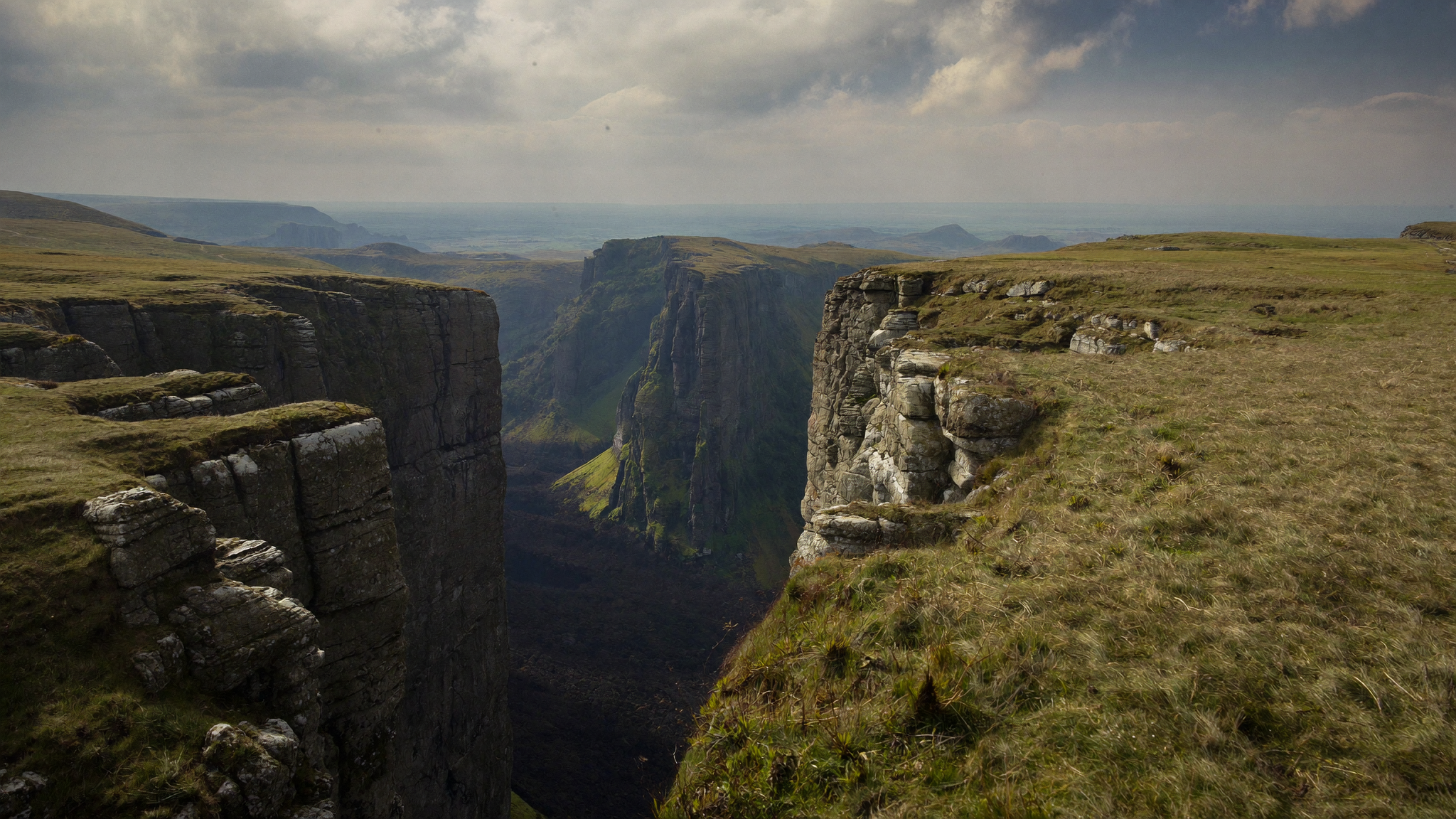
4K detail and cinematic framing
Generated result · Kling 4.0
4K detail and cinematic framing
Generated result · Kling 4.0
02 / 05
Your references, one clear creative direction
Combine images, videos and subject references to guide appearance, movement, framing and precise edits.
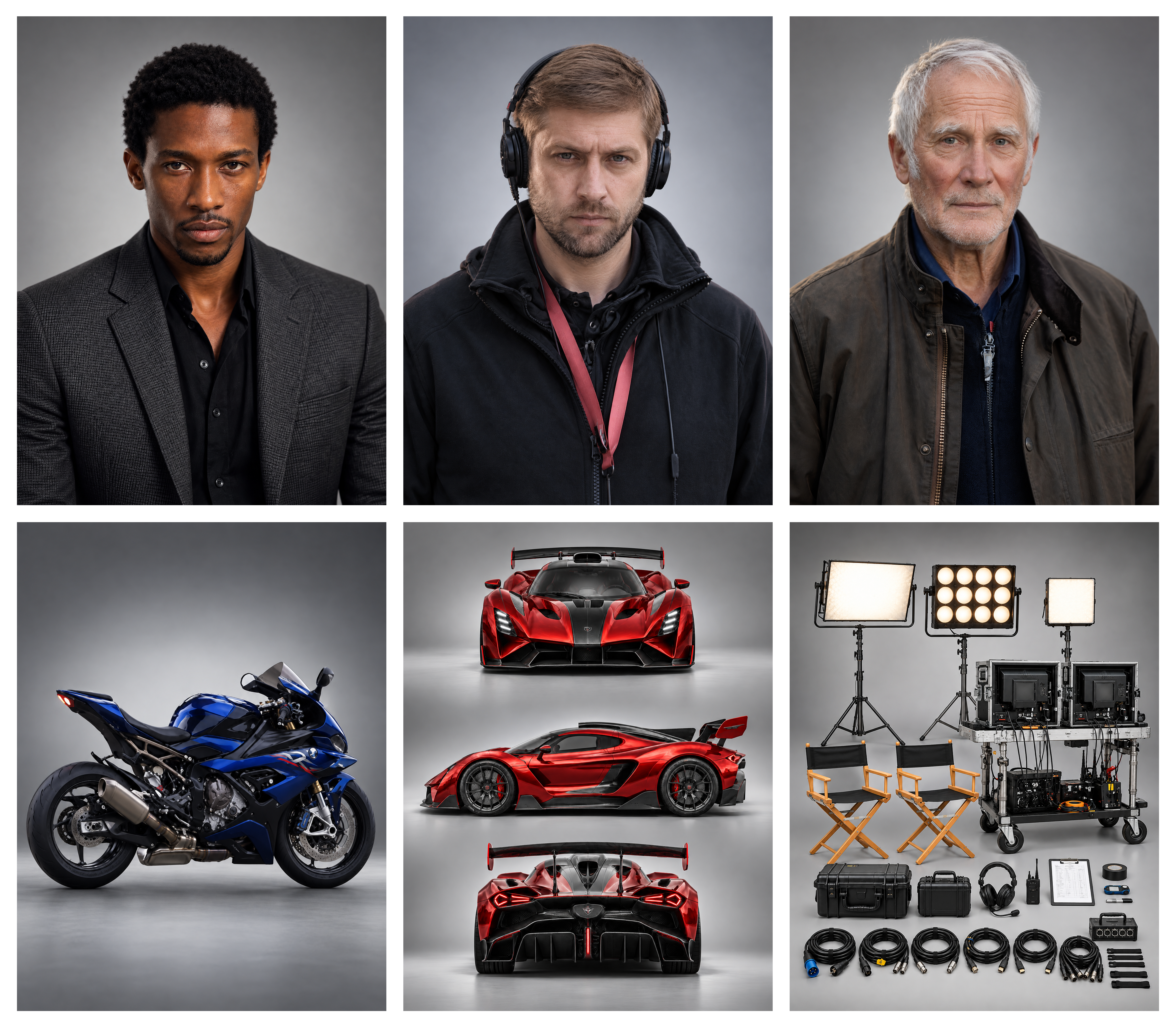
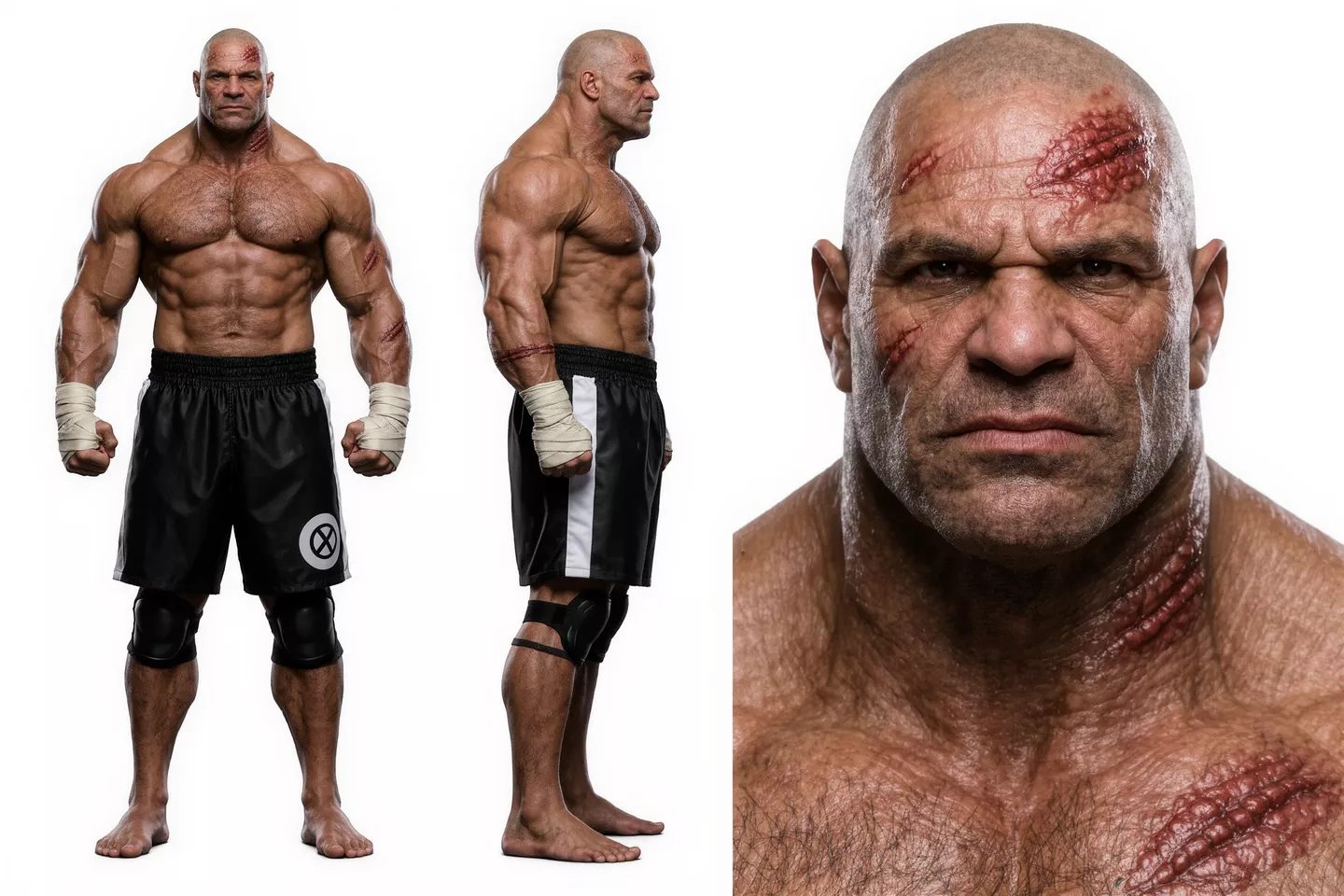
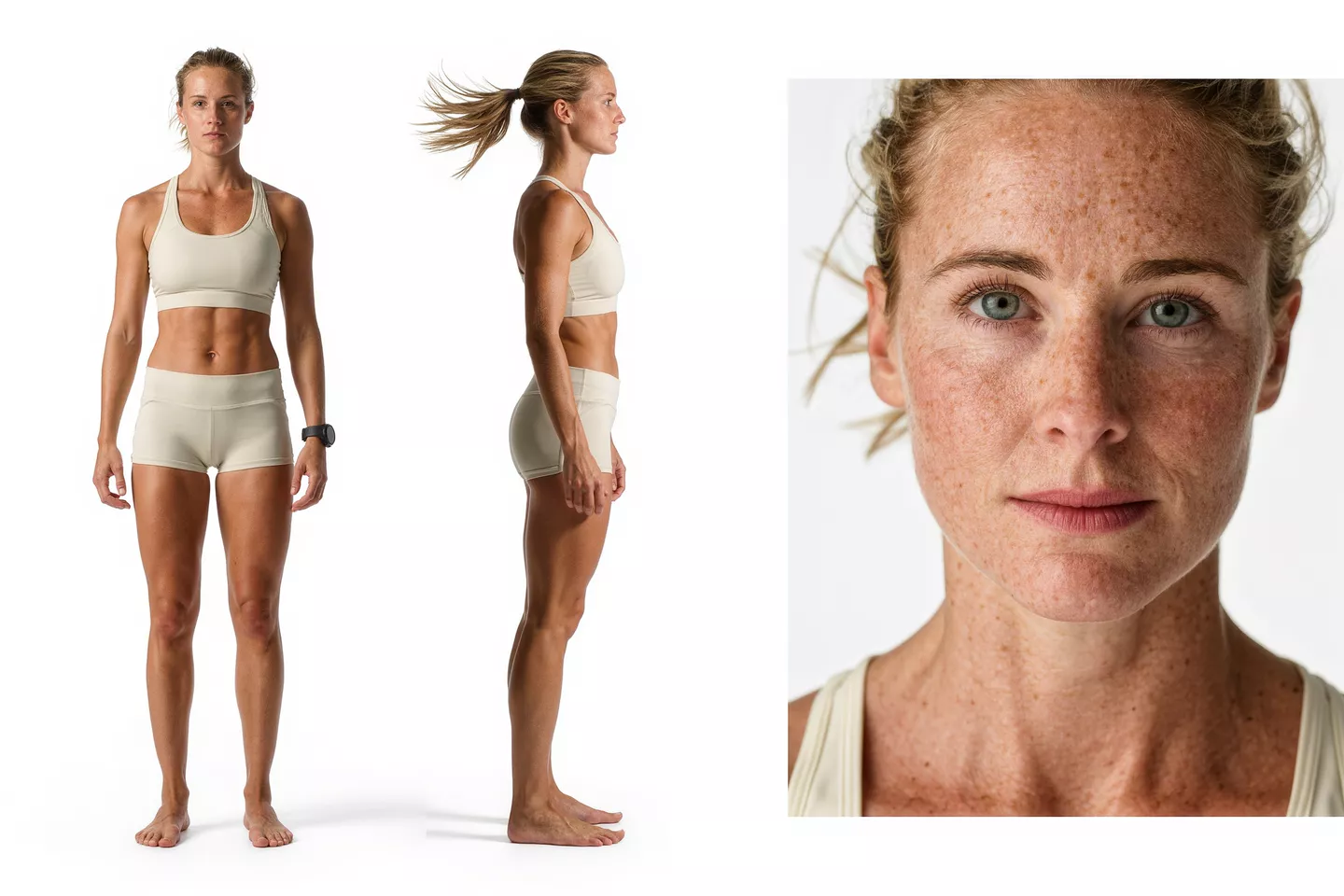
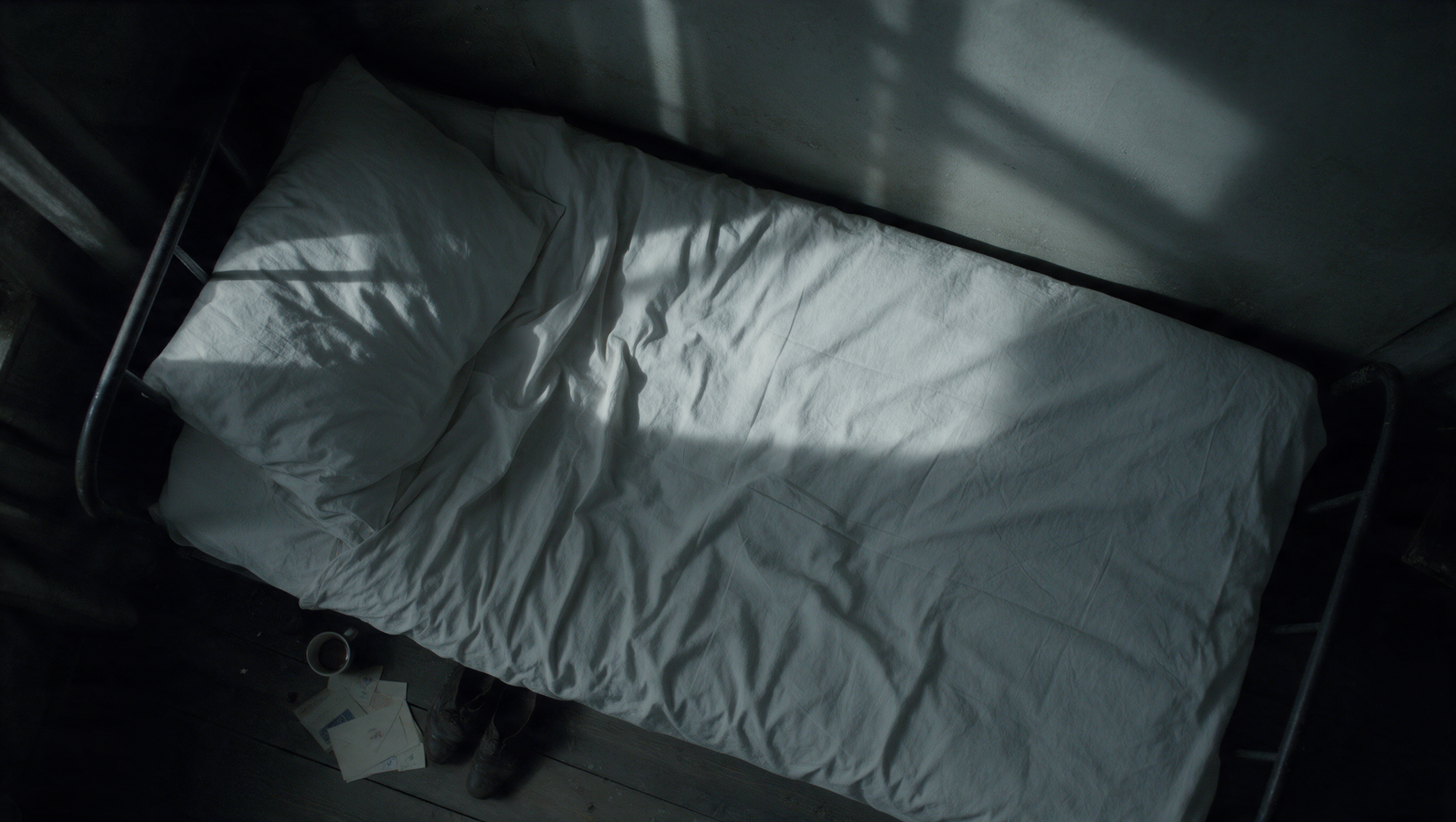
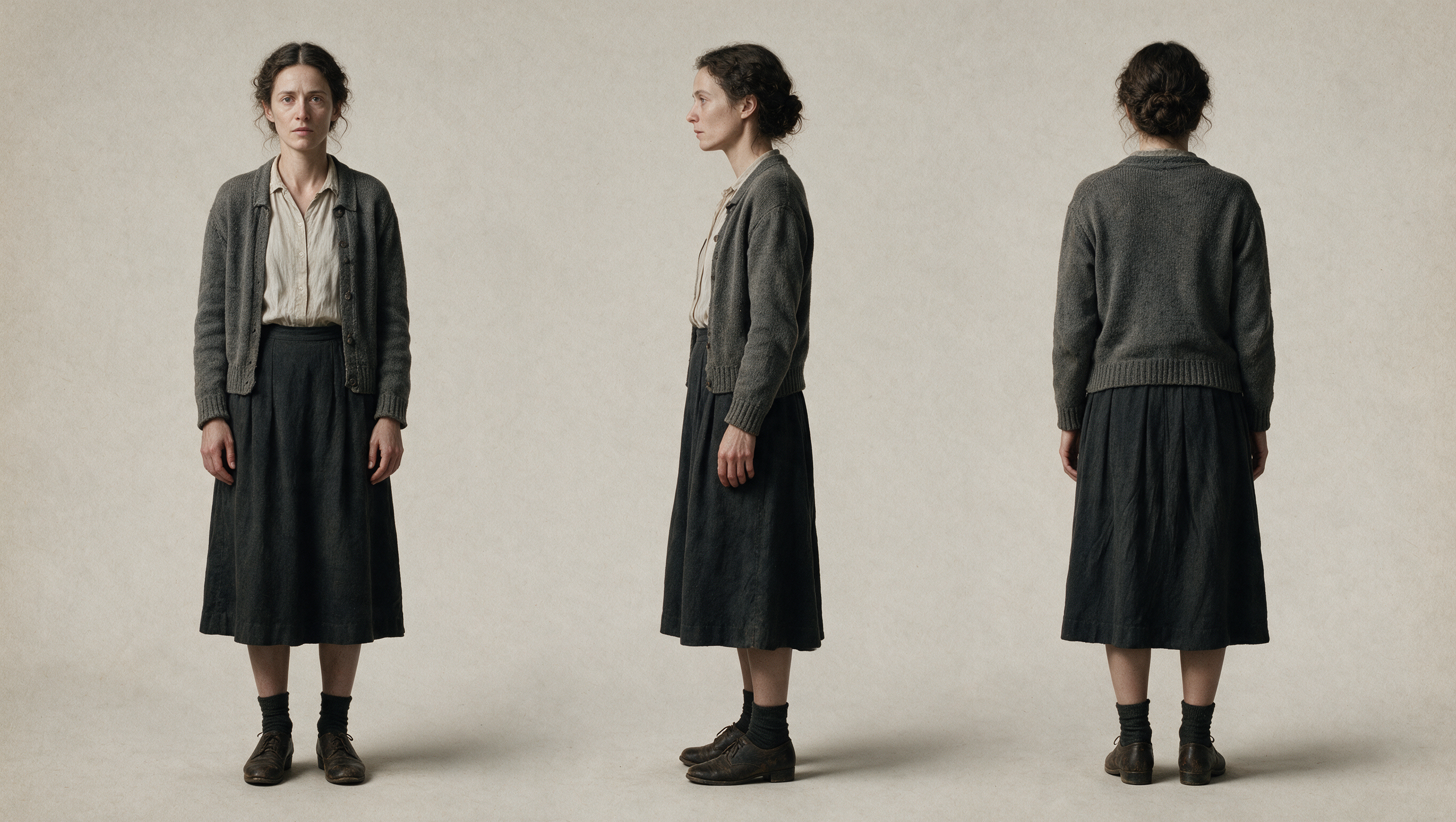
Guide one generation with up to 15 reference items: up to 10 images, 5 videos totaling 30 seconds, and 7 subjects. Use motion, camera, storyboard, grid, white-model or depth references.
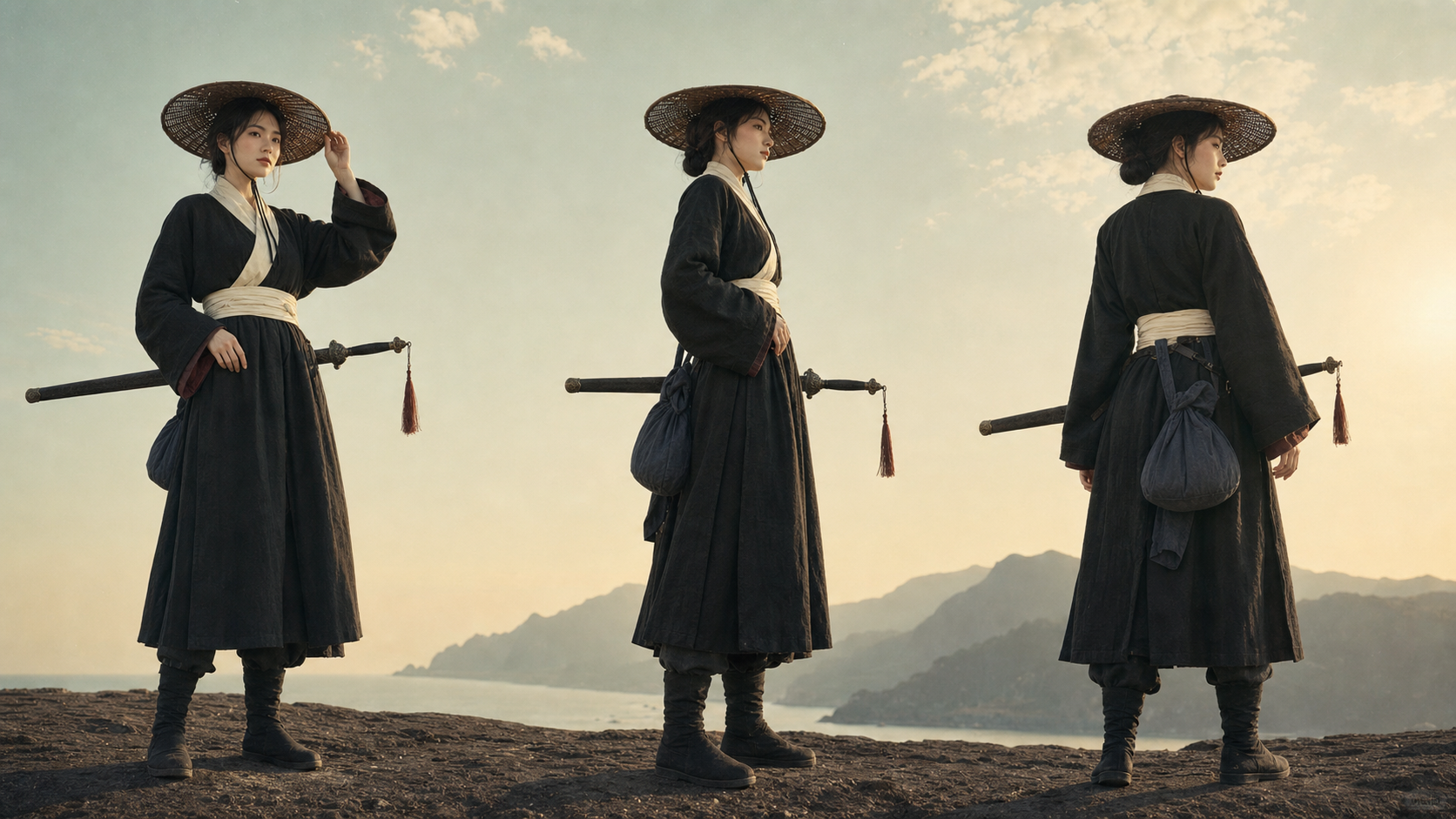
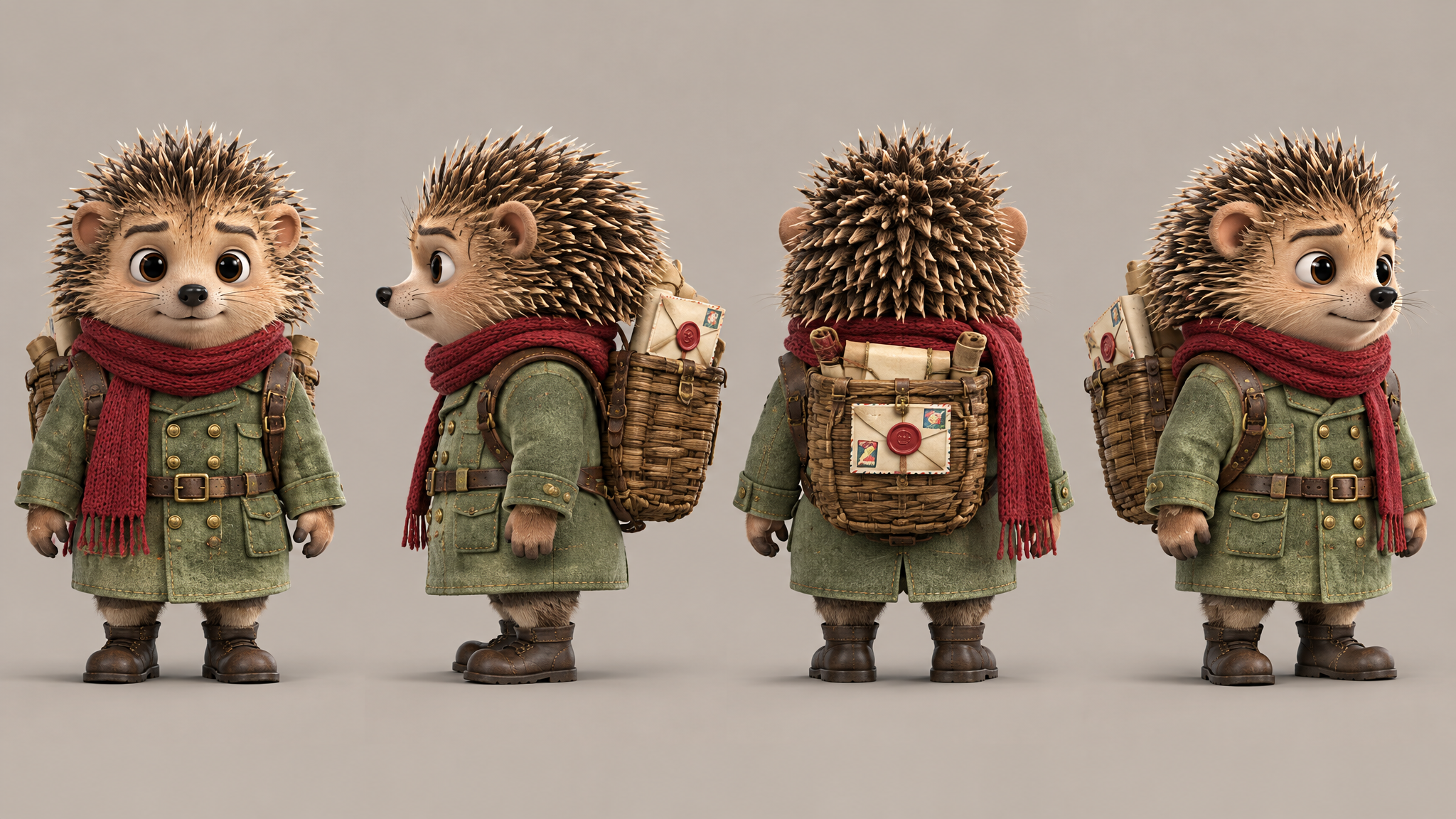
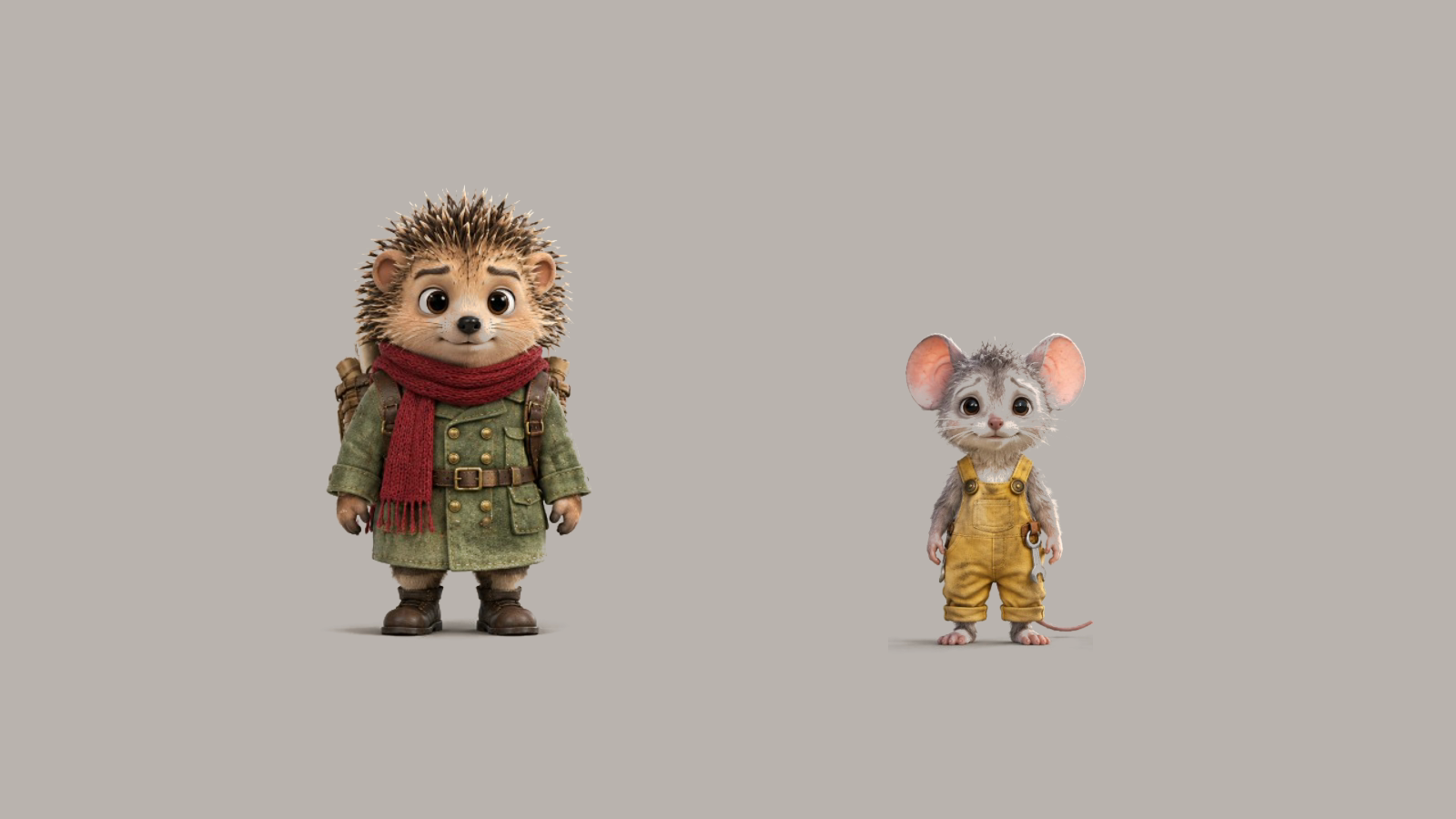
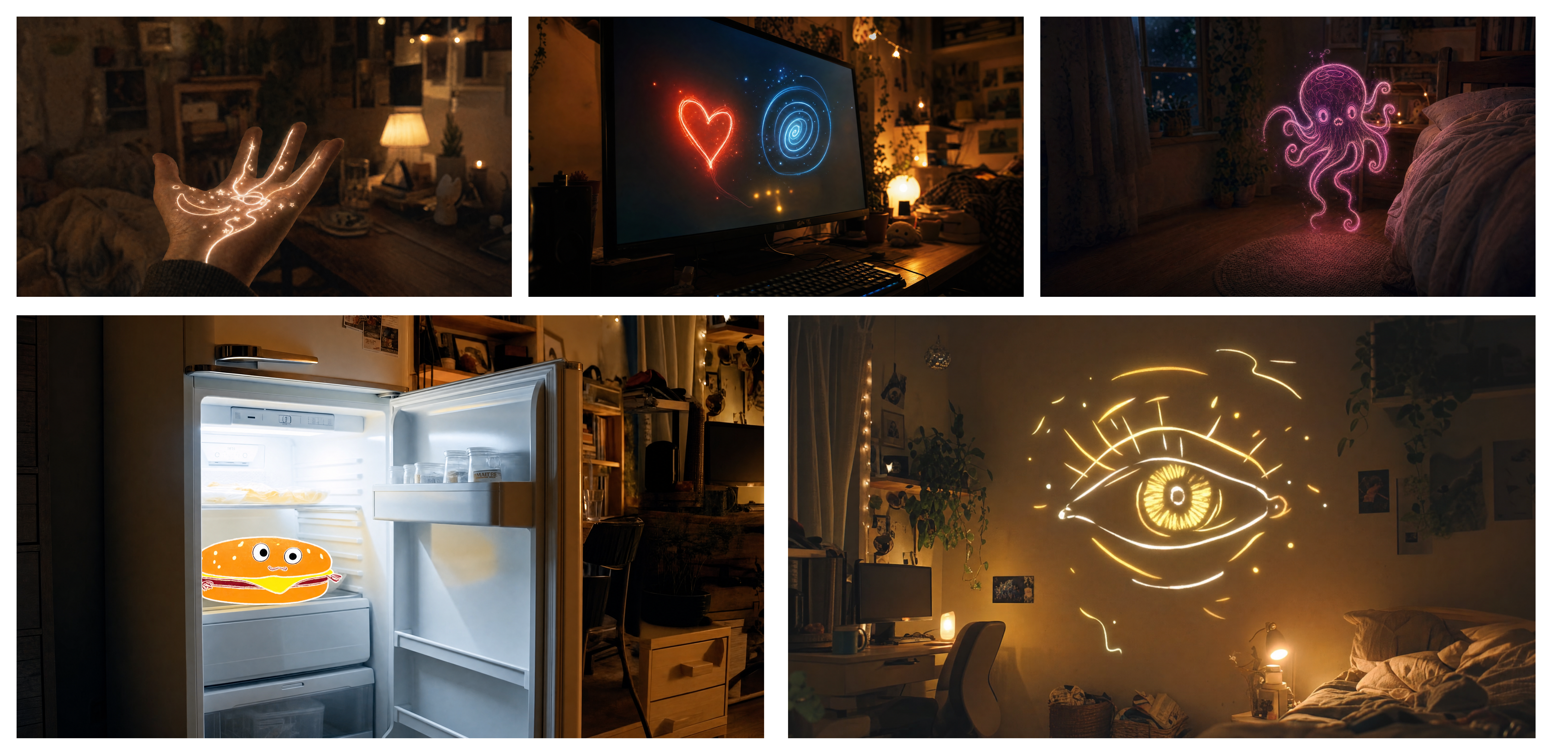
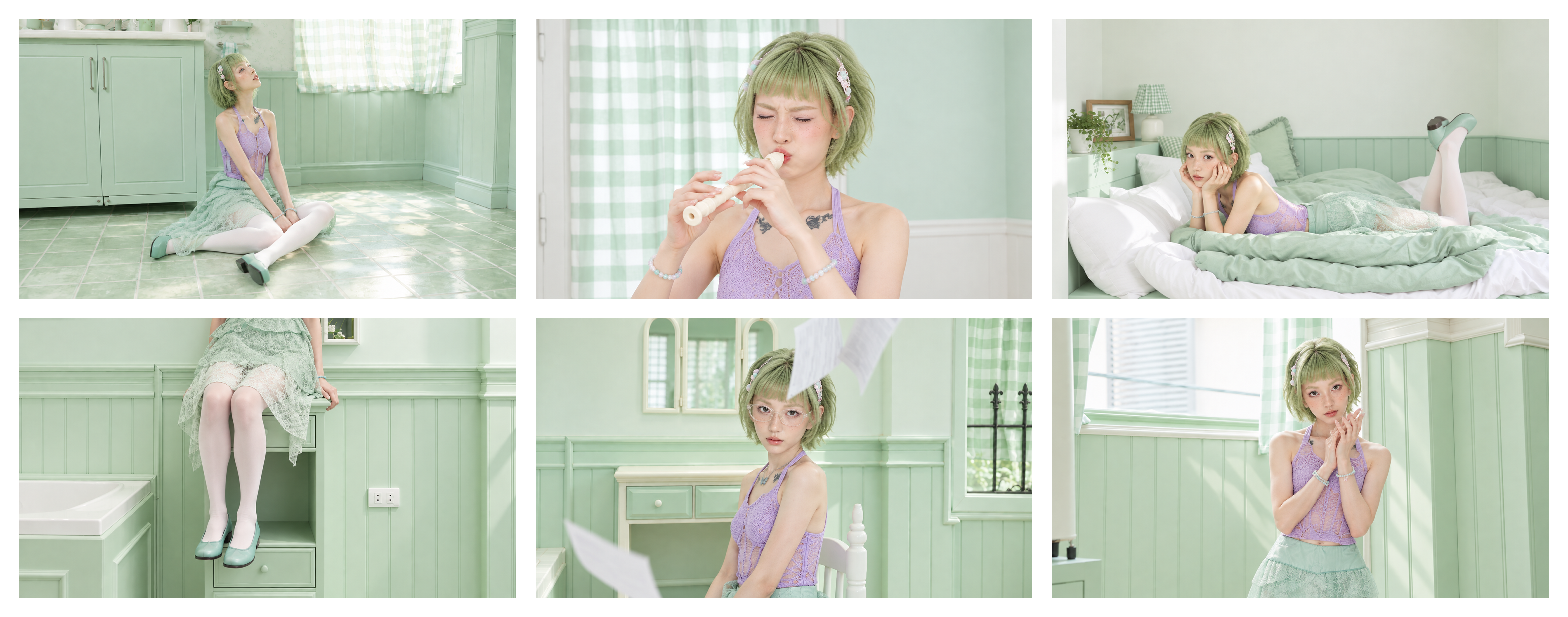
Carry recognizable characters, appearances and audiovisual details across changing viewpoints and actions.
Use a reference video for pacing and composition, then add your own images to adapt the scene to a product, character or campaign.
Replace elements, characters or scenes, remove background people, or change the visual style while keeping the parts you want.
Build a continuous scene, plan its key moments and direct the action, emotion and camera with your prompt.
Generate 3–30 second videos with room for continuous action, longer takes and a complete emotional beat.
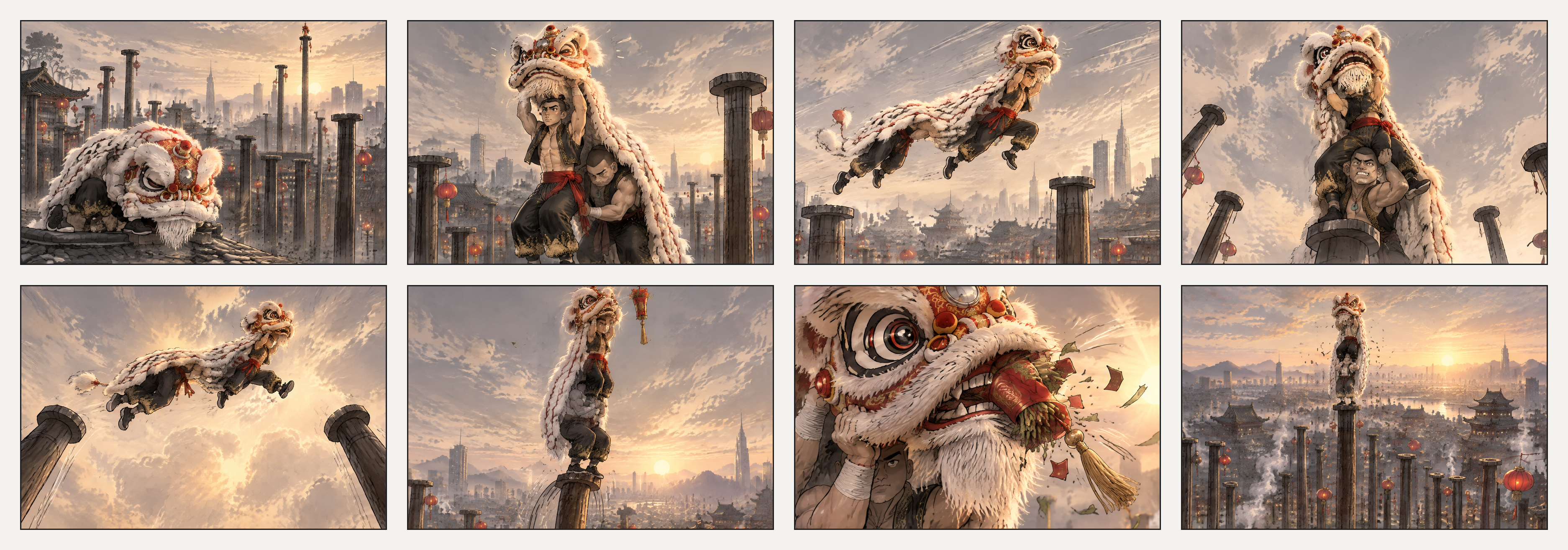
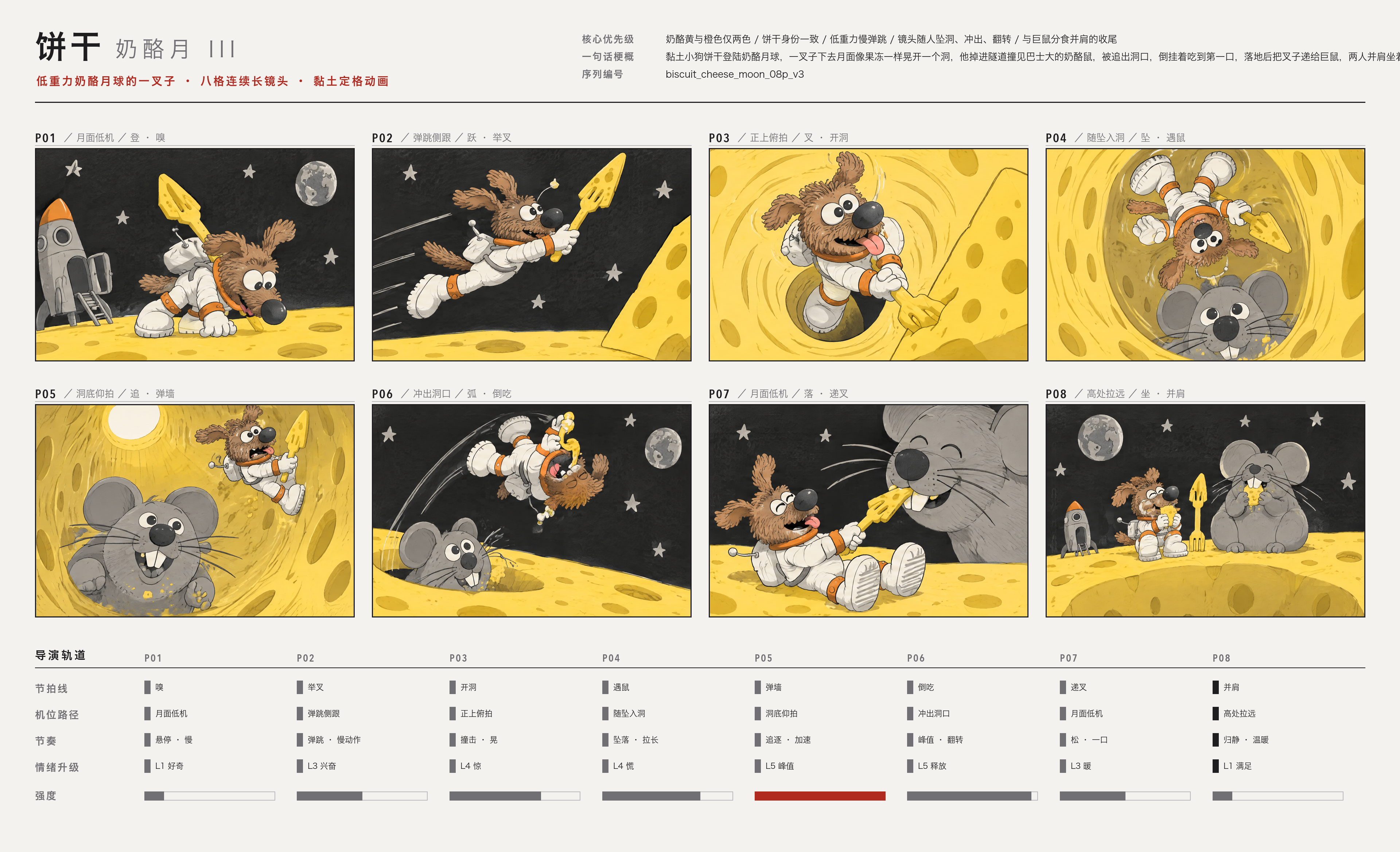
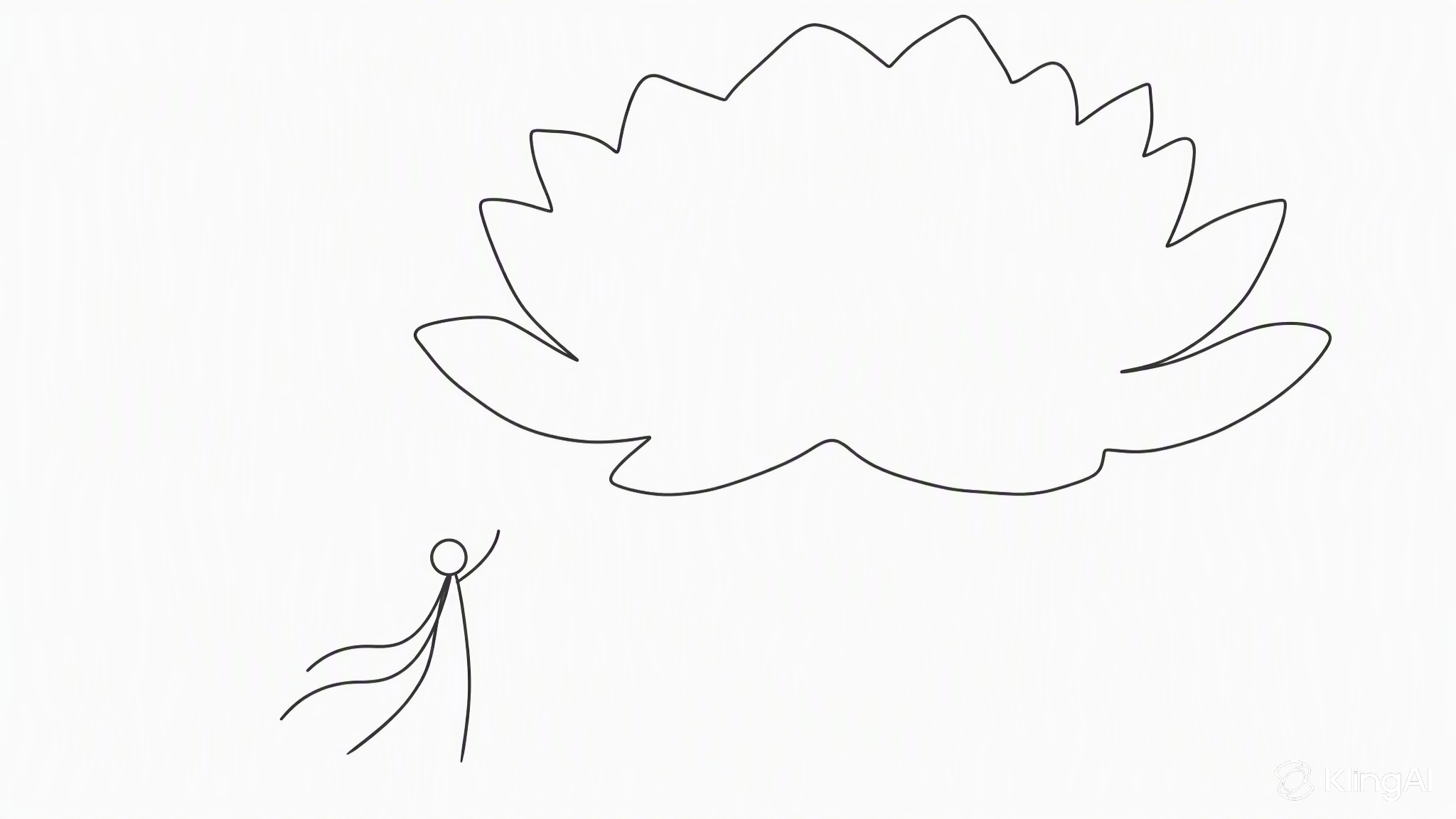
Define up to 10 keyframes to guide character states, scene changes and story beats, with motion connecting each moment.
Start with a short idea or describe camera movement, lighting, action and sound in detail. Prompts can contain up to 8,000 tokens.
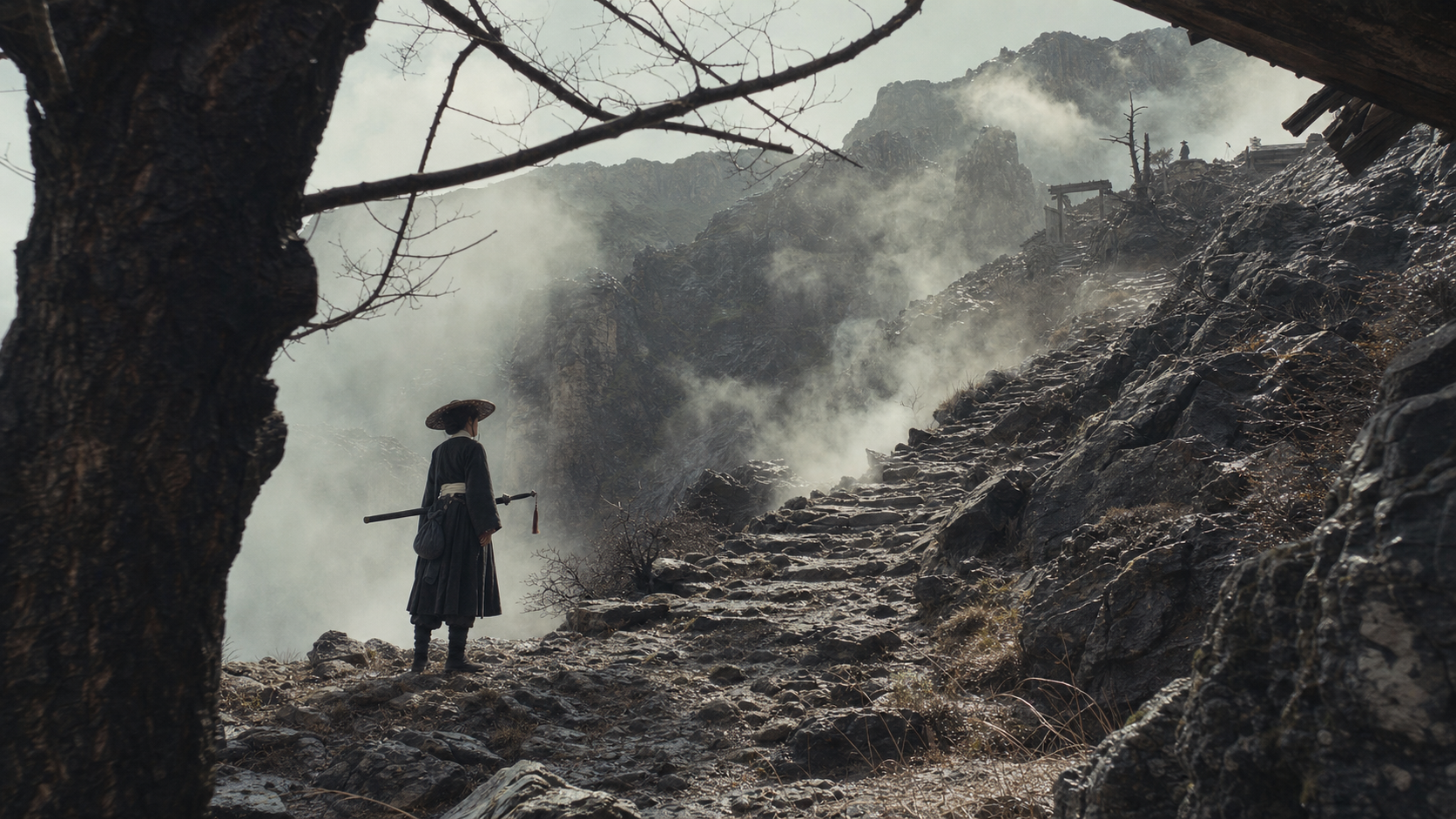
Guide push-ins, pull-outs, pans, tracking and orbit shots, with smooth changes in shot size and scene transitions.
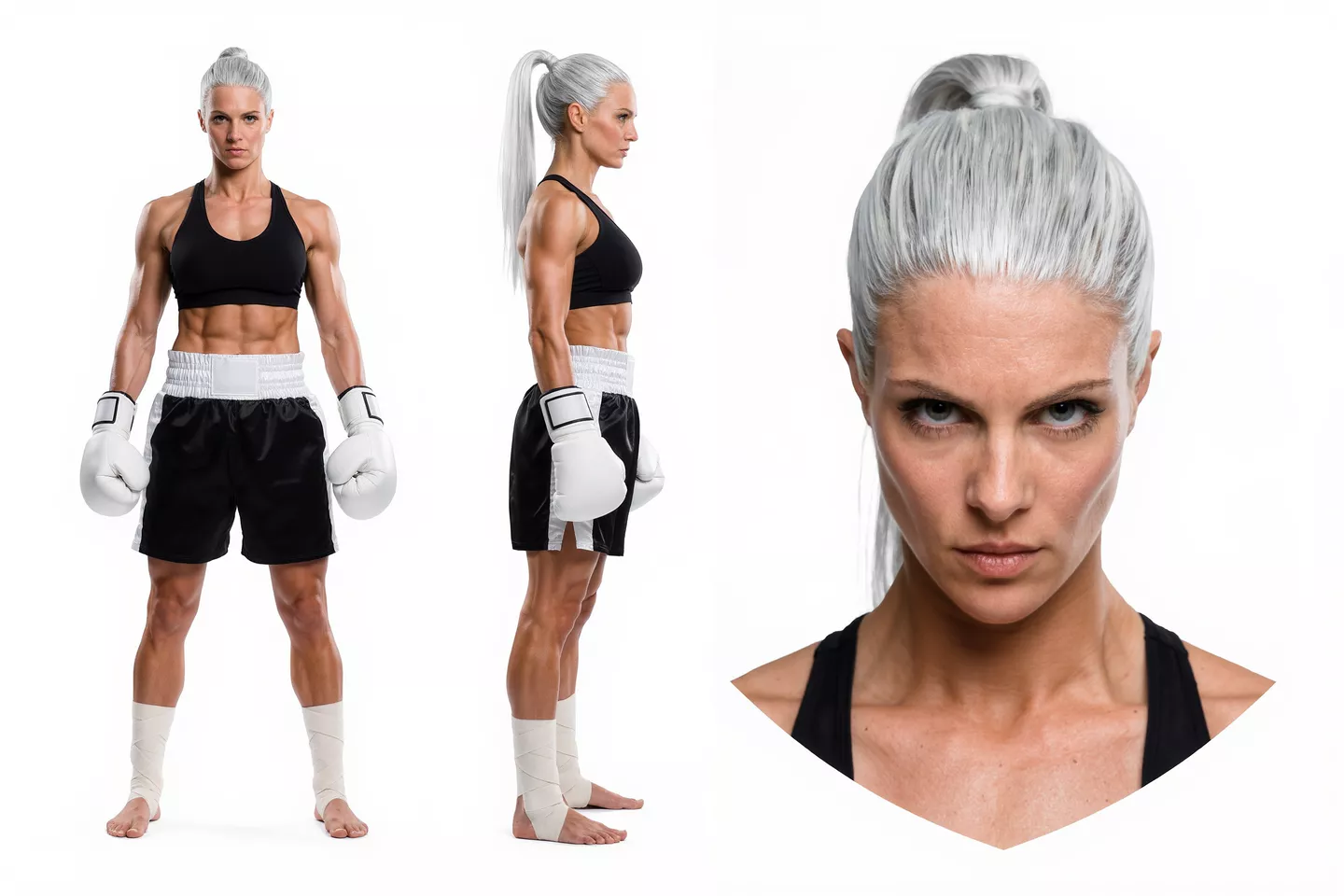
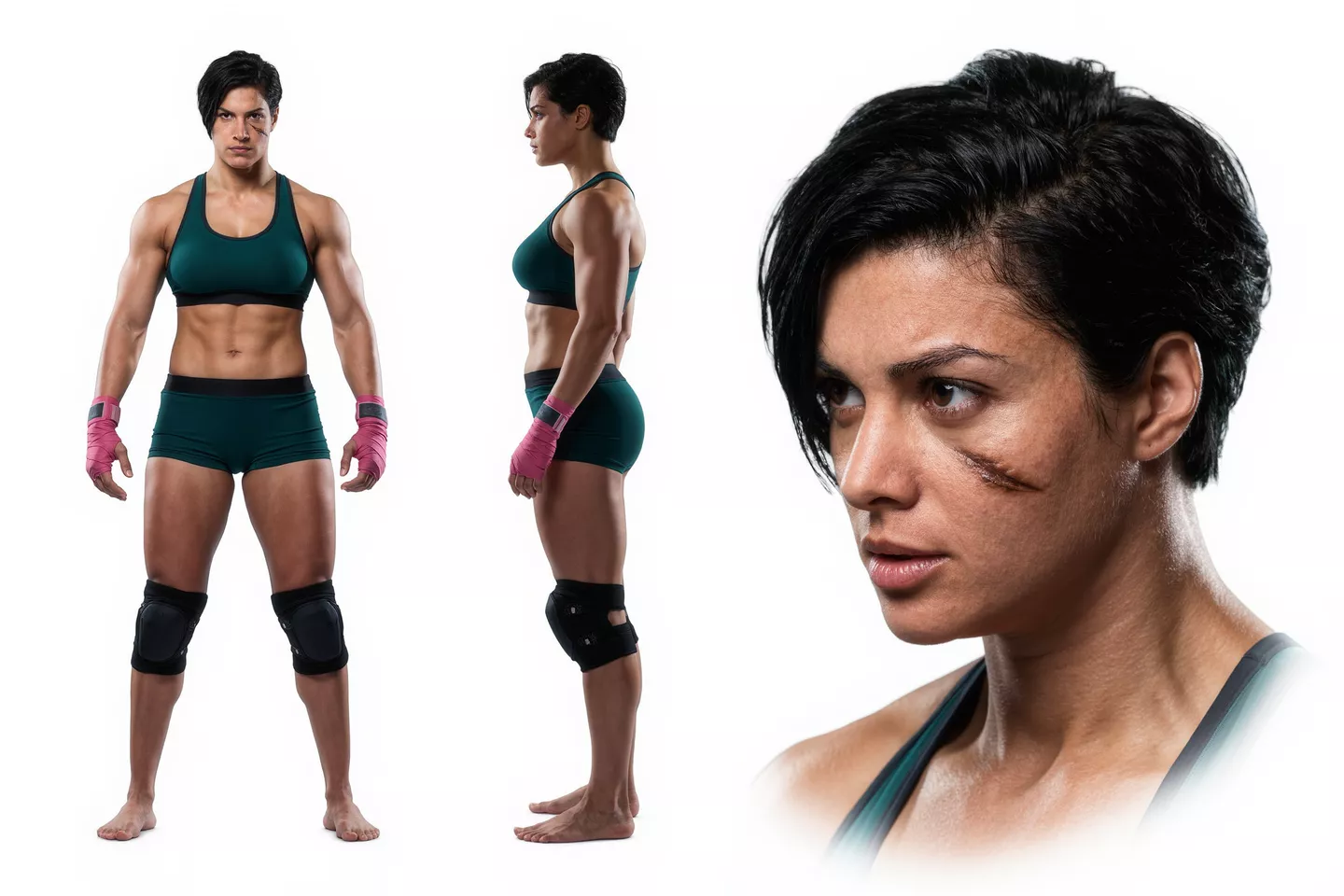
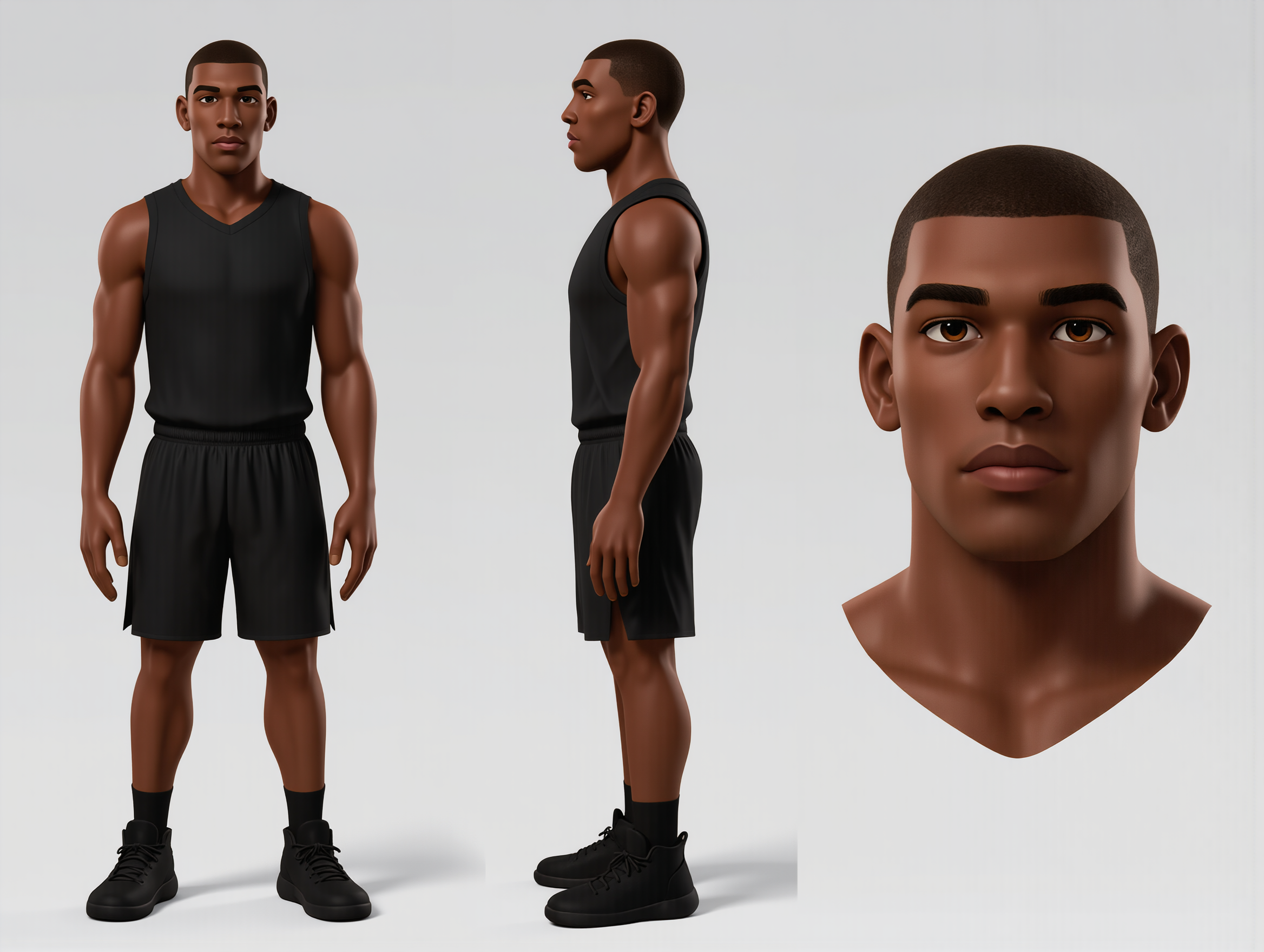
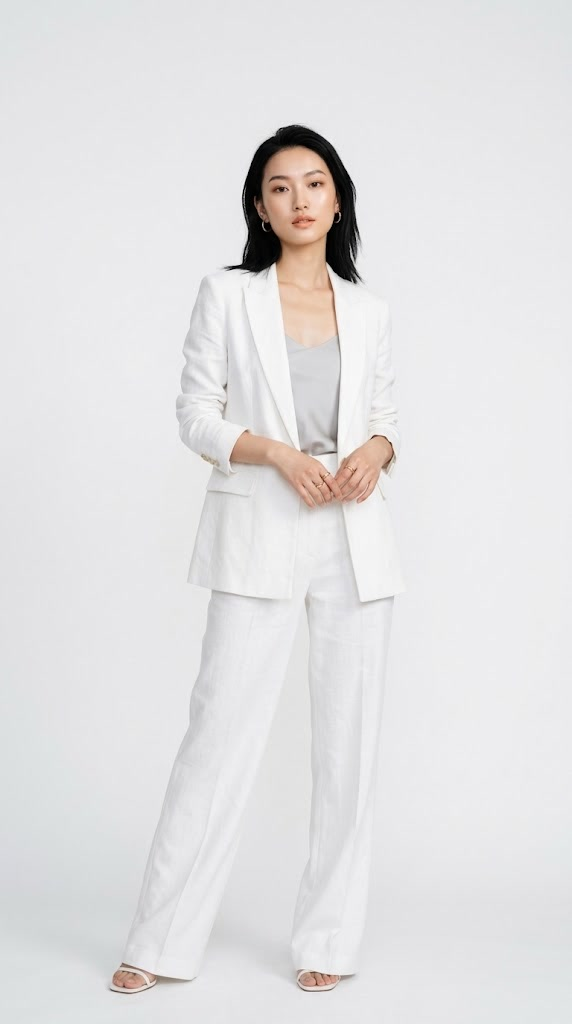
Reference Image
Reference Image
Reference input 1
Generated result · Kling 4.0
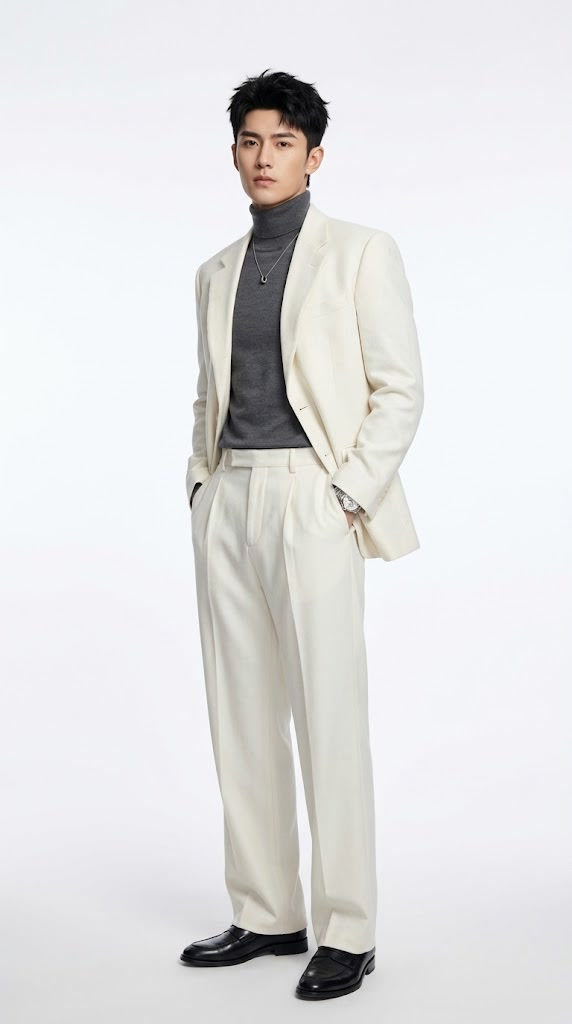
Reference Image
Reference Image
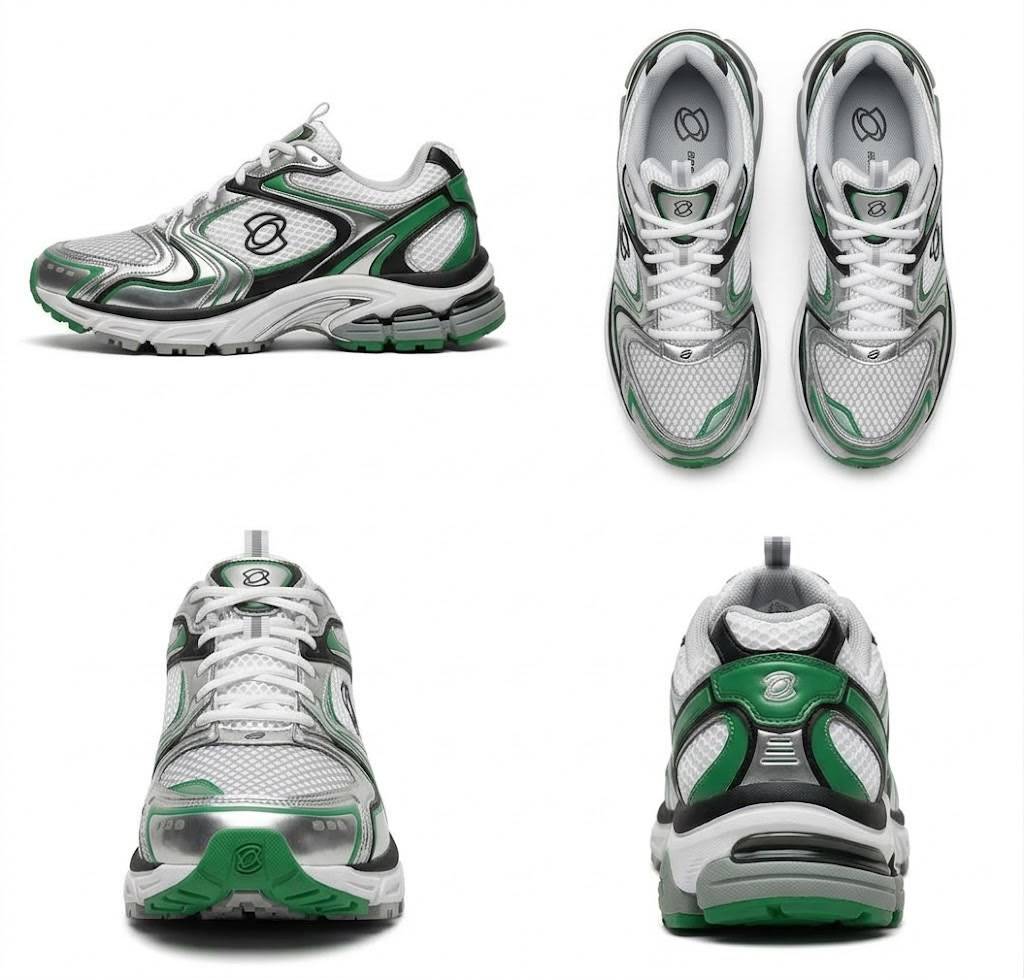
Reference input 1Reference input 2
Generated result · Kling 4.0
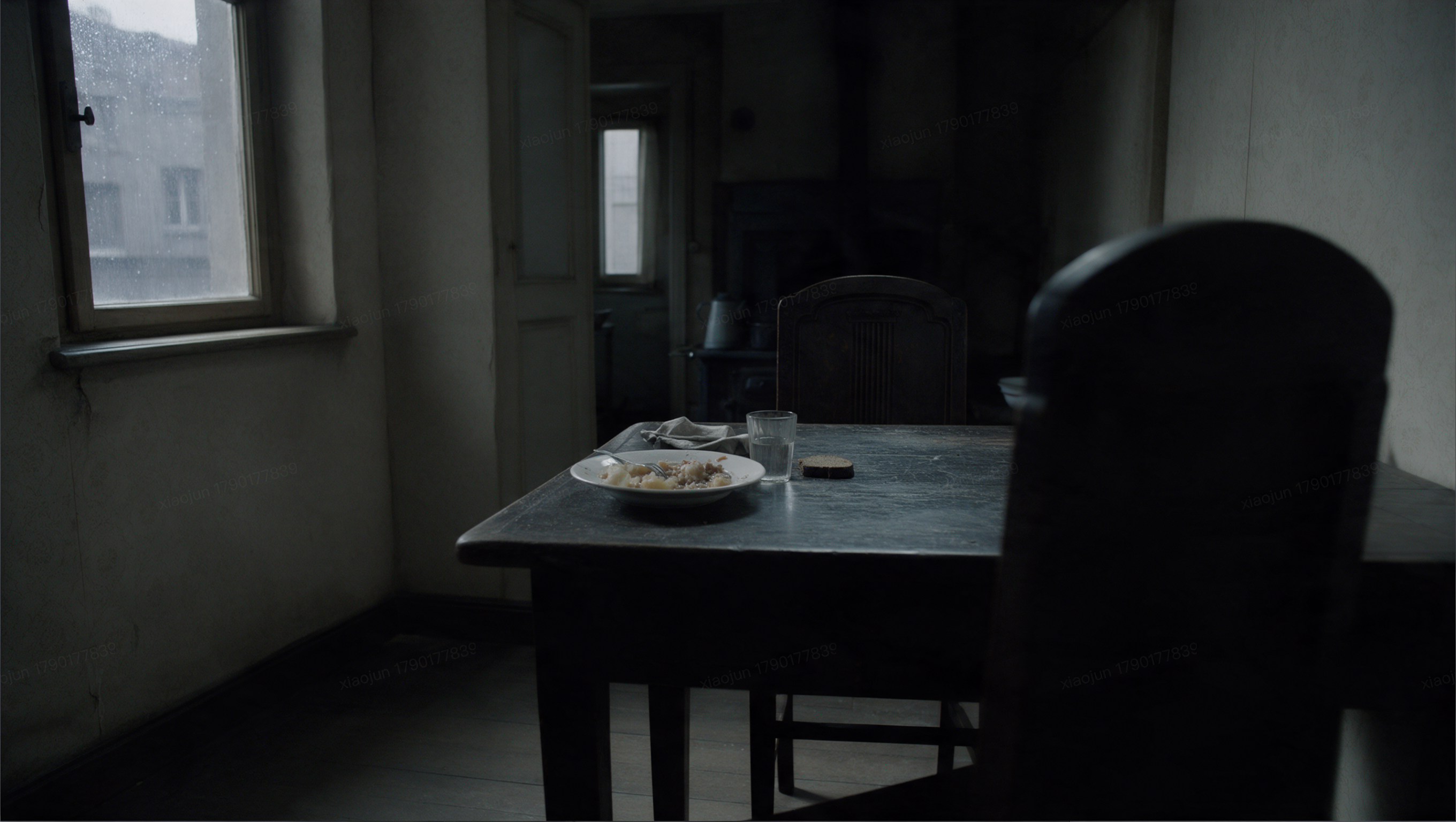
Keyframe
Keyframe
Reference input 1
Generated result · Kling 4.0
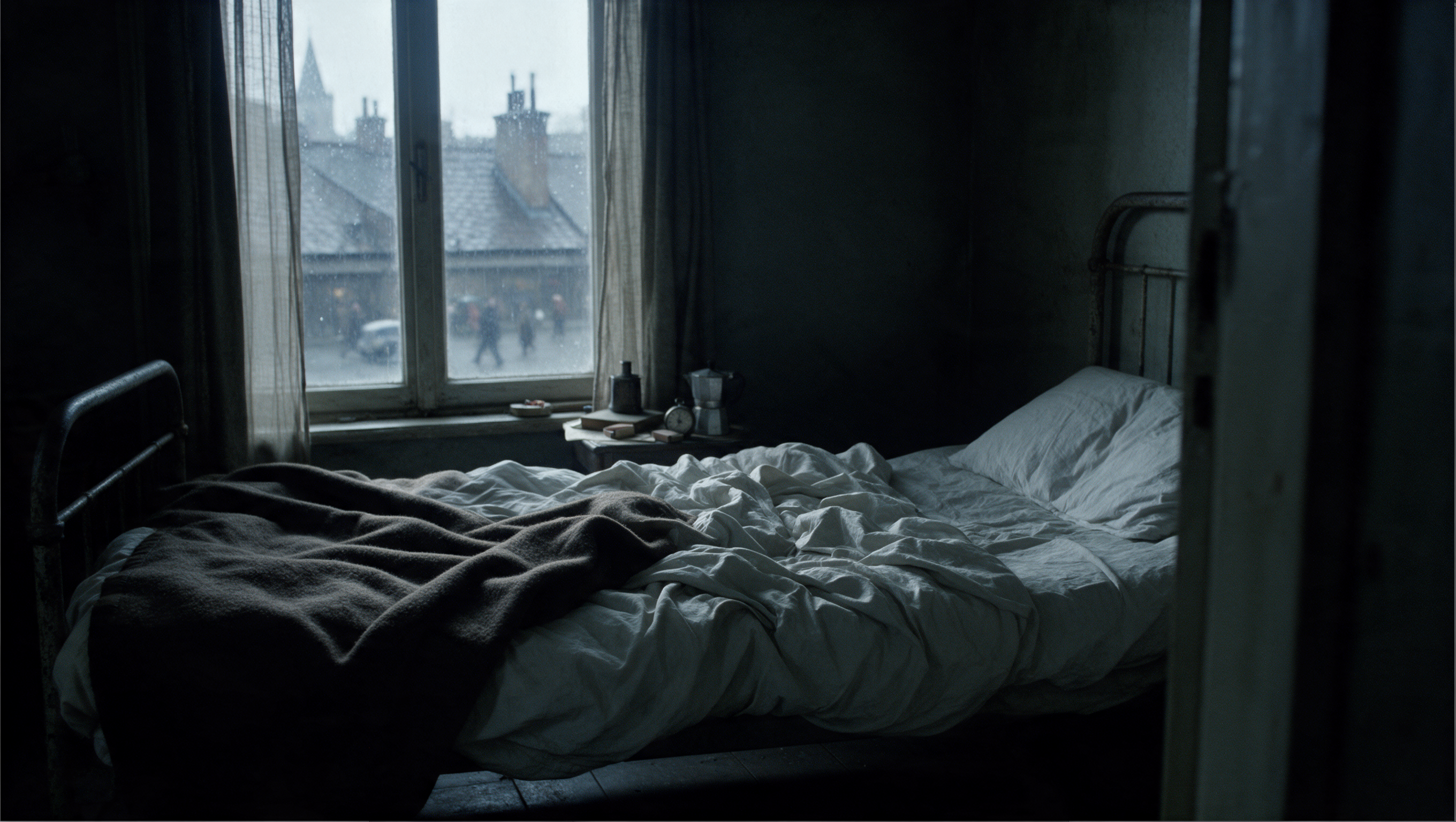
Keyframe
Keyframe
Reference input 1
Generated result · Kling 4.0
Keyframe
Keyframe
Reference input 1Reference input 2
Generated result · Kling 4.0
Prompt
Prompt
Prompt
An old man ranting about AI.
Generated result · Kling 4.0
Prompt
Prompt
Prompt
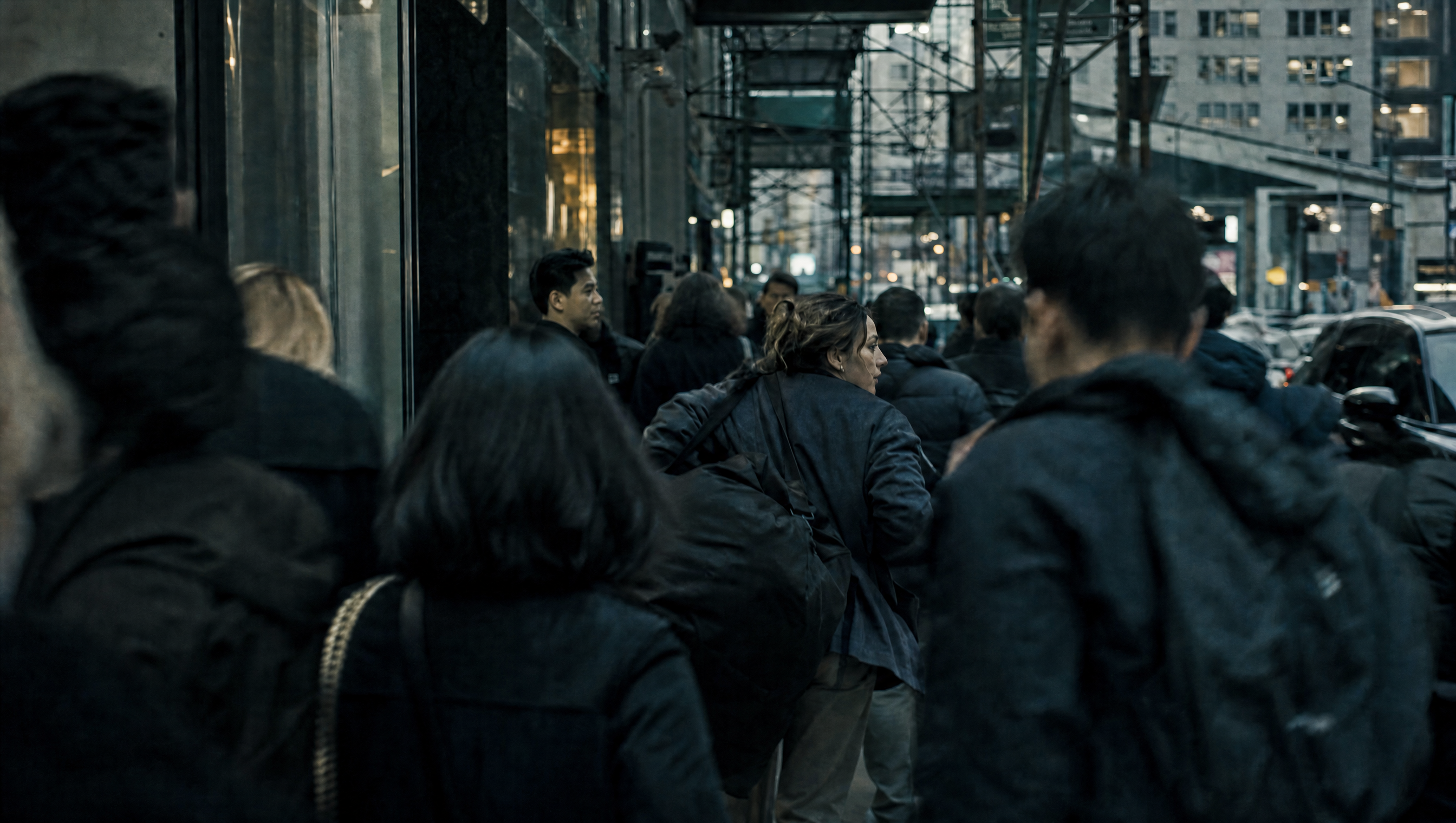
A continuous 7-second shot set in the UK. Two friends who have not seen each other for a long time meet at the corner of a quiet street at dusk, surrounded by a diverse crowd going about their daily lives. They smile, walk quickly toward each other, and share a warm embrace. Their facial expressions and body movements are natural. A handheld camera follows them with subtle camera shake. Soft, warm lighting with a nostalgic cinematic film look. Include natural footsteps, street ambience, background music, and English dialogue.
Generated result · Kling 4.0
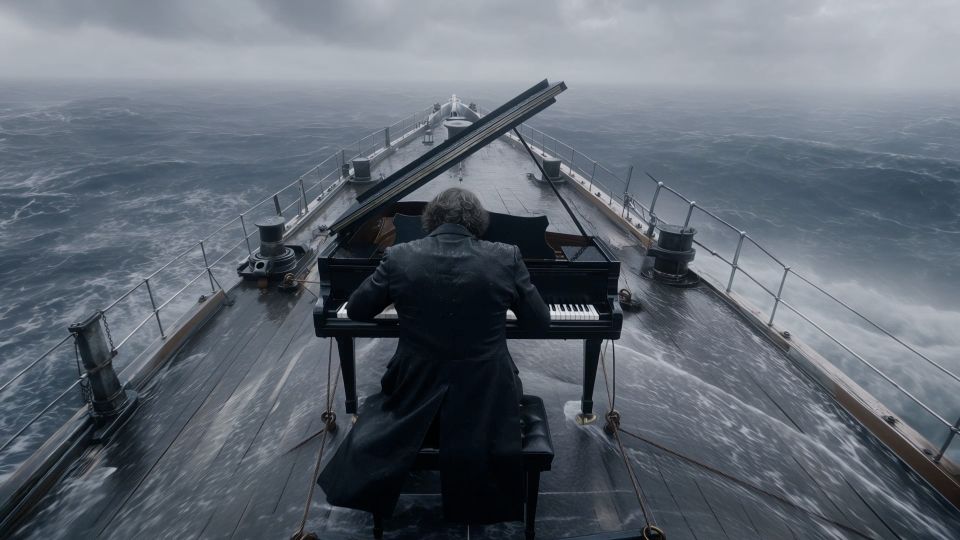
Smoother camera movement and transitions
Generated result · Kling 4.0
Smoother camera movement and transitions
Generated result · Kling 4.0
04 / 05
Create for different styles and audiences
Make product ads, short dramas and animation, with visual styles, dialogue and lettering that suit your audience.
Build product ads, UGC promotions, game trailers, short dramas, commercial visuals and animation from your creative references.
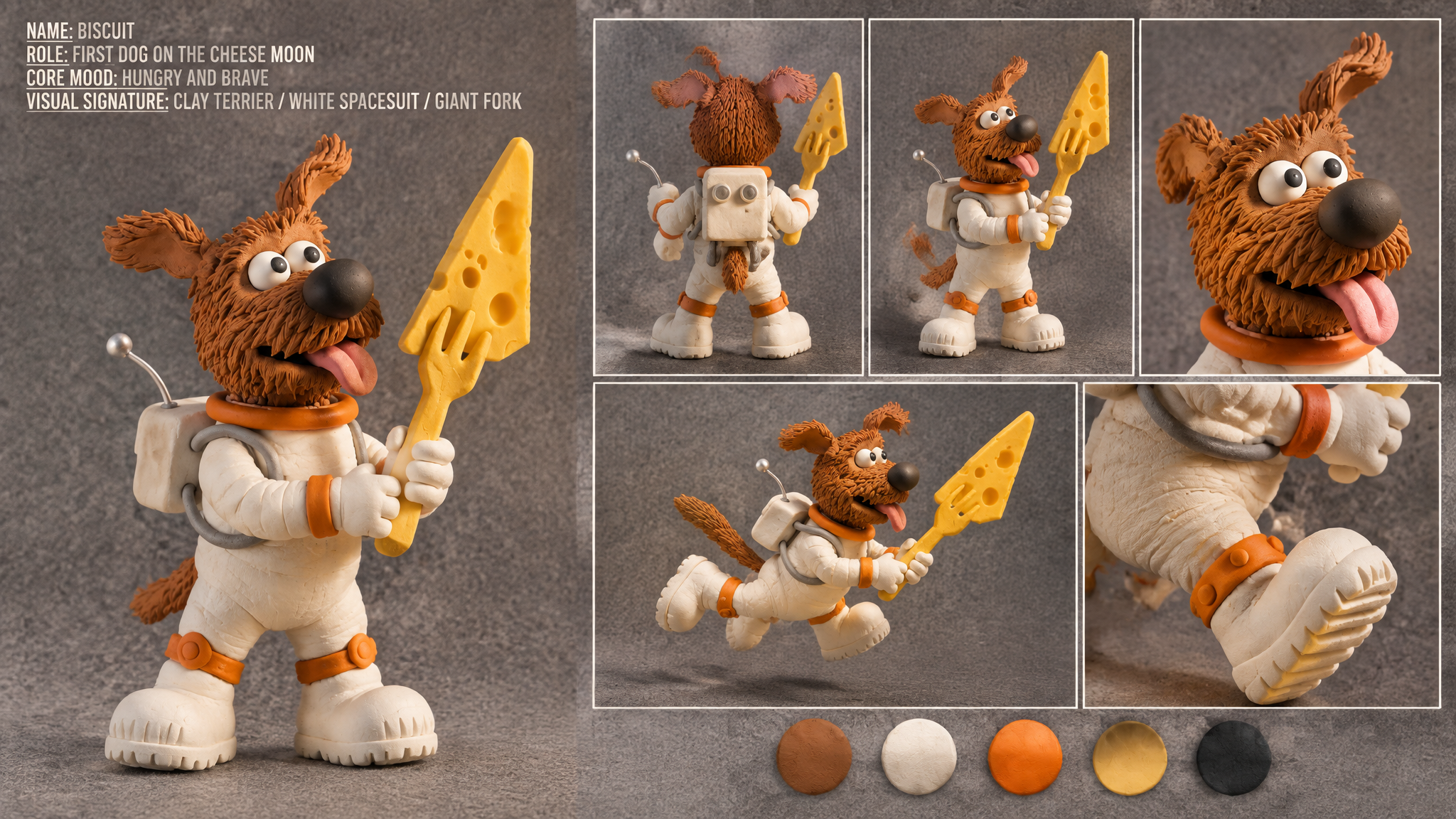
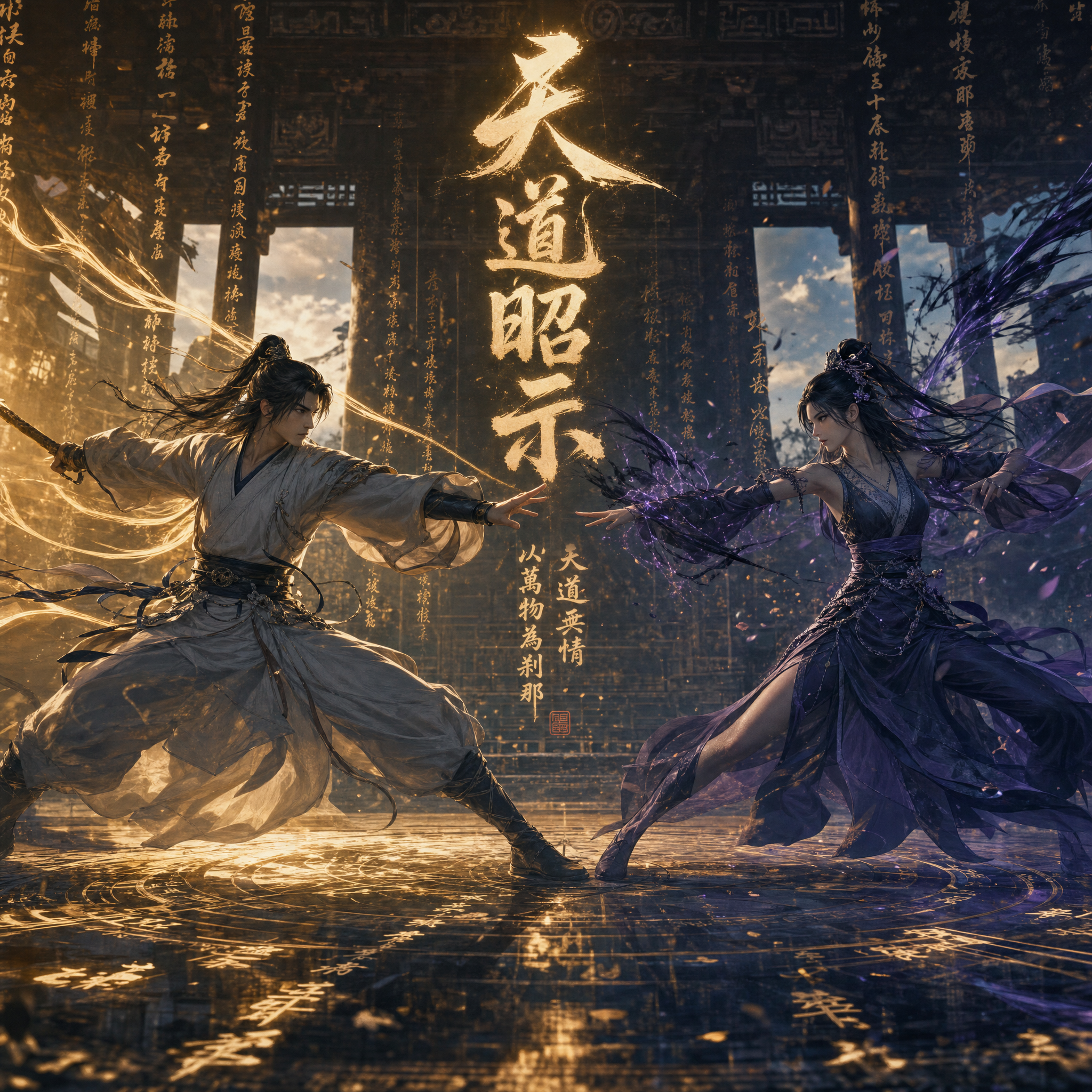
Shape your scene as a vlog, realistic documentary, clay animation, glitch art, felt artwork or 3D cyberpunk video.
Create dialogue in Chinese, English, Japanese, Korean, Spanish, Portuguese, German, French and Hindi, with selected Chinese dialects and English accents.
Bring multilingual lettering, emojis and logos into moving scenes.
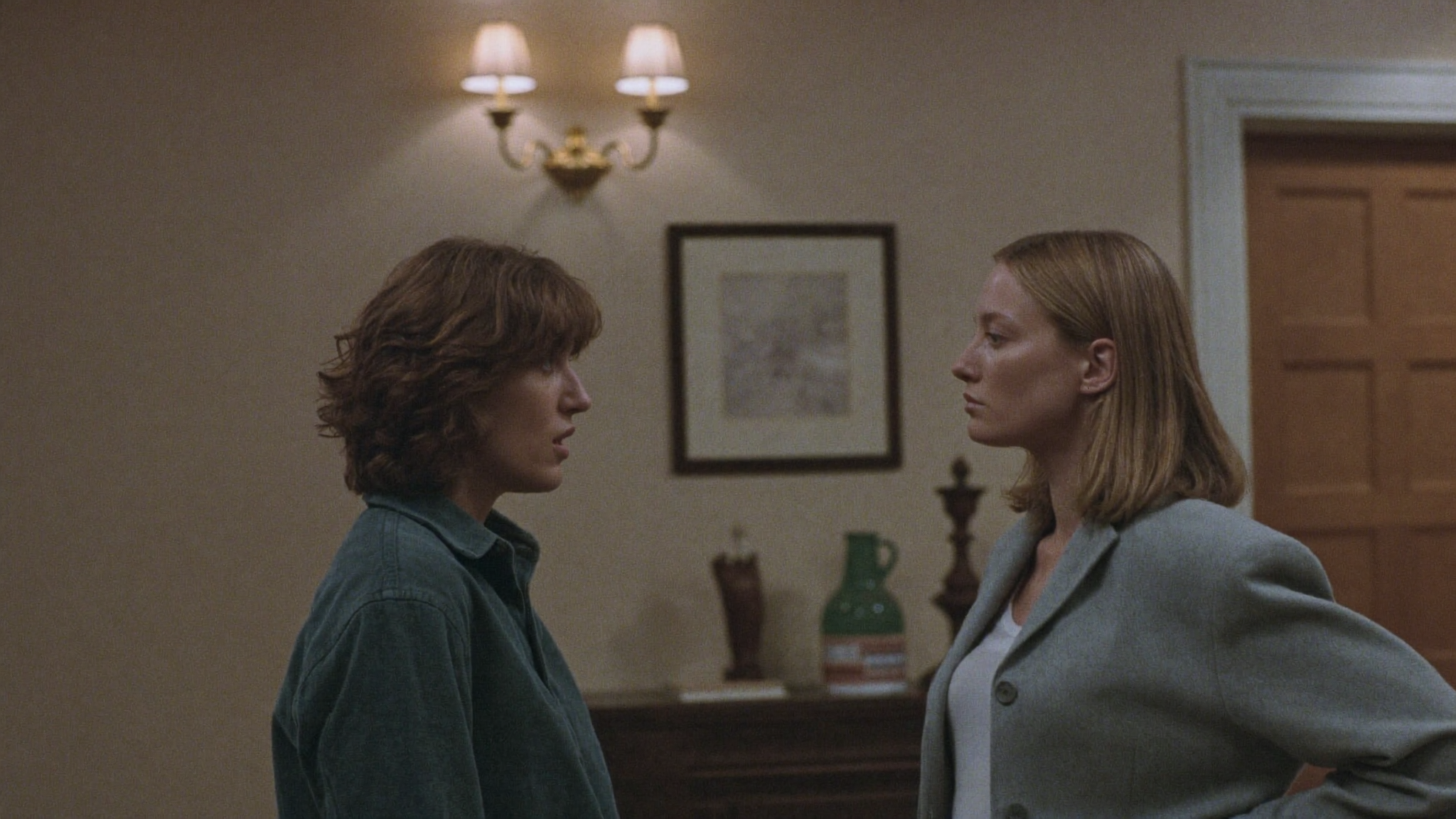
Subtle expressions, natural light and small gestures give a quiet scene its emotion.
What you can create with Kling 4.0
From marketing ads and social shorts to product demos, lessons and film storyboards, Kling 4.0 helps turn text and images into video ideas you can refine. Define your subject, action and camera movement, use references to guide style and detail, then adjust the visuals, pacing and sound to suit your publishing goals.
Marketing Videos and Ad Variations
Generate multiple hooks, angles, and visual styles from one concept, then iterate until the pacing and messaging fit each channel.
Social Media Reels and Shorts
Create short-form clips in 9:16 with stable motion and consistent style, so your feed looks cohesive across posts and campaigns.
Product Demos and Landing Videos
Turn screenshots or reference images into animated product moments and explainer clips that help users understand value faster.
Education and Training Content
Produce visual sequences for lessons, tutorials, and internal training where clarity, rhythm, and repeatability matter.
Film Pre-visualization
Prototype shots, camera movement, and story beats before committing to full production, keeping characters and scenes coherent.
Animation and Creative Prototyping
Explore motion ideas quickly, test variations, and refine a visual direction without rebuilding from scratch each time.
How to create a Kling video
Choose a starting point
Write a scene or upload an image you have permission to use.
Set the model
Check the actual model version, aspect ratio and duration.
Review the result
Look for unwanted cuts, changing details and inconsistent movement.
Refine one thing
Adjust the prompt or source image and compare your next version.
Kling 4.0 vs MiniMax-H3 vs Wan3
Based on public information, compare single-generation duration, multimodal inputs, native audio and editing capabilities; no subjective visual-quality scores without a common evaluation standard.
Feature
Kling 4.0
MiniMax-H3
Wan3
Single-generation length
3–30 s
4–15 s
2–30 s
Output resolution
720p / 1080p / Native 4K
768p → 2K
480p / 720p / 1080p
Synchronized audio
Synchronized audio · stereo
Synchronized audio · stereo
Synchronized audio
Reference inputs
Text · images · video · voice references
Text · images · video · audio
Text · images · video · audio
Reference limits
Up to 15 items, including subjects and voices
Up to 12 files total; ≤9 images, ≤3 videos, ≤3 audio clips
≤10 images, ≤5 videos, ≤5 audio clips
Story and shot control
Up to 10 keyframes
First/last frames · multimodal references
First/last frames · keyframe references
Video editing
Edit characters, scenes and dialogue
Reference-based editing · motion transfer
Text-guided edits · image and audio changes
Kling 4.0 FAQ
Kling4 is shorthand for Kling 4.0, a Kling AI video model. This page explains its features, references, keyframes and video examples.
What is Kling4?
Kling4 is shorthand for Kling 4.0, a Kling AI video model. This page explains its features, references, keyframes and video examples.
Can I use Kling 4.0 here right now?
Open the online studio to use Kling 3.0 and the other connected models. Kling 4.0 is not in the current generation catalog; available controls and credit estimates are shown for the selected model.
Kling 3.0Are these examples generated by Kling 4.0?
Examples identify their model and source. Kling 4.0 showcases and Kling 3.0 examples are separate; an example does not establish that its model is available in this studio.
Output resolution depends on the selected model. Kling 3.0 supports 720p and 1080p here; some Seedance models offer 4K. Check the generator settings rather than assuming every model has the same options.
What is the difference between a reference and a keyframe?
A reference communicates what something looks like or how it should move. A keyframe describes a specific moment in the planned sequence. Use references for consistency and keyframes for progression.
Credits are consumed when you submit a generation task, and the amount depends on the selected model, duration, output quality, aspect ratio, and enabled features such as audio. Longer or more advanced generations usually cost more credits. Before submitting, you can choose the plan, model, and settings that best match your budget and expected output quality.
Subscriptions are built for ongoing production and include larger credit allowances, plan benefits, and better long-term value. One-time credit packs are useful when you only need a few extra videos, want to test a campaign idea, or do not want recurring billing. Many users start with a credit pack, then switch to a subscription once the workflow becomes part of their regular content pipeline.
Subscription credits generally follow the subscription period, so it is best to plan production within the active cycle. One-time credit packs may have their own validity rules, shown during checkout and in your account balance. For larger projects, we recommend batching drafts, variations, and final renders within the same planning window so credits are easier to track.
If a task fails because of a platform-side service issue, model execution error, or system problem, credits are usually returned or compensated automatically. If the task completes successfully but the creative result is not what you expected, it is normally treated as a completed generation. Better prompts, clearer references, and more specific camera or motion instructions can significantly improve consistency.
Yes. Image-to-video works well for product photos, portraits, character sheets, posters, concept art, real estate visuals, and ecommerce assets. For best results, use a clear image with a strong subject and describe the desired motion, camera movement, atmosphere, and any elements that should remain stable.
Yes. You can cancel renewal from the billing or subscription management page, and you can upgrade when you need more credits or higher production capacity. Cancellation usually keeps your current paid benefits active until the end of the billing period. Proration, refunds, taxes, and payment rules may vary by provider and region.
Check whether your plan includes a commercial-use license and review the Terms of Service. You remain responsible for permissions to uploaded images, likenesses, music and brand assets.
Ideal for professional creators and studios. Built for frequent creation and reliable commercial content production. Save $720 per year versus monthly.

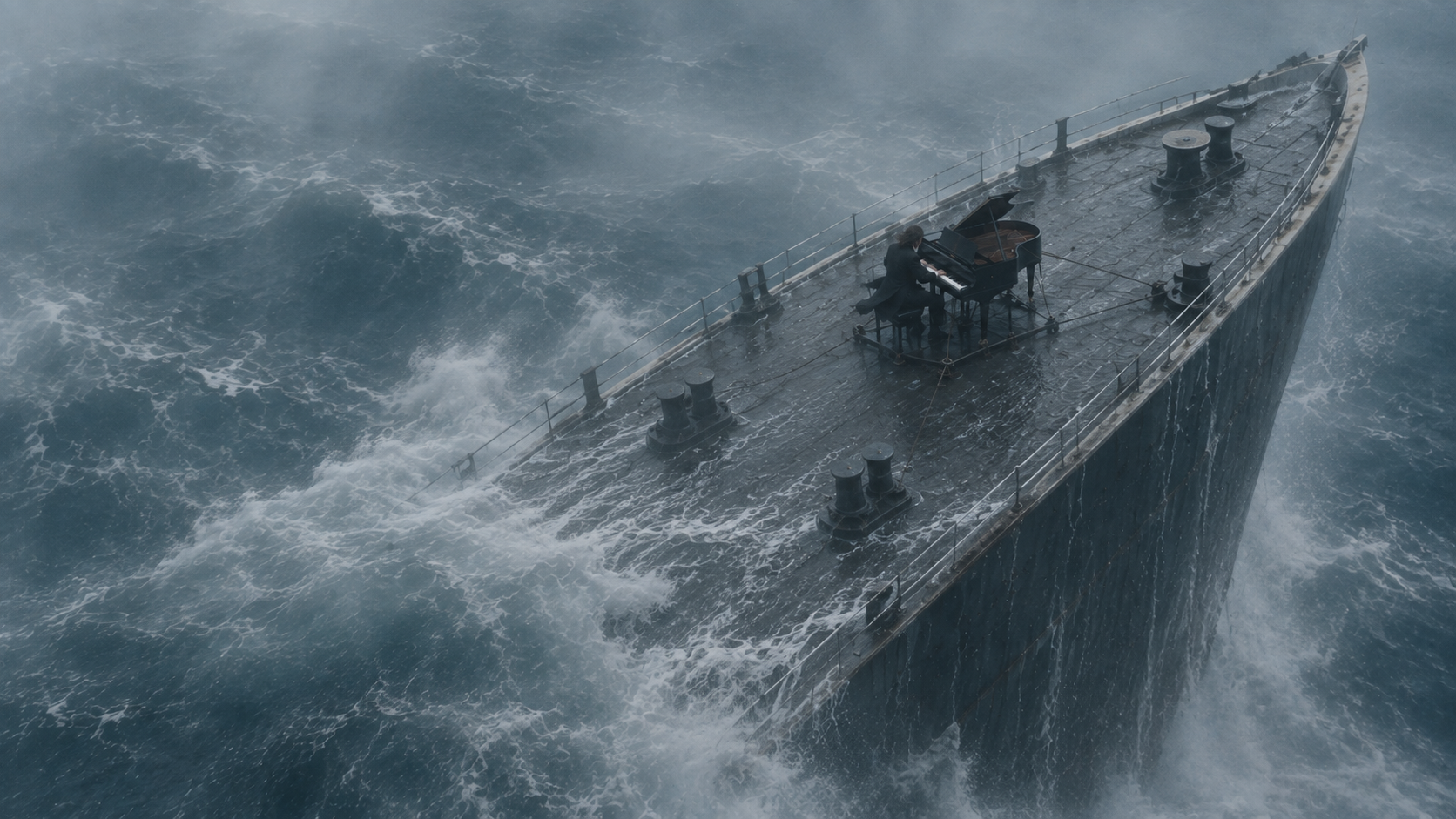
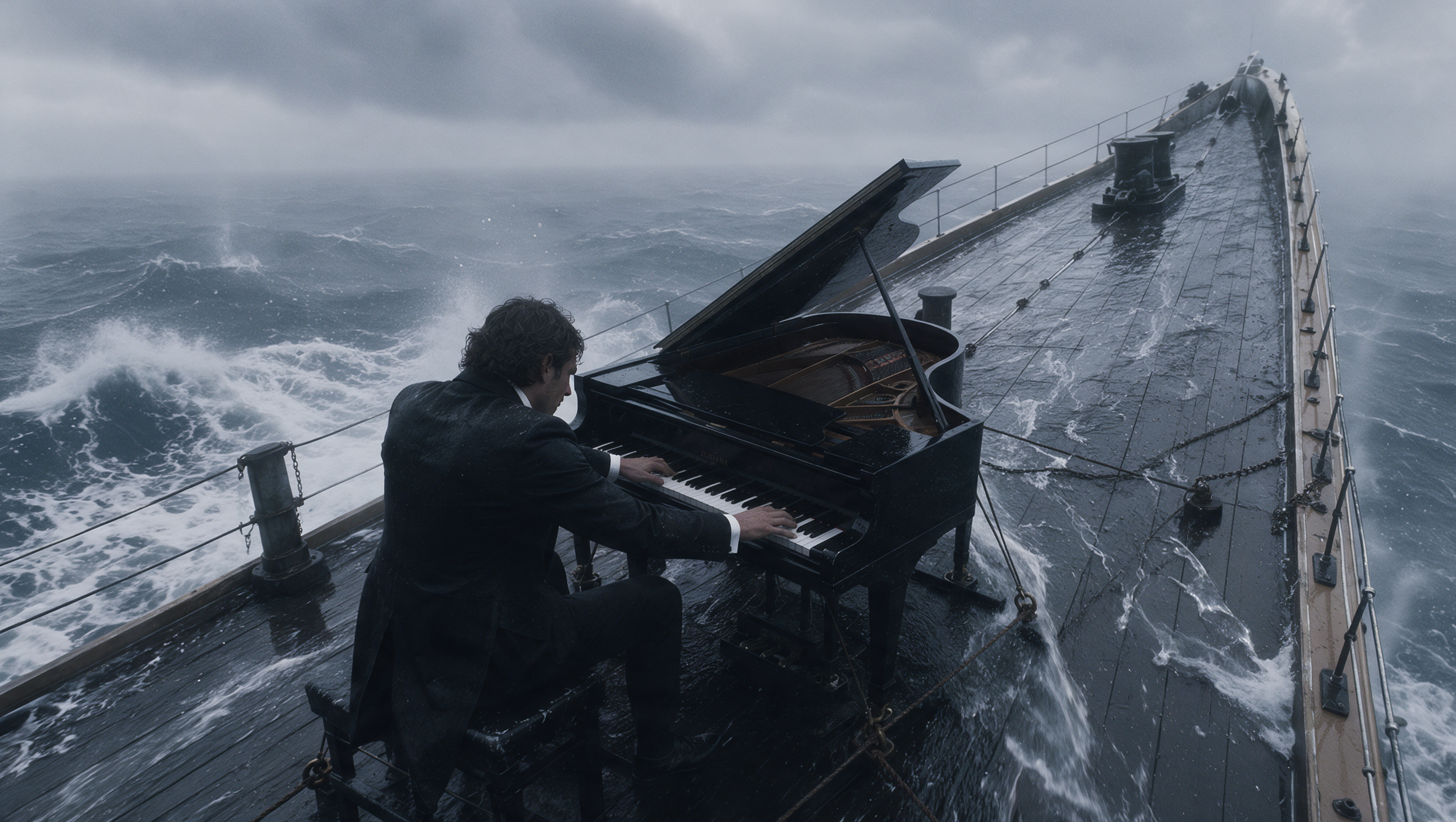
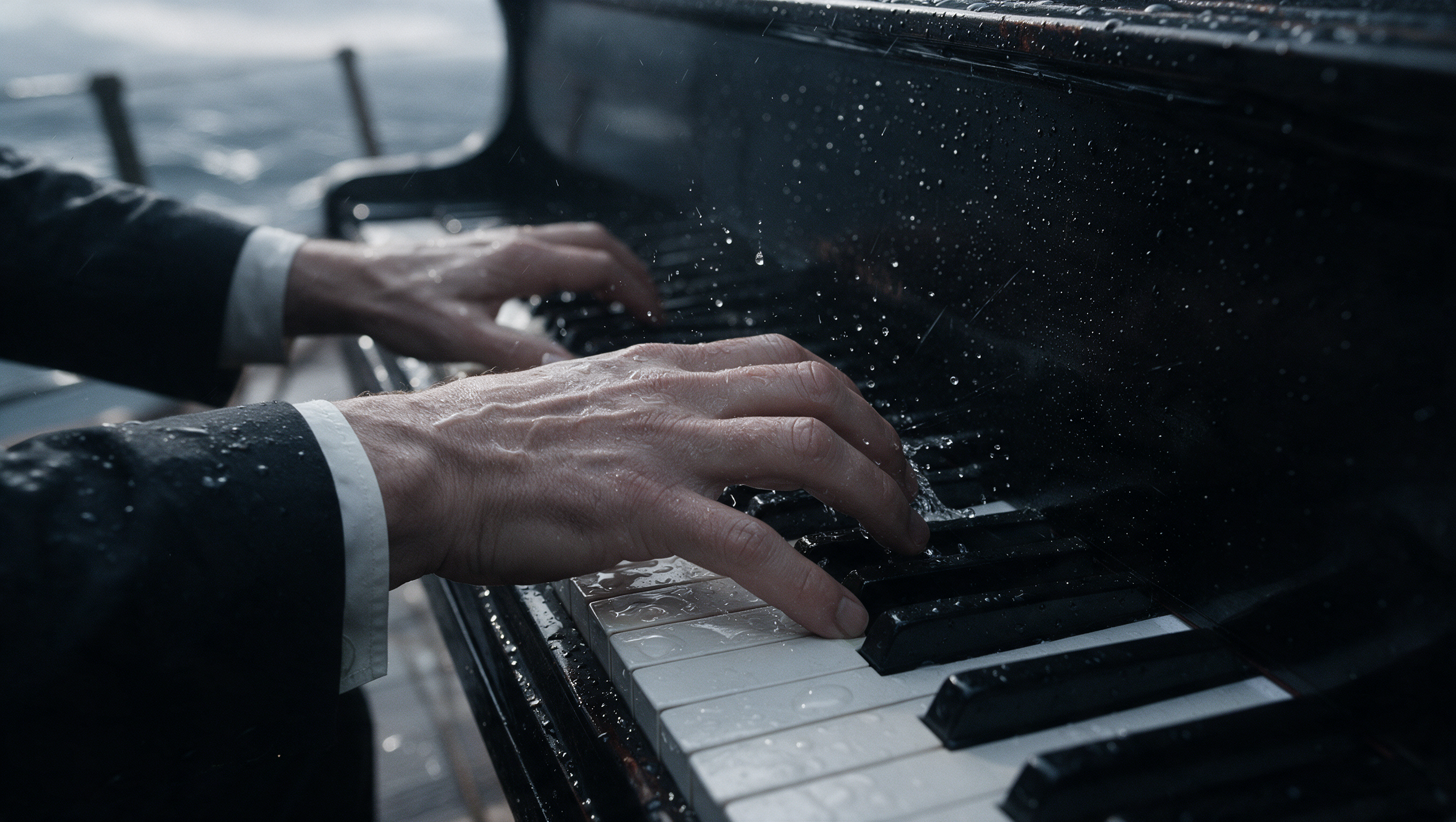
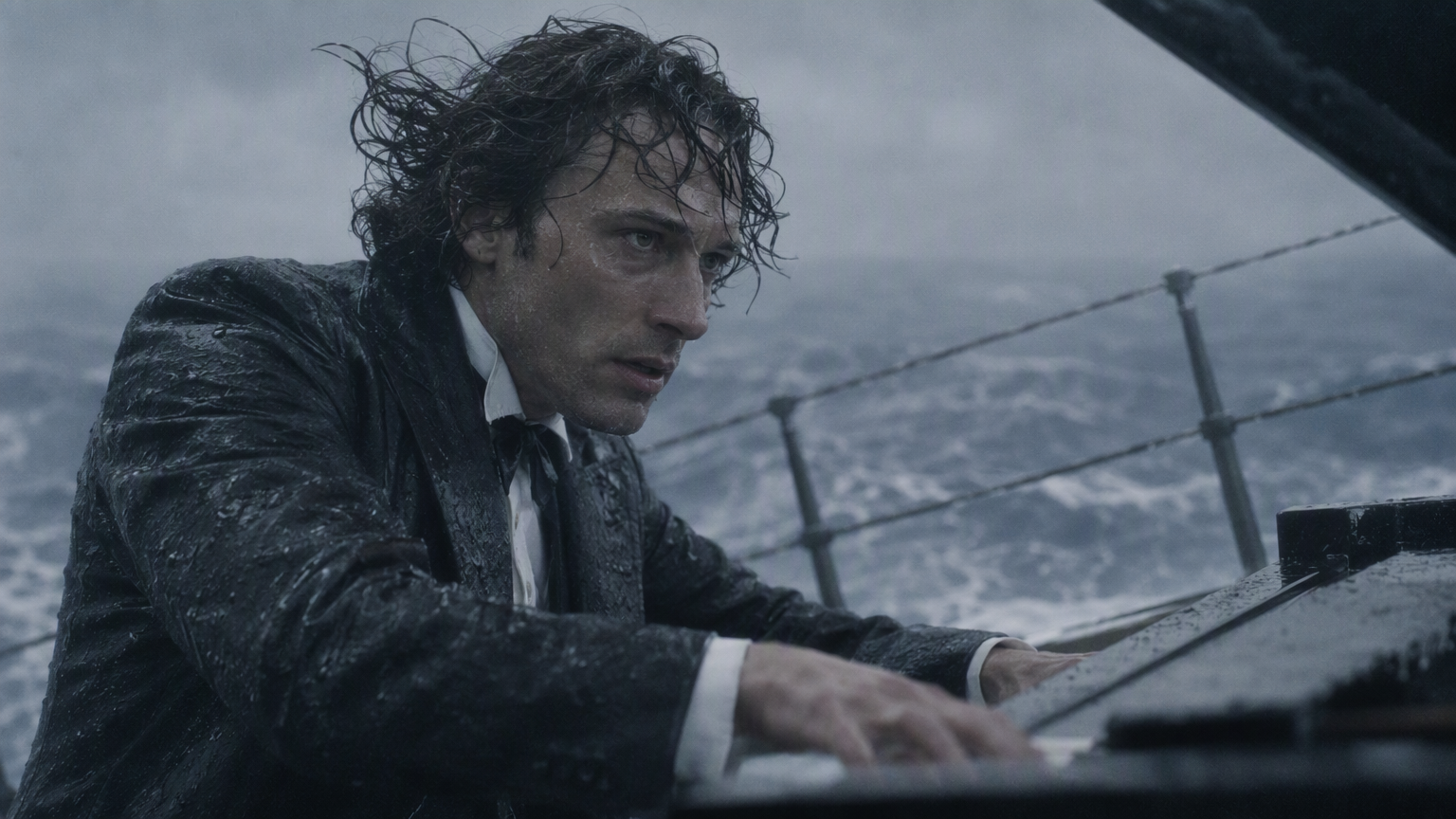

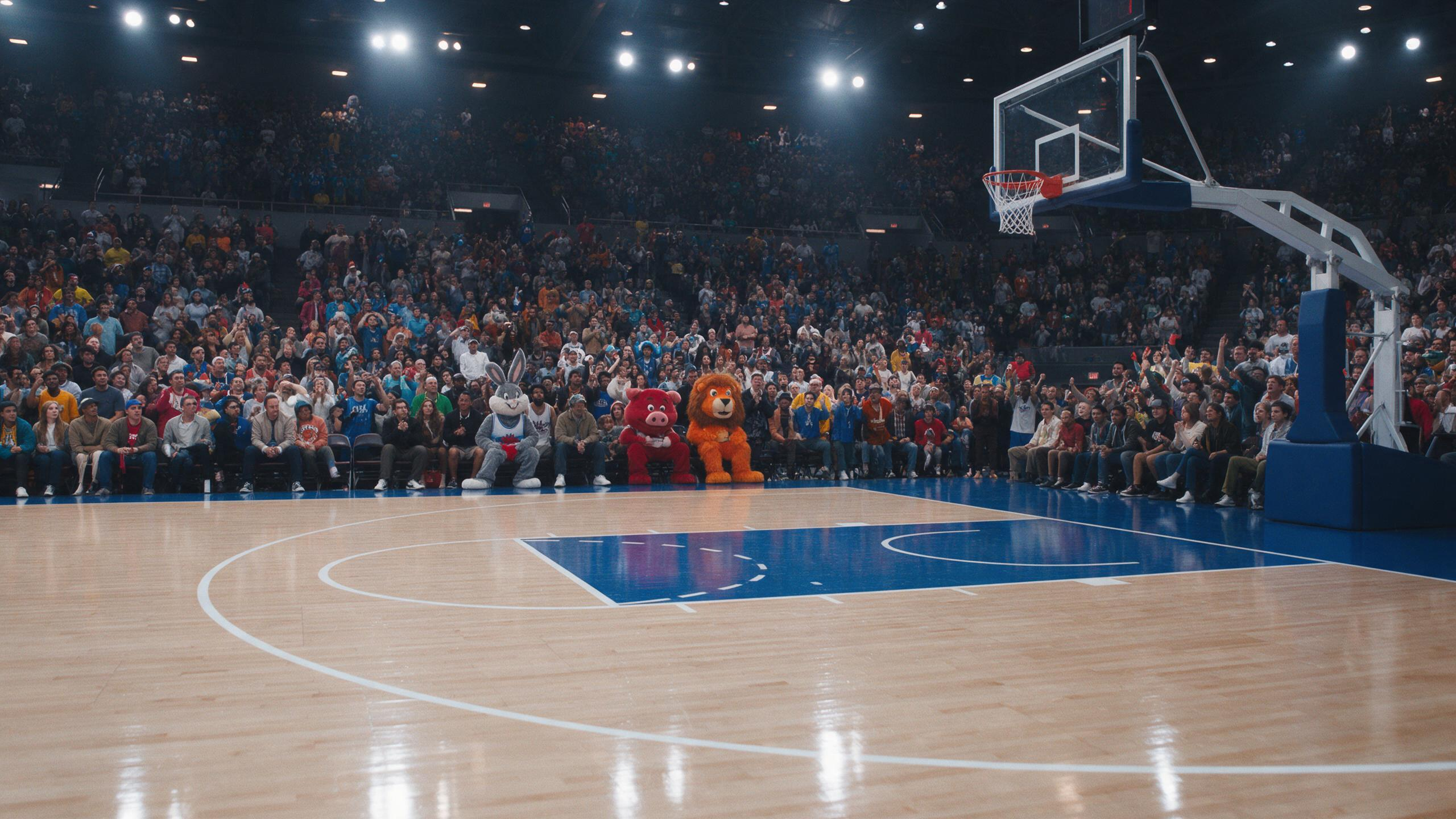
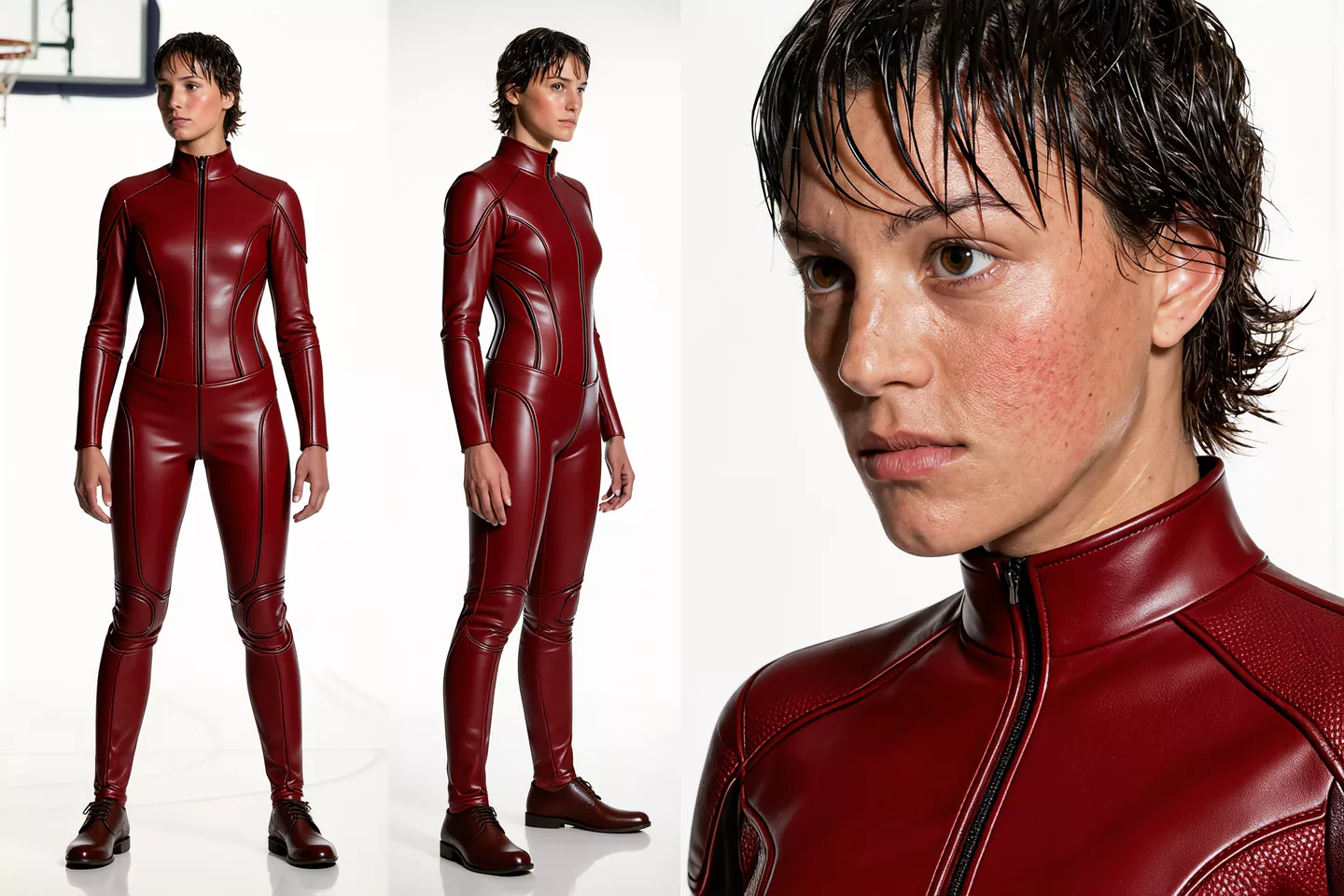
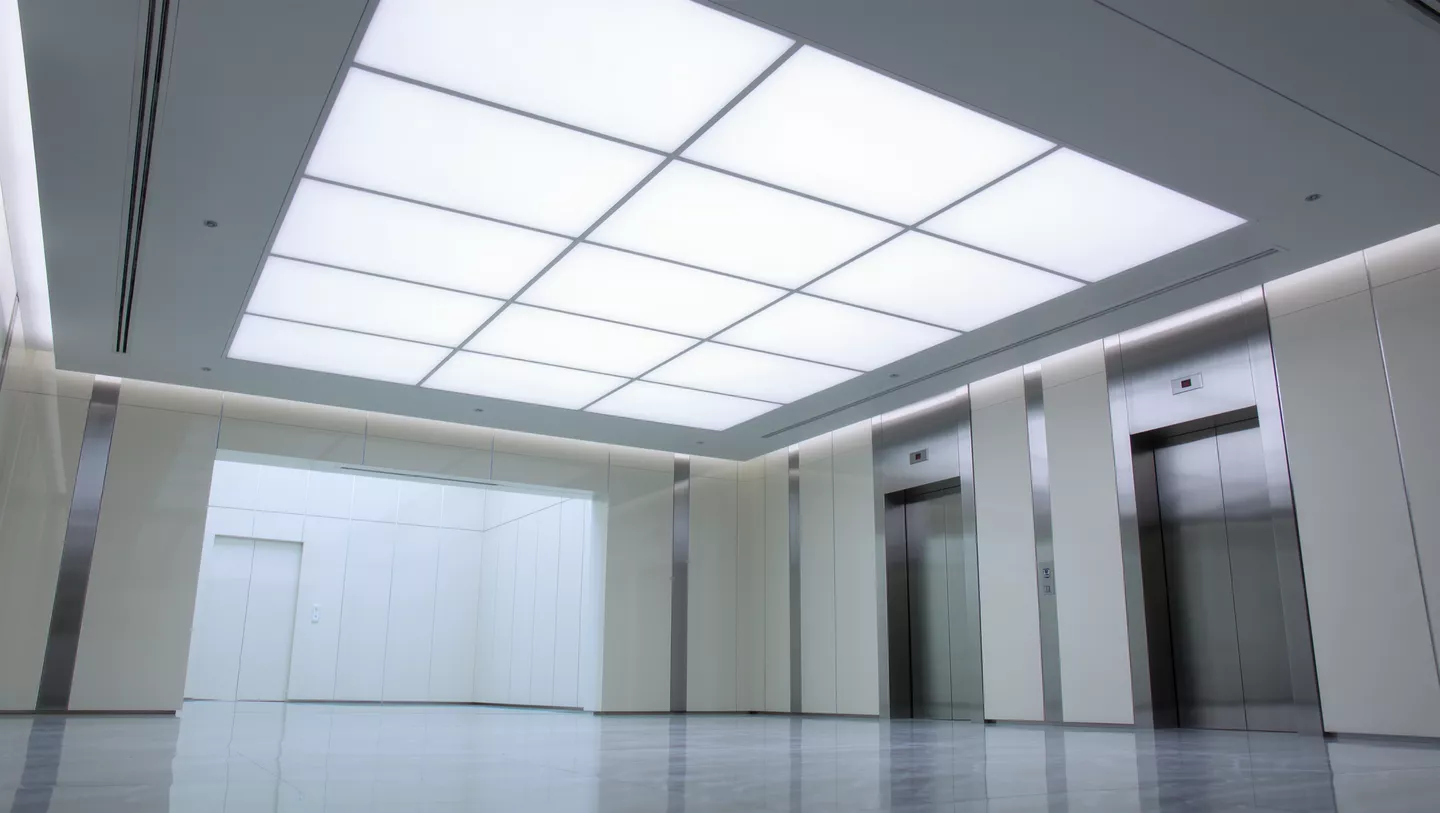
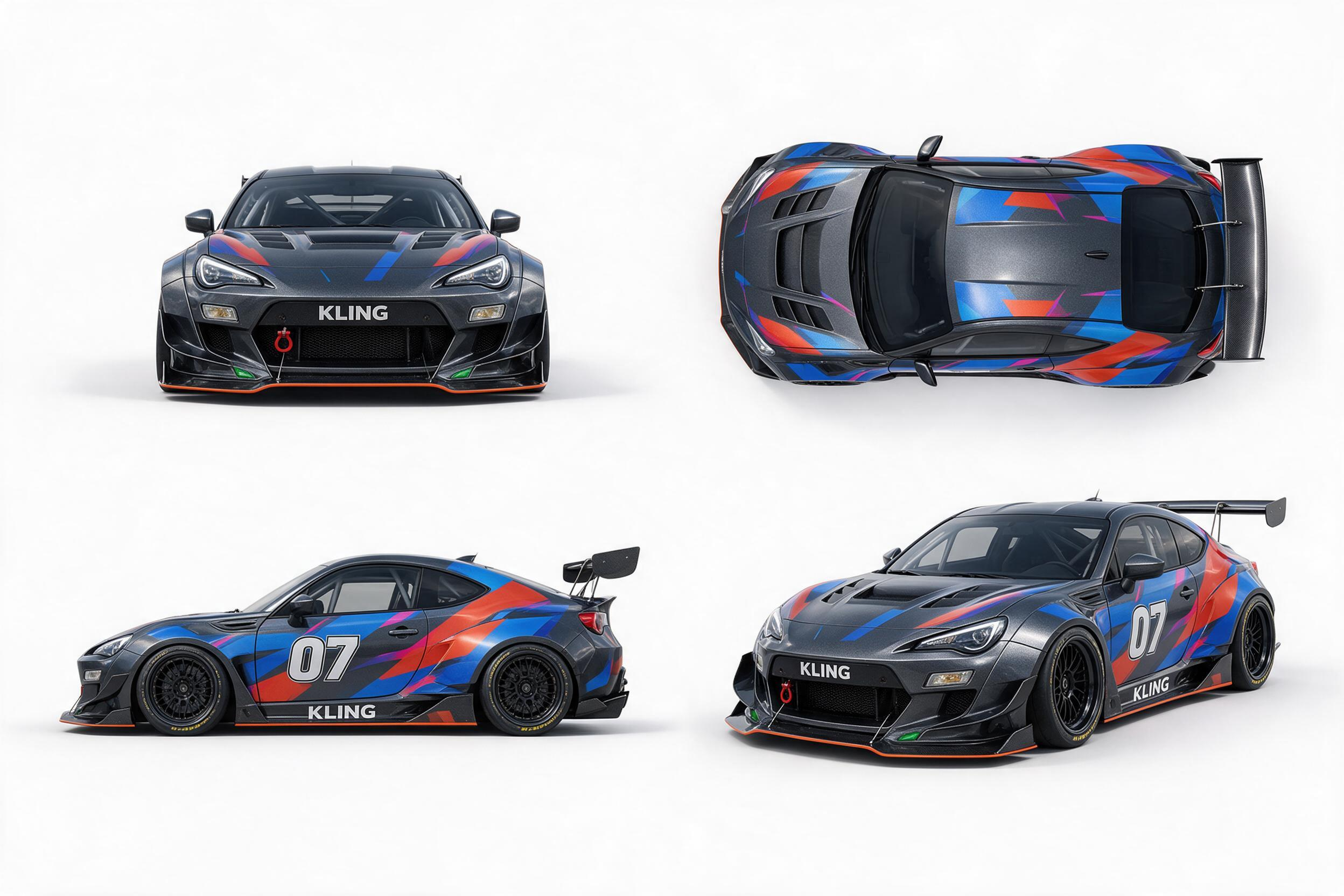

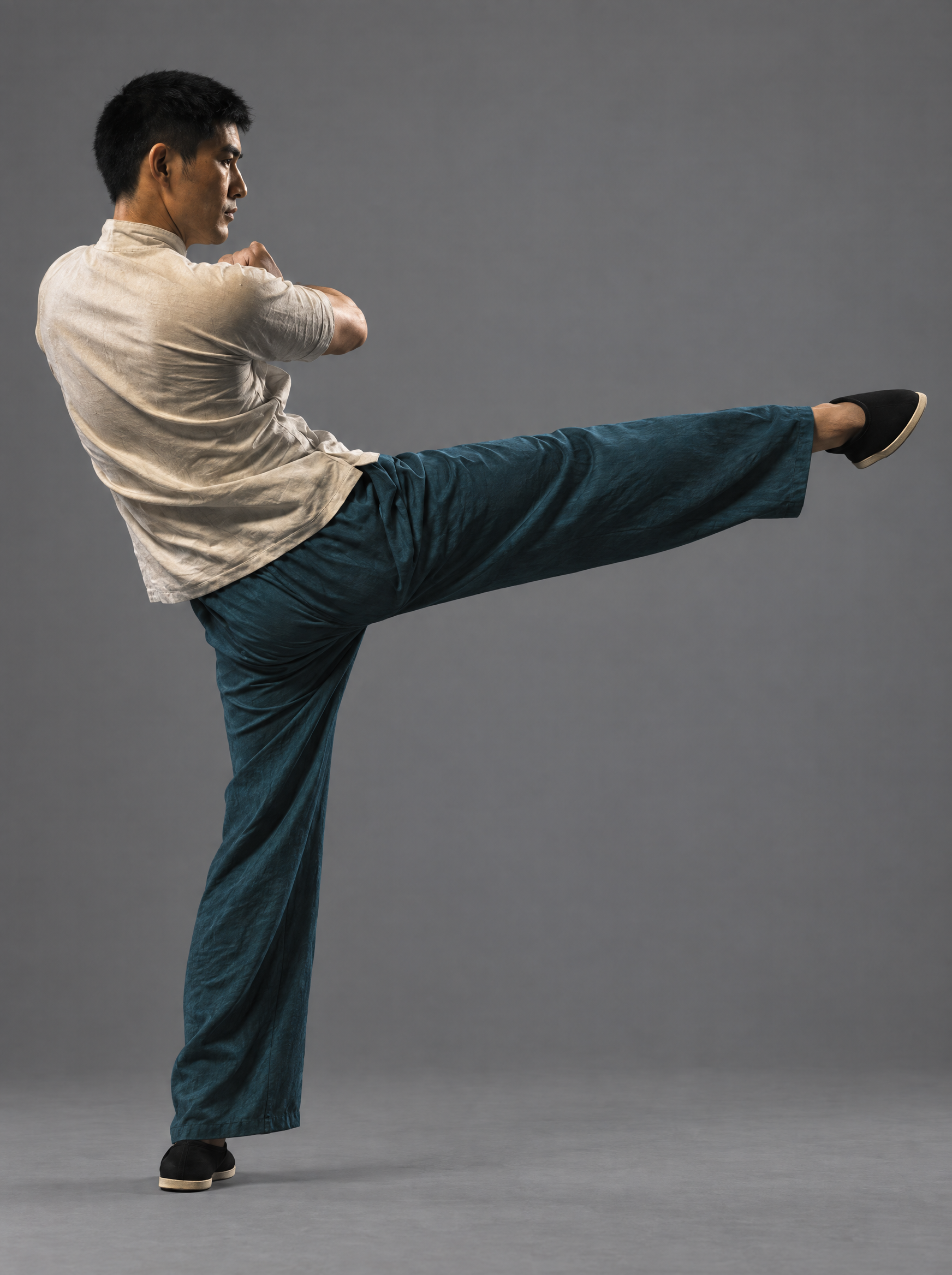
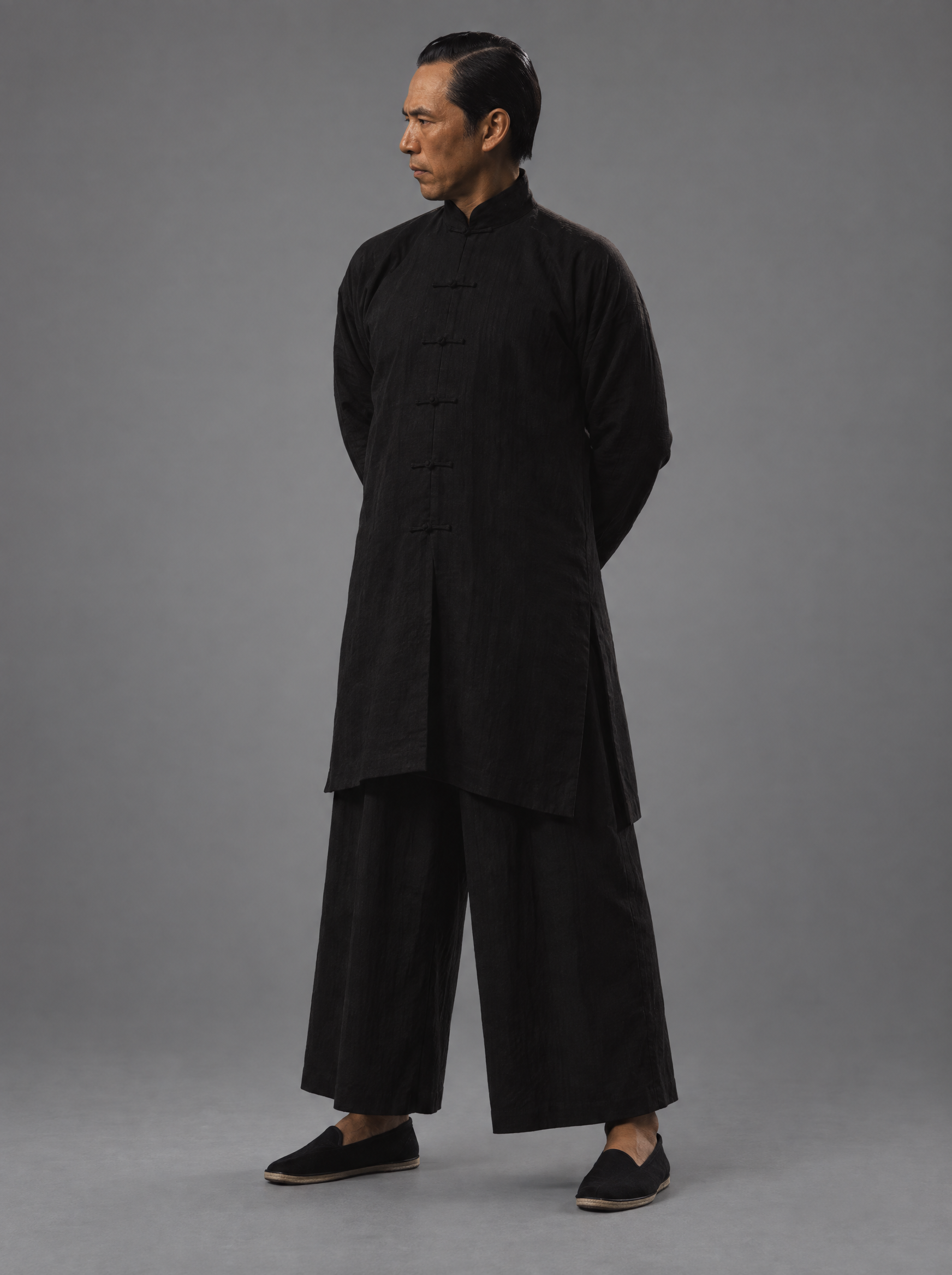
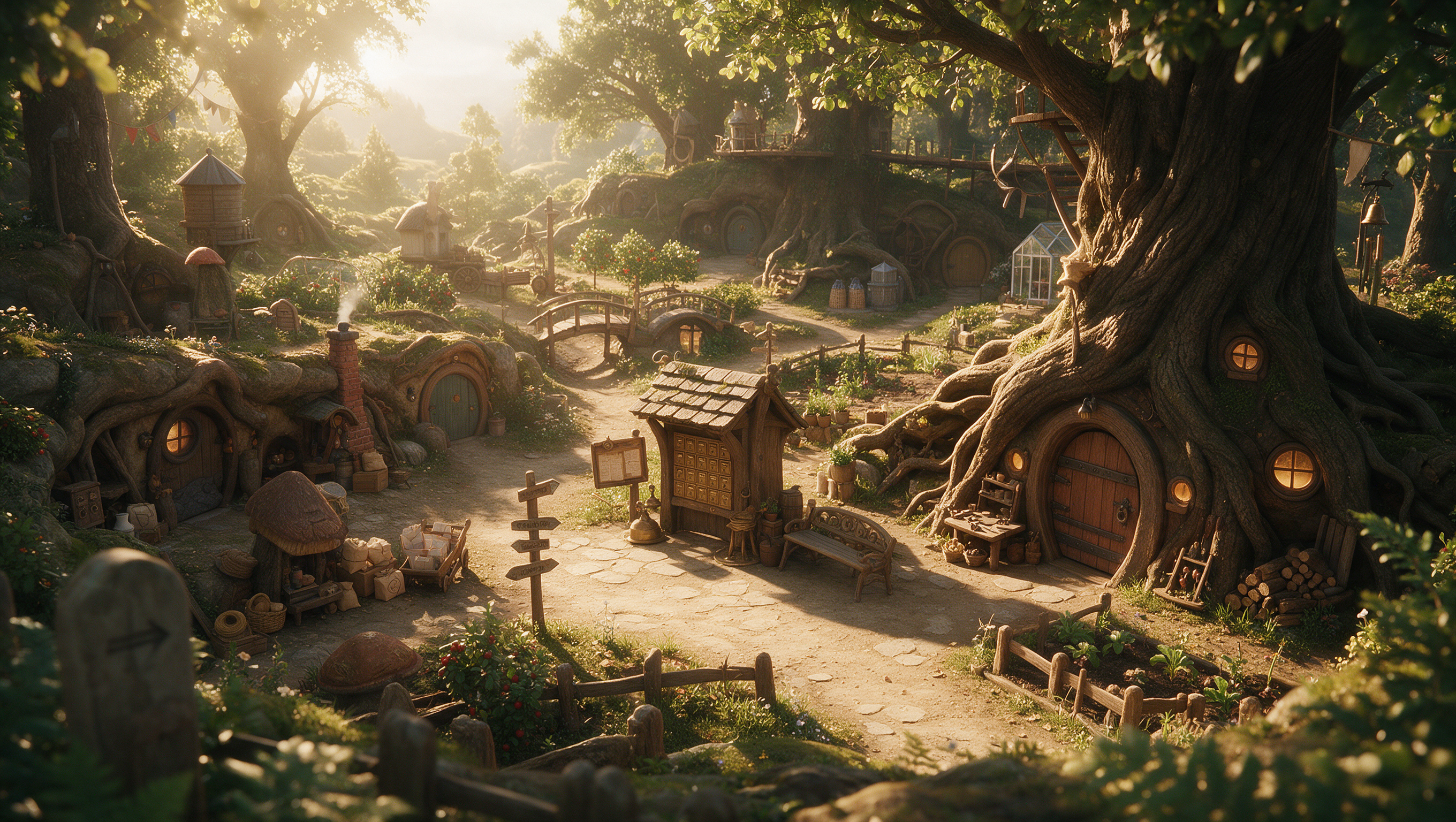
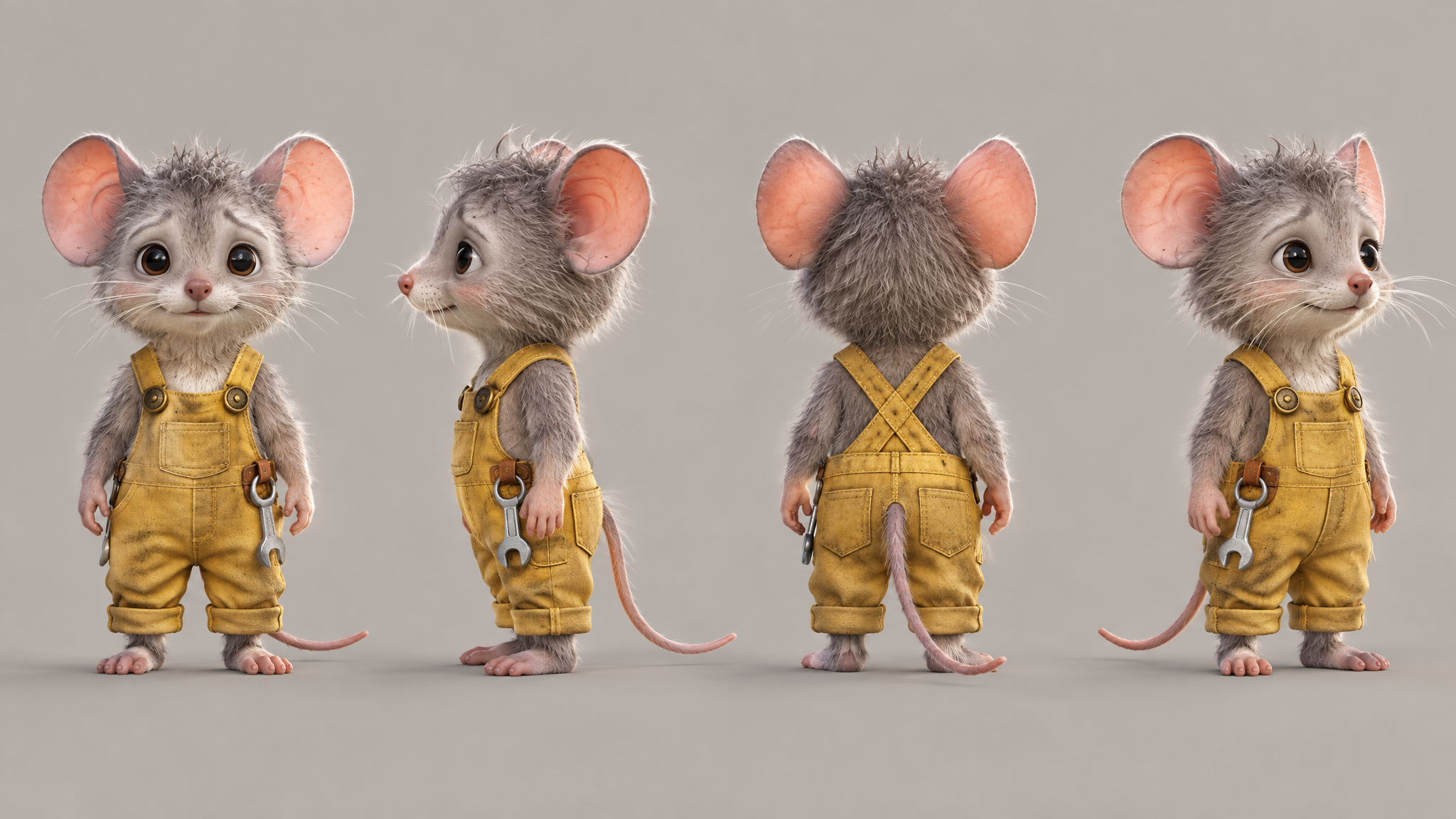
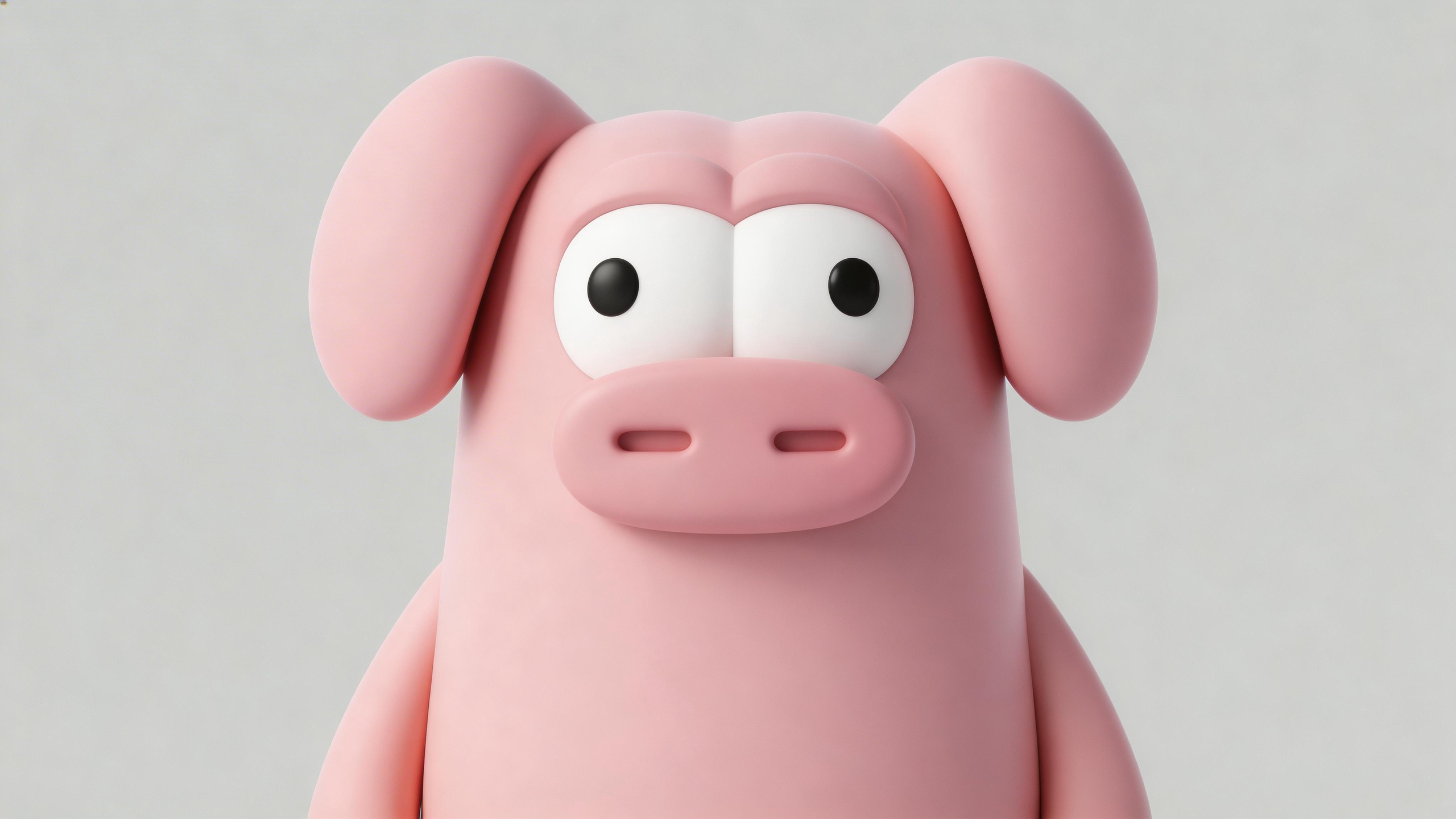
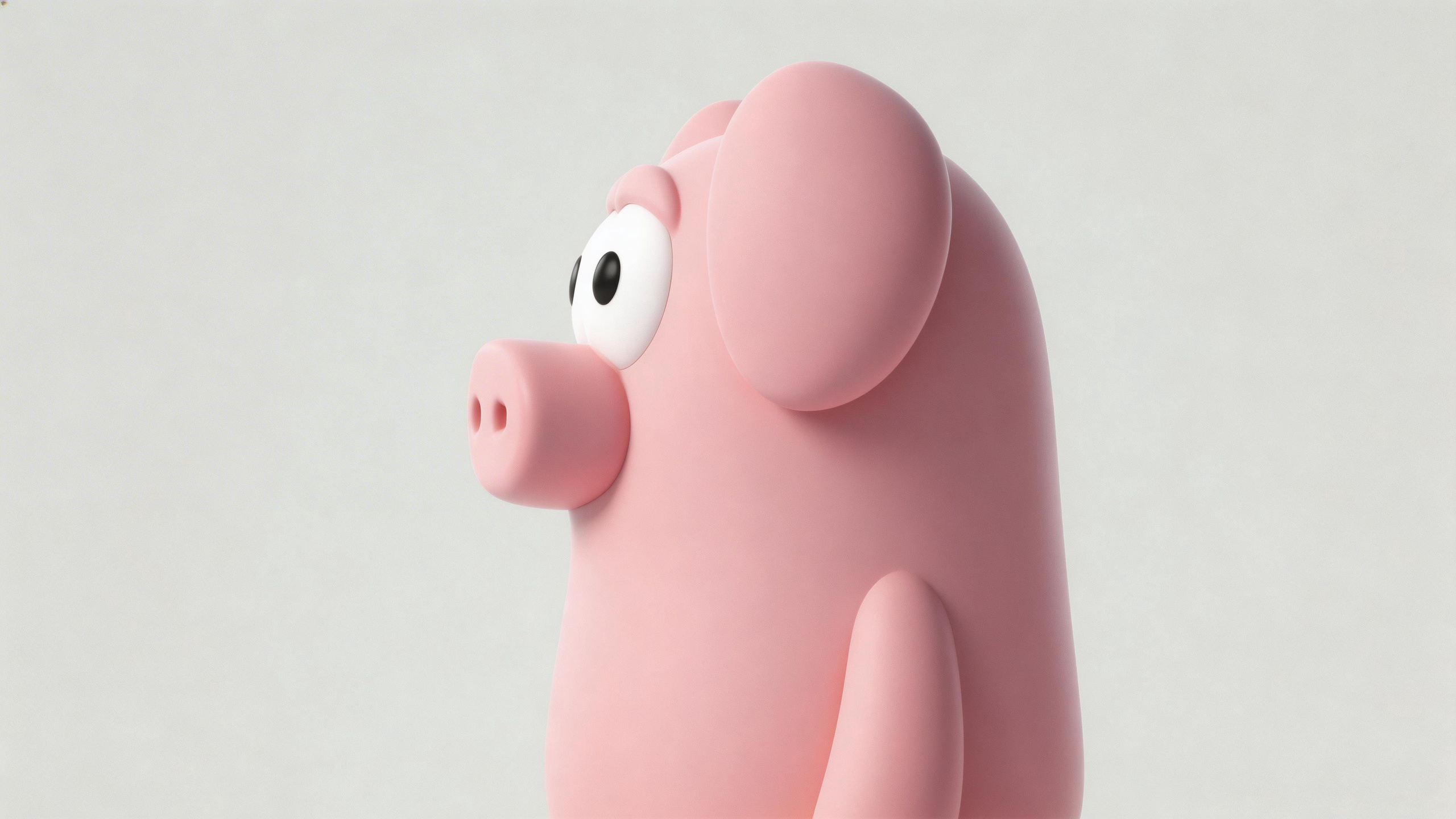
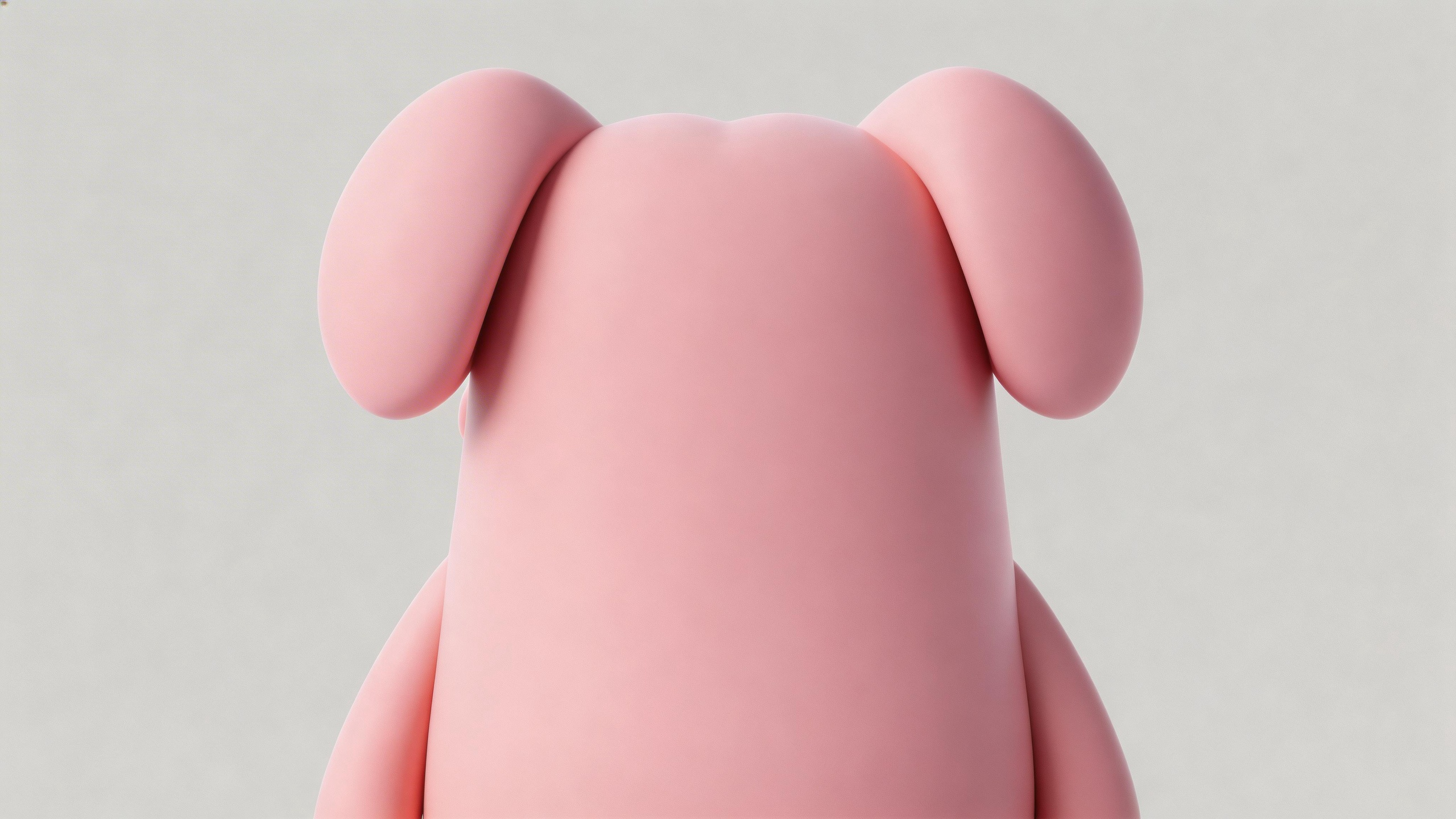
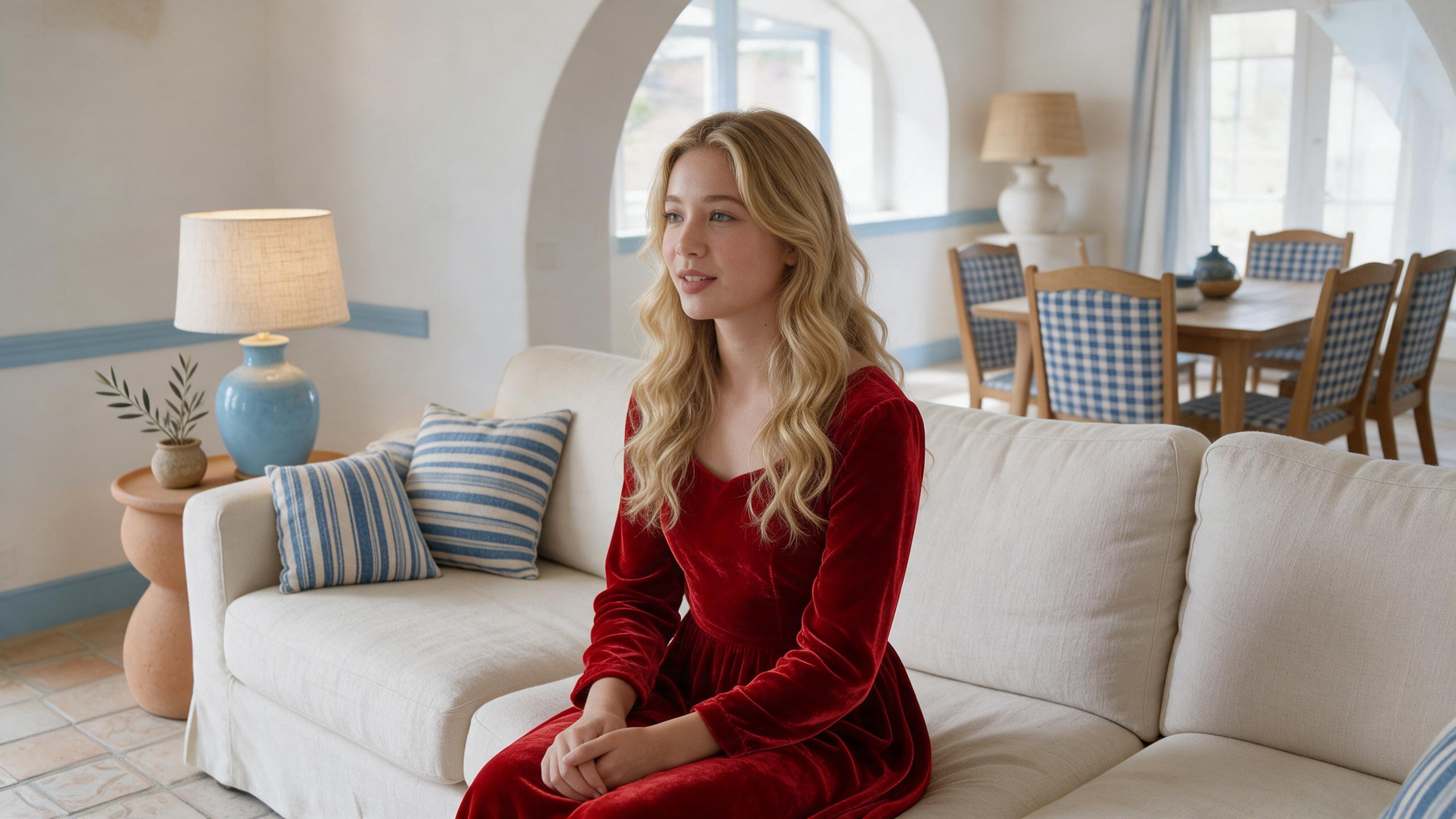
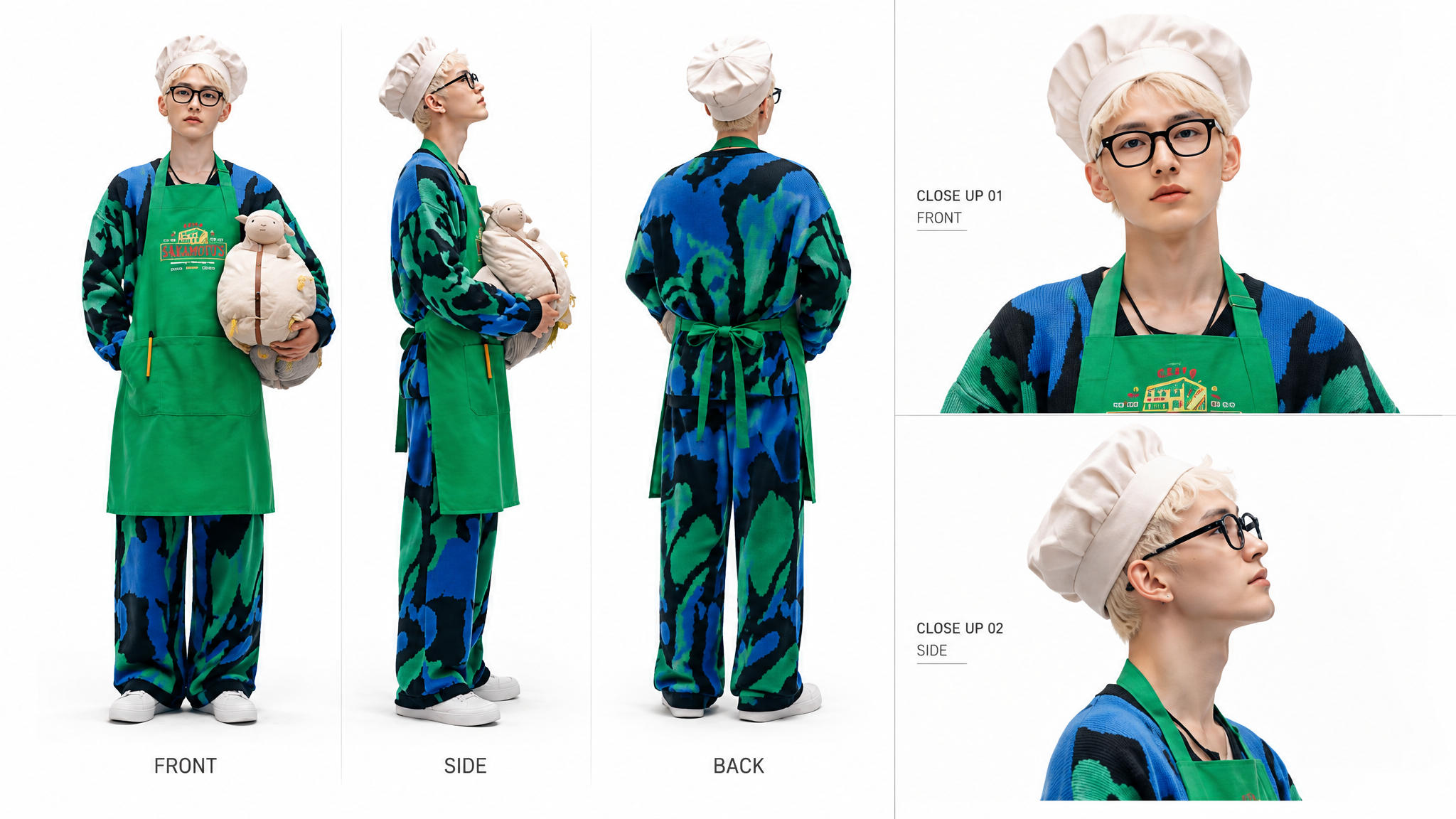
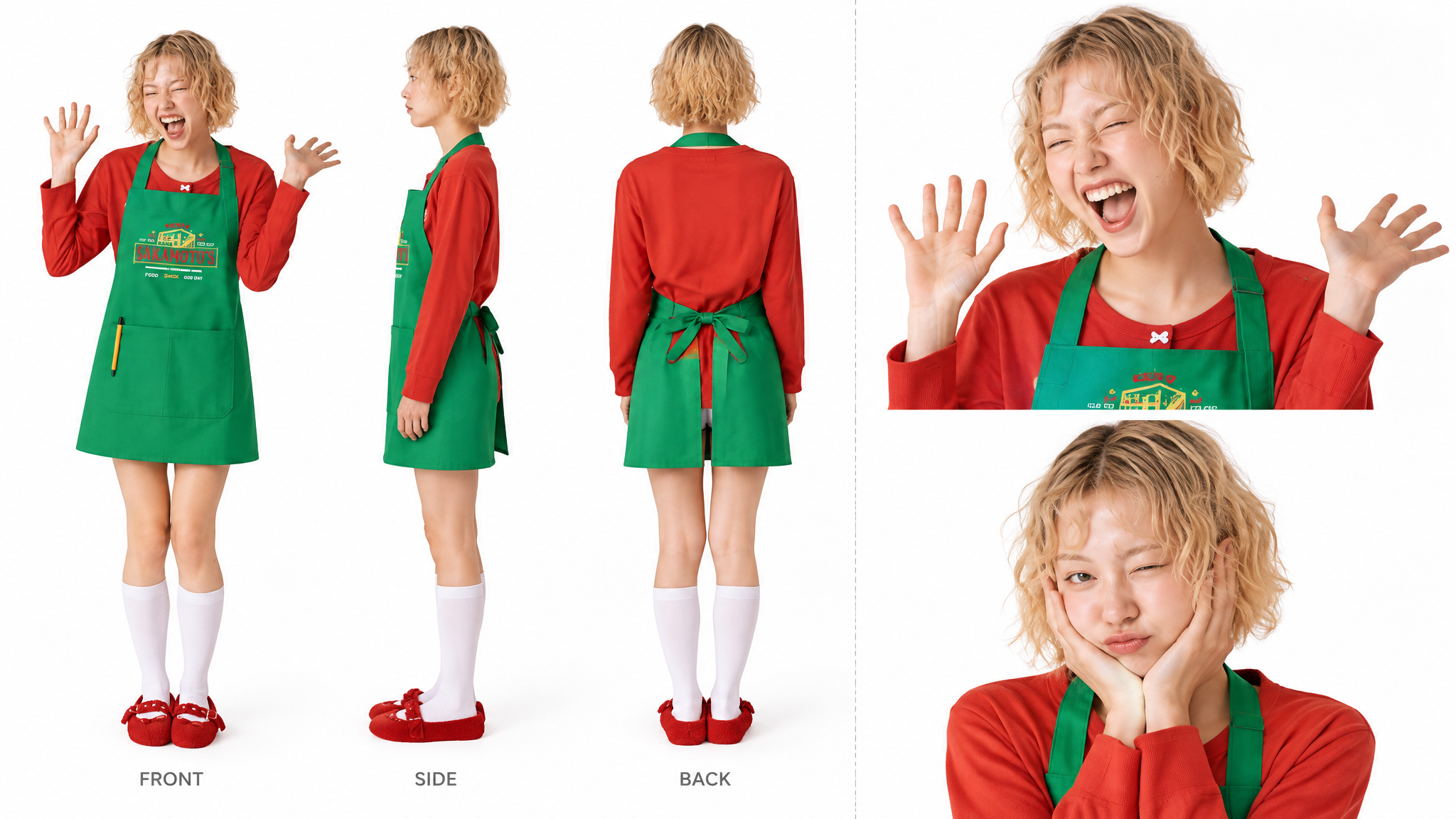
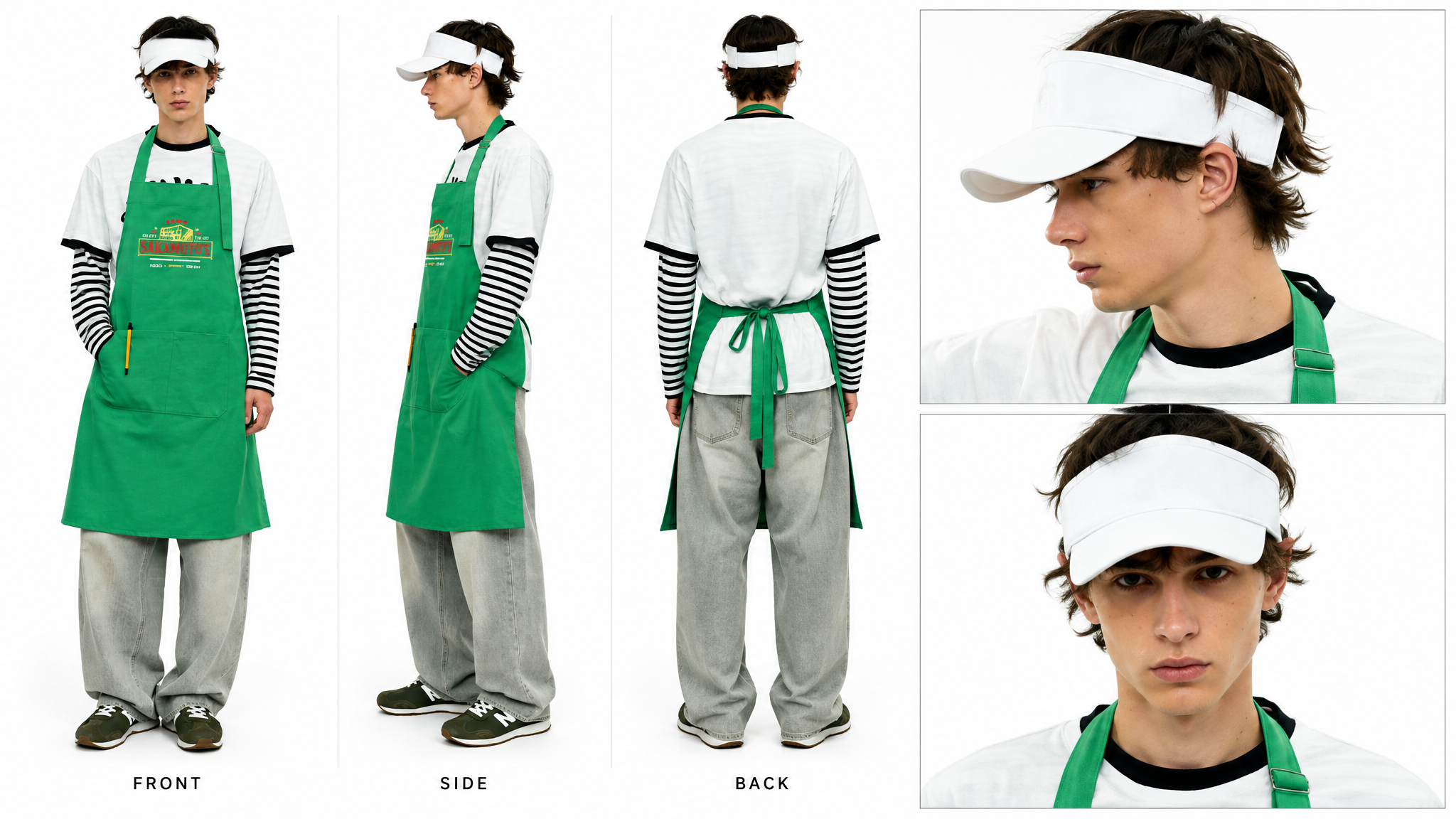
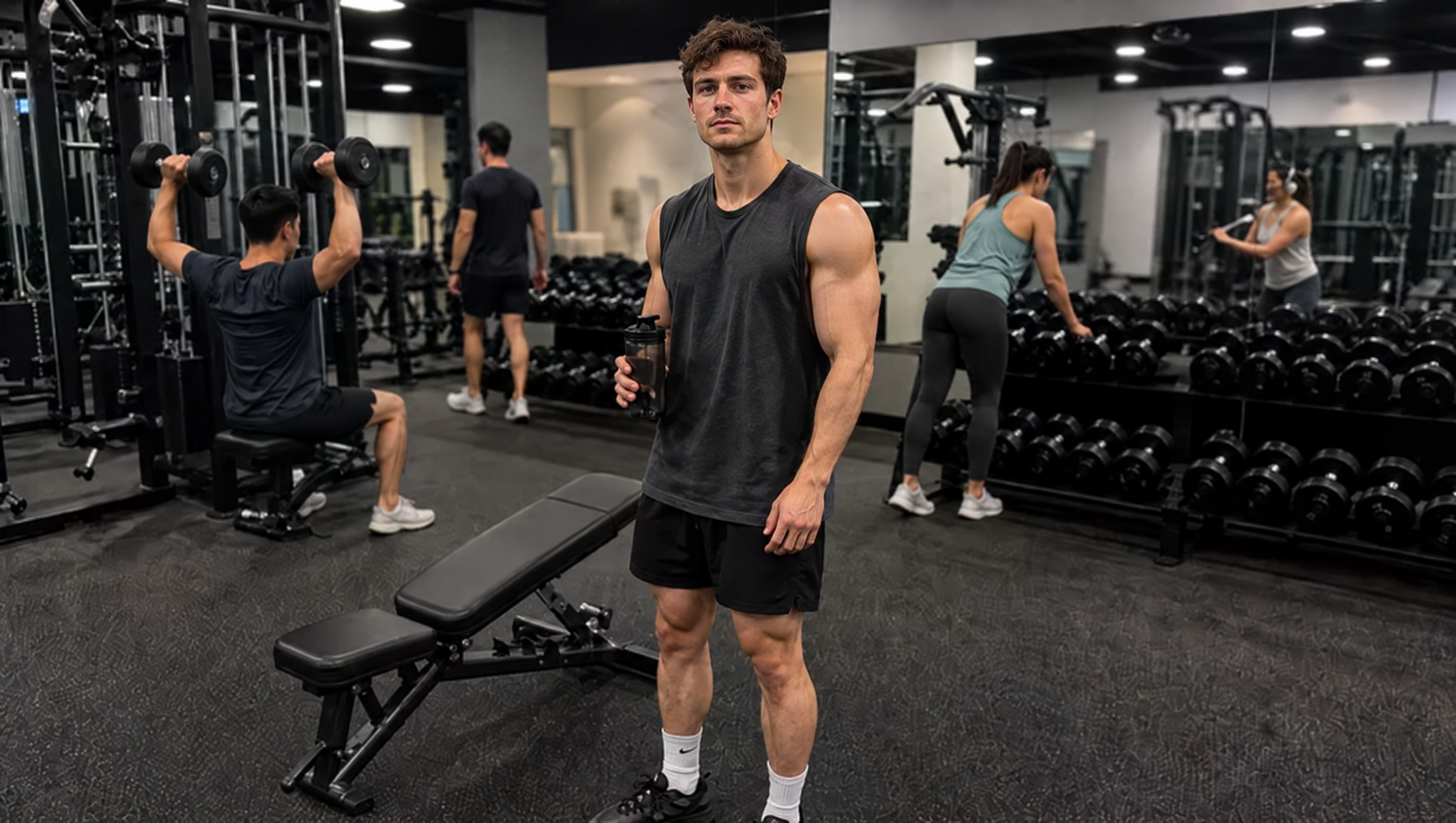

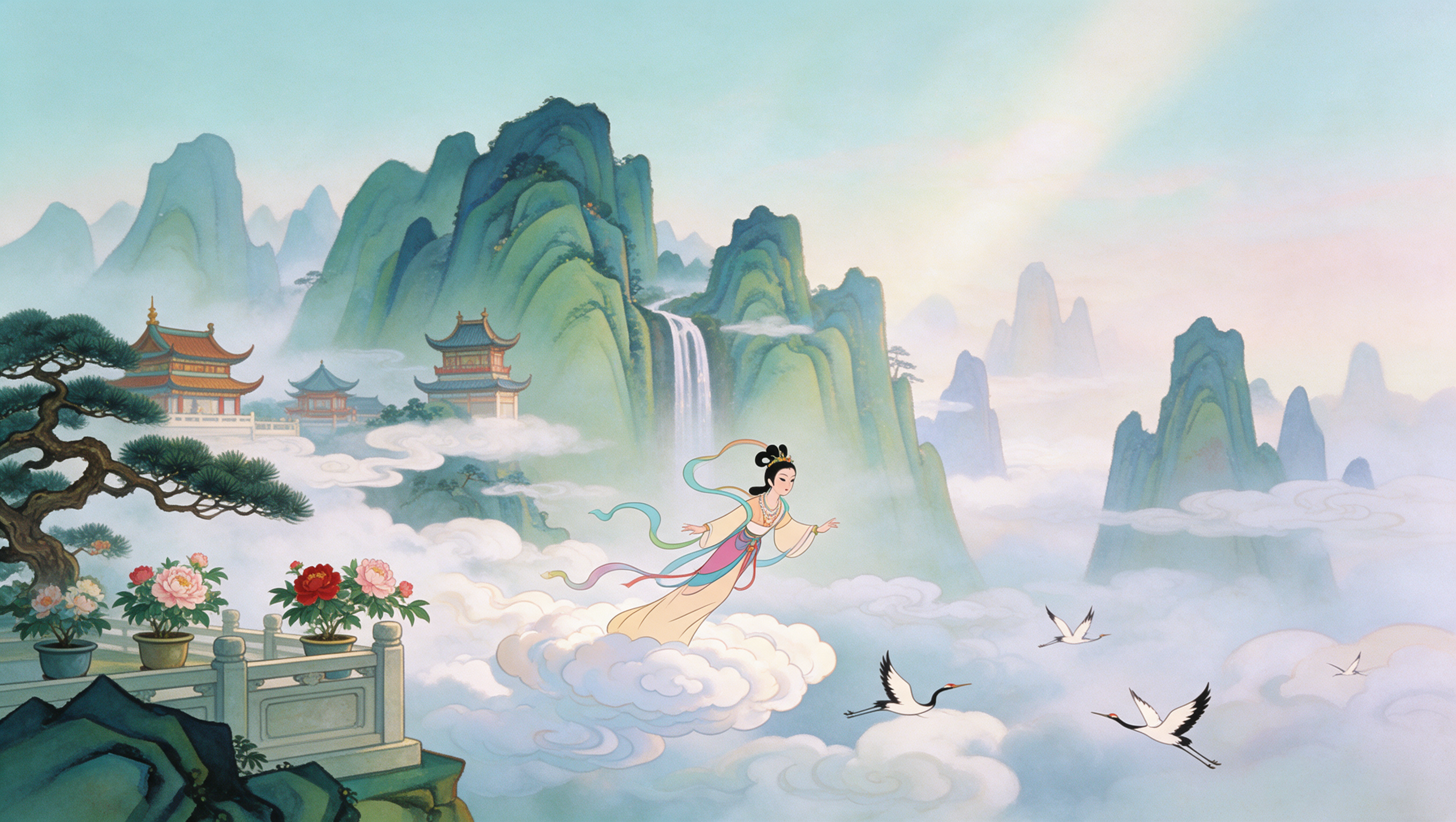
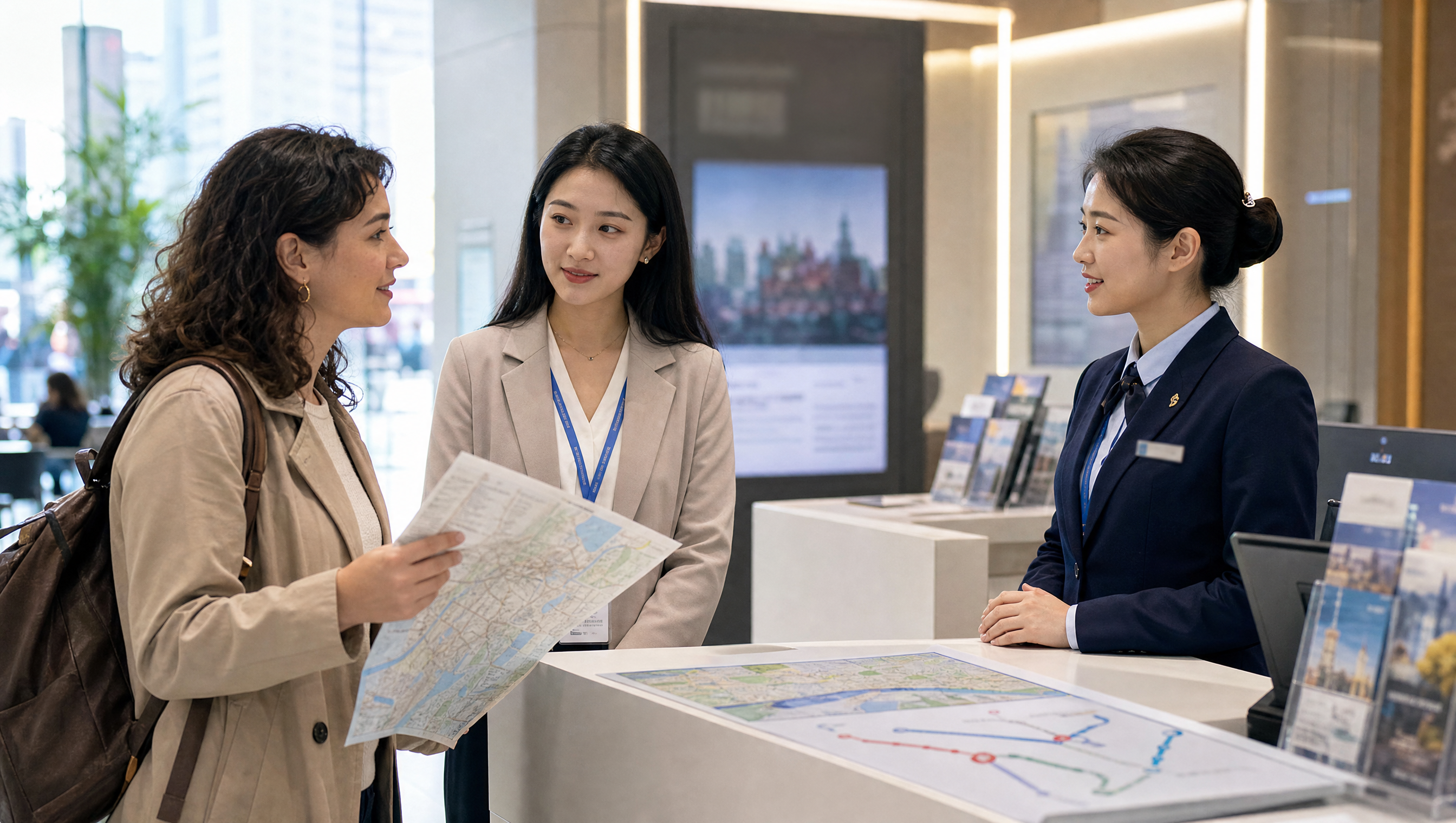

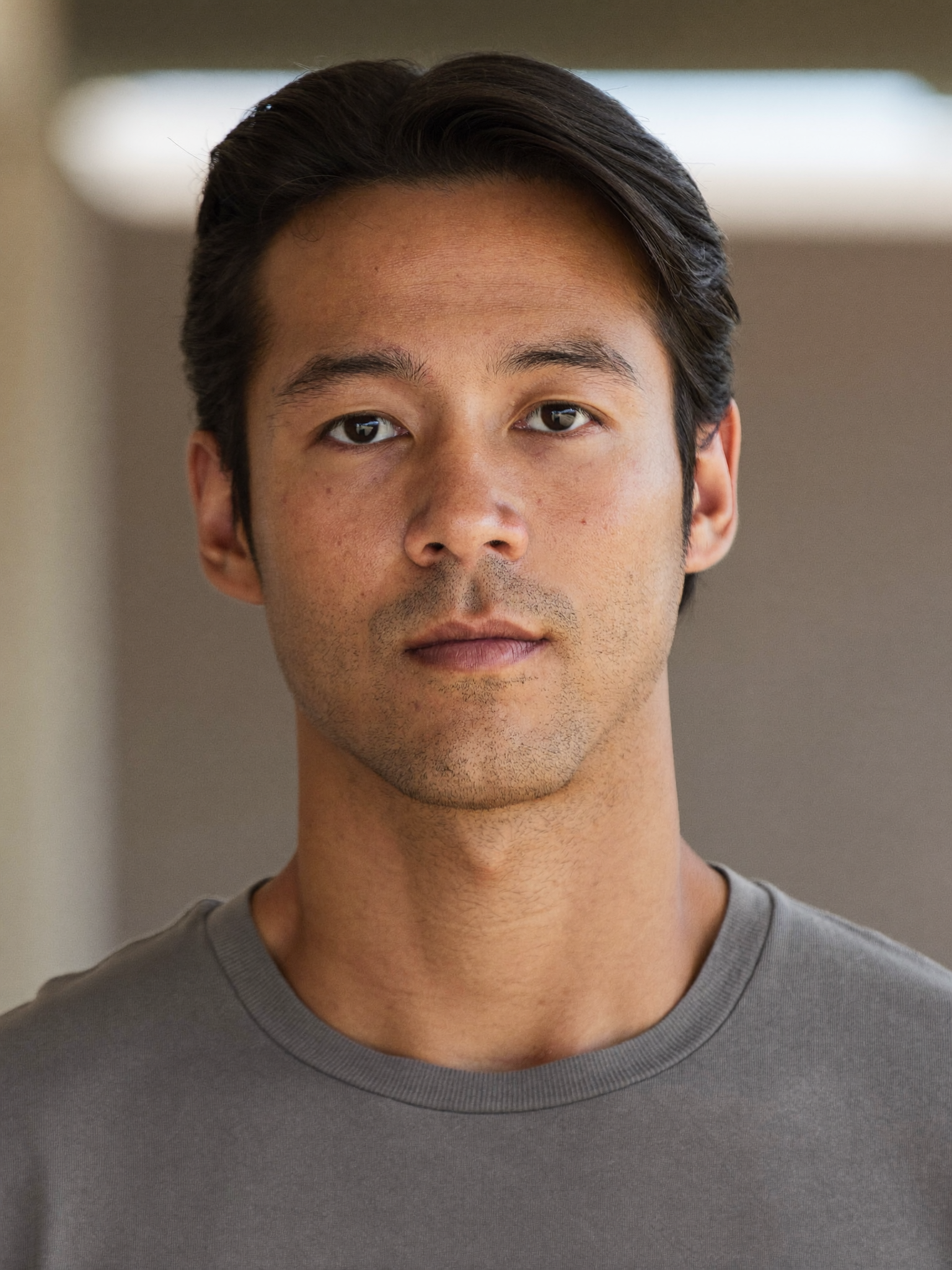
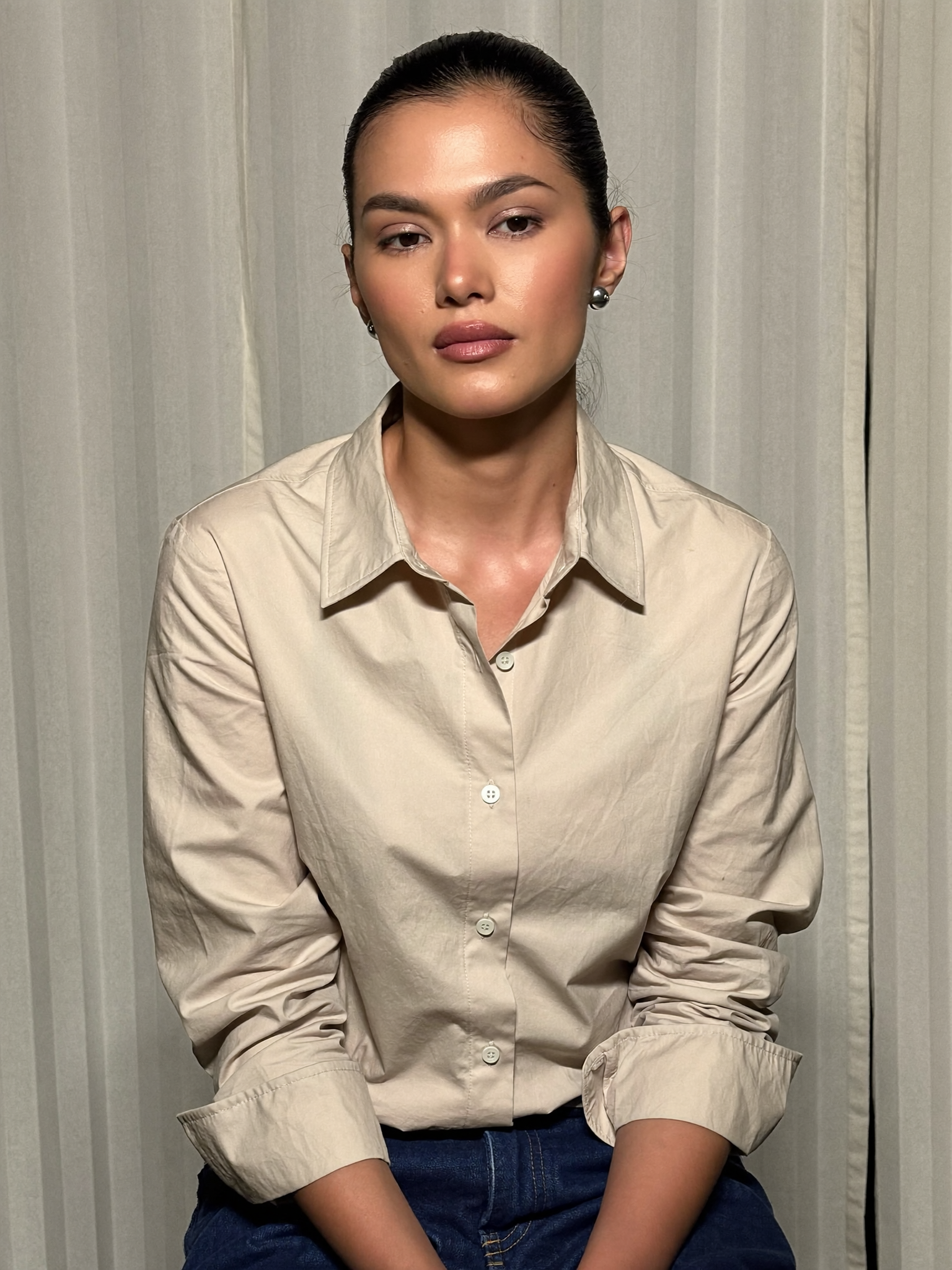


 Watch example
 Kling 4.0